Overview
Blender is a free and open-source suite dedicated to 3D creation, animation, visual effects, and digital-image production.
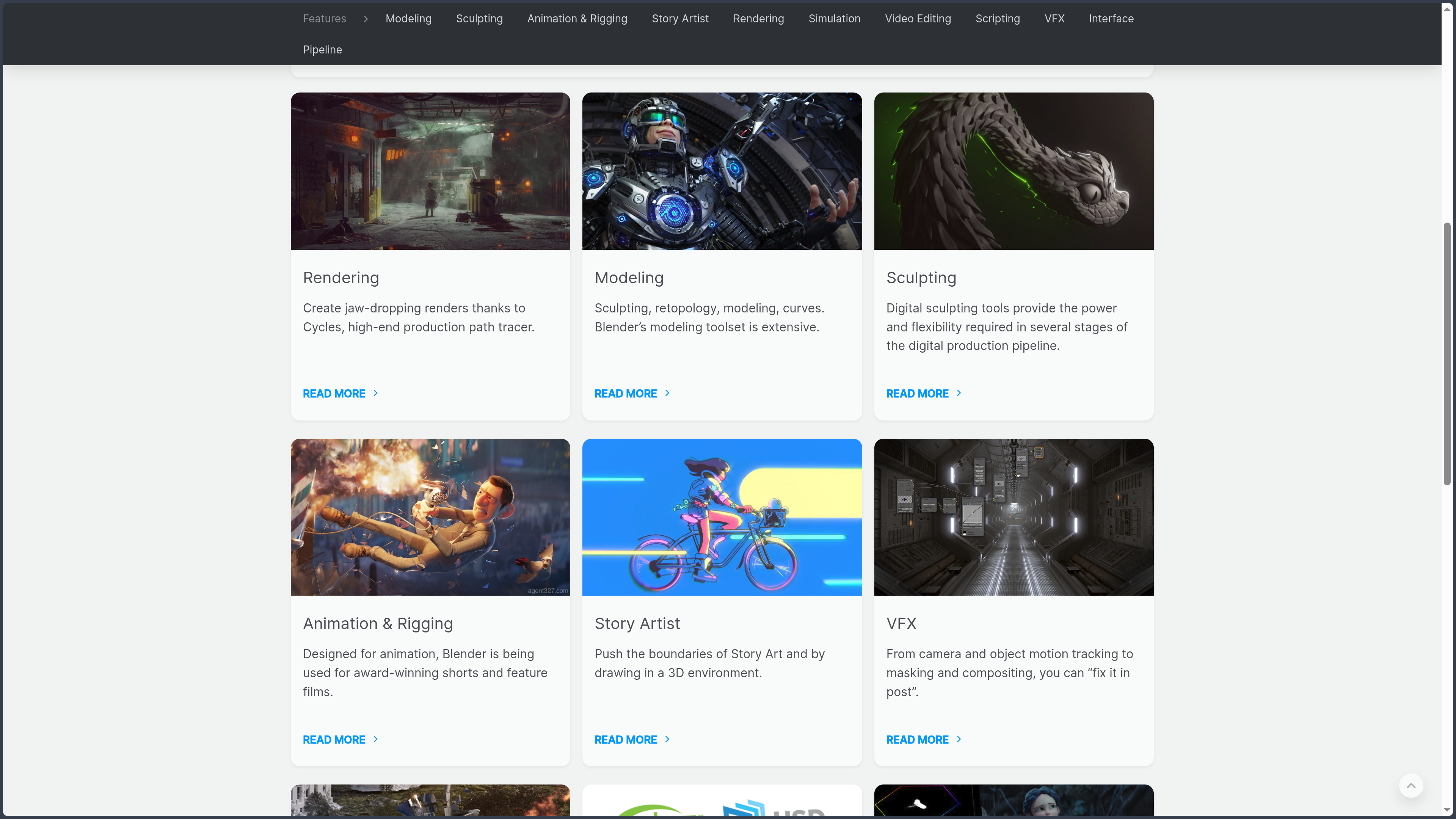
The software combines modelling, sculpting, texturing, materials, rigging, animation, physical simulations, rendering, compositing, motion tracking, video editing, and 2D drawing with Grease Pencil within a single application.
This particularly broad coverage makes it possible to take a project from its earliest research stages through to final export without systematically changing software at every step.
Blender is developed by the Blender Foundation together with an international community of developers, artists, studios, translators, trainers, and contributors.
Its history dates back to the 1990s. After the company that originally developed it closed, a community campaign made it possible to release its source code in 2002.
Since then, Blender has become one of the most important open-source projects in digital creation.
The software is used by individuals, schools, independent studios, visualisation teams, game developers, VFX artists, motion designers, and audiovisual productions.
It can be used to produce a still image, character, environment, object intended for 3D printing, video-game asset, title sequence, short film, 2D animation, simulation, or shot integrating digital elements into live-action footage.
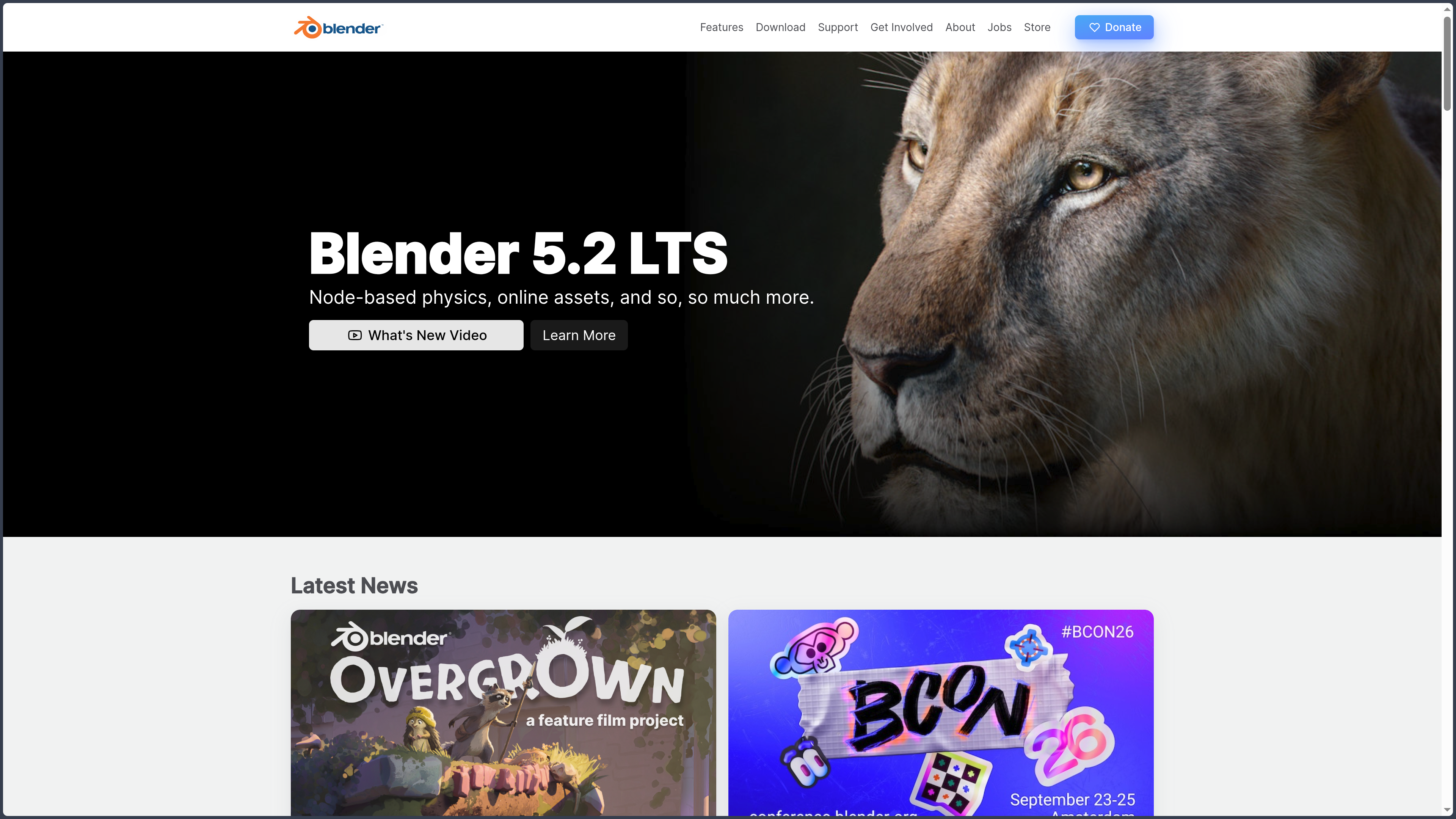
The stable version available at the time of the latest review is Blender 5.2 LTS, released in July 2026.
The LTS, or Long-Term Support, designation refers to a branch intended for projects that require stability. It receives fixes for two years without continually introducing new features or major API changes.
Standard stable versions are released several times a year and provide new features more quickly.
Alpha, Beta, Release Candidate, and daily builds allow users to test features under development, but they are not recommended for unique or unsaved production projects.
Blender runs on Windows, macOS, and Linux. x64 and ARM64 versions are available depending on the compatible system.
The software can be installed conventionally, run from a portable archive, or kept in an independent folder.
Several versions can coexist on the same machine. This is useful for preserving a production environment while testing a newer release.
Blender does not require an account to operate and can be used without an Internet connection.
Network access can be disabled in the preferences. Certain optional features, such as downloading extensions or using remote asset libraries, nevertheless require a connection when they are used.
The native .blend format preserves scenes, objects, materials, animations, nodes, render settings, and various project data.
Textures, fonts, videos, and other external resources can be linked from the disk or embedded directly in the file using Pack Resources.
Modelling is mainly based on meshes, but Blender also supports curves, surfaces, text, volumes, metaballs, point clouds, and Grease Pencil objects.
Objects can be transformed directly or modified non-destructively through a modifier stack.
Geometry Nodes extends this approach with a visual-programming environment for procedural modelling, instances, effects, object distribution, and the creation of reusable tools.
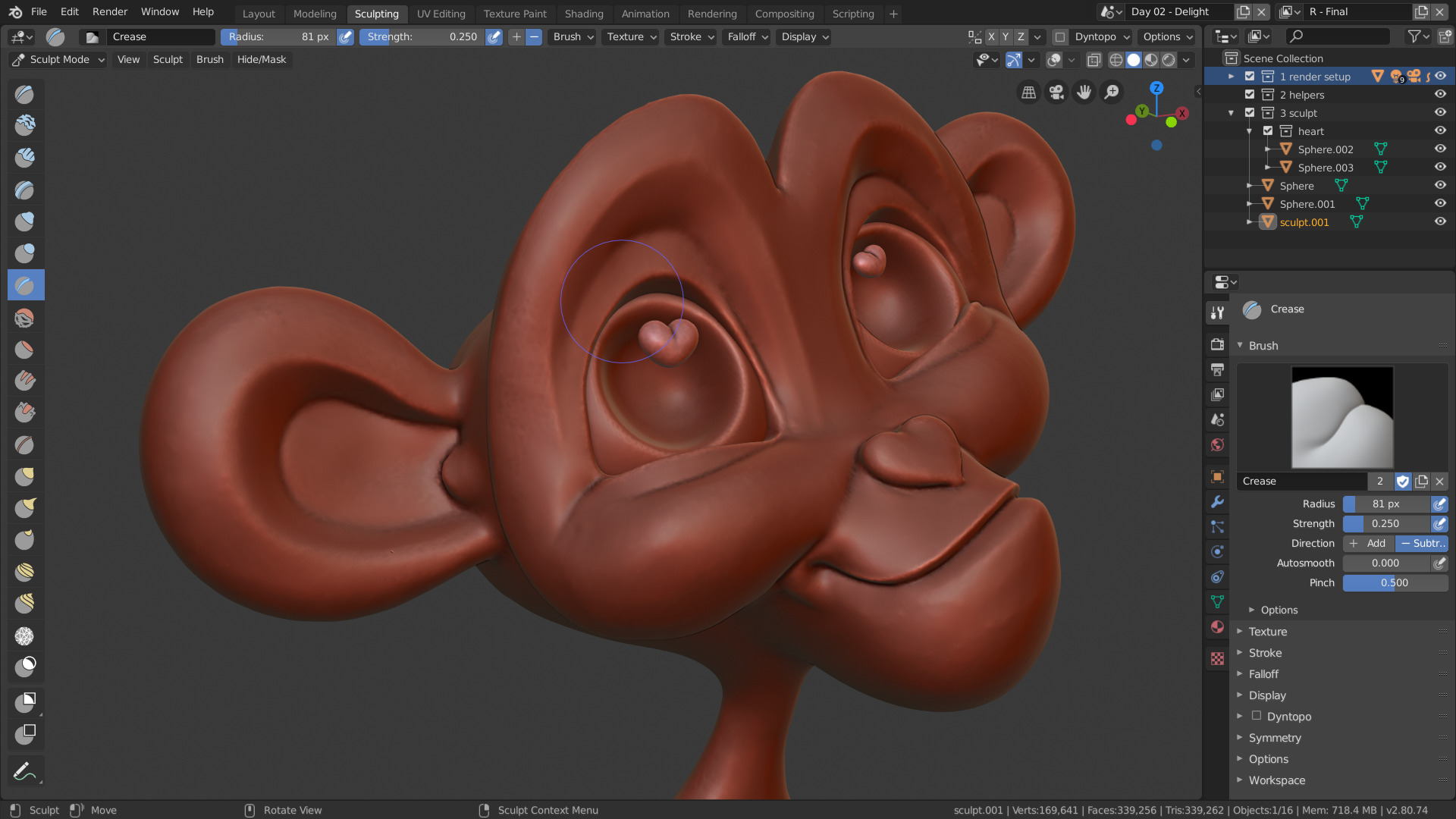
Sculpting provides brushes, masks, Face Sets, remeshing, and detail tools suited to characters, creatures, organic environments, and concepts.
Painting tools can work on textures, vertex colours, rigging weights, and various attributes.
The Cycles render engine uses path tracing to produce physically realistic images on the processor or graphics card.
EEVEE prioritises real-time rendering and speed while supporting the PBR materials, shadows, volumes, reflections, and effects required by many projects.
The Workbench engine provides a fast display intended for modelling, previews, turntables, and technical renders.
Blender also includes a node-based material editor, image compositor, video editor, camera-tracking system, and several physical-simulation tools.
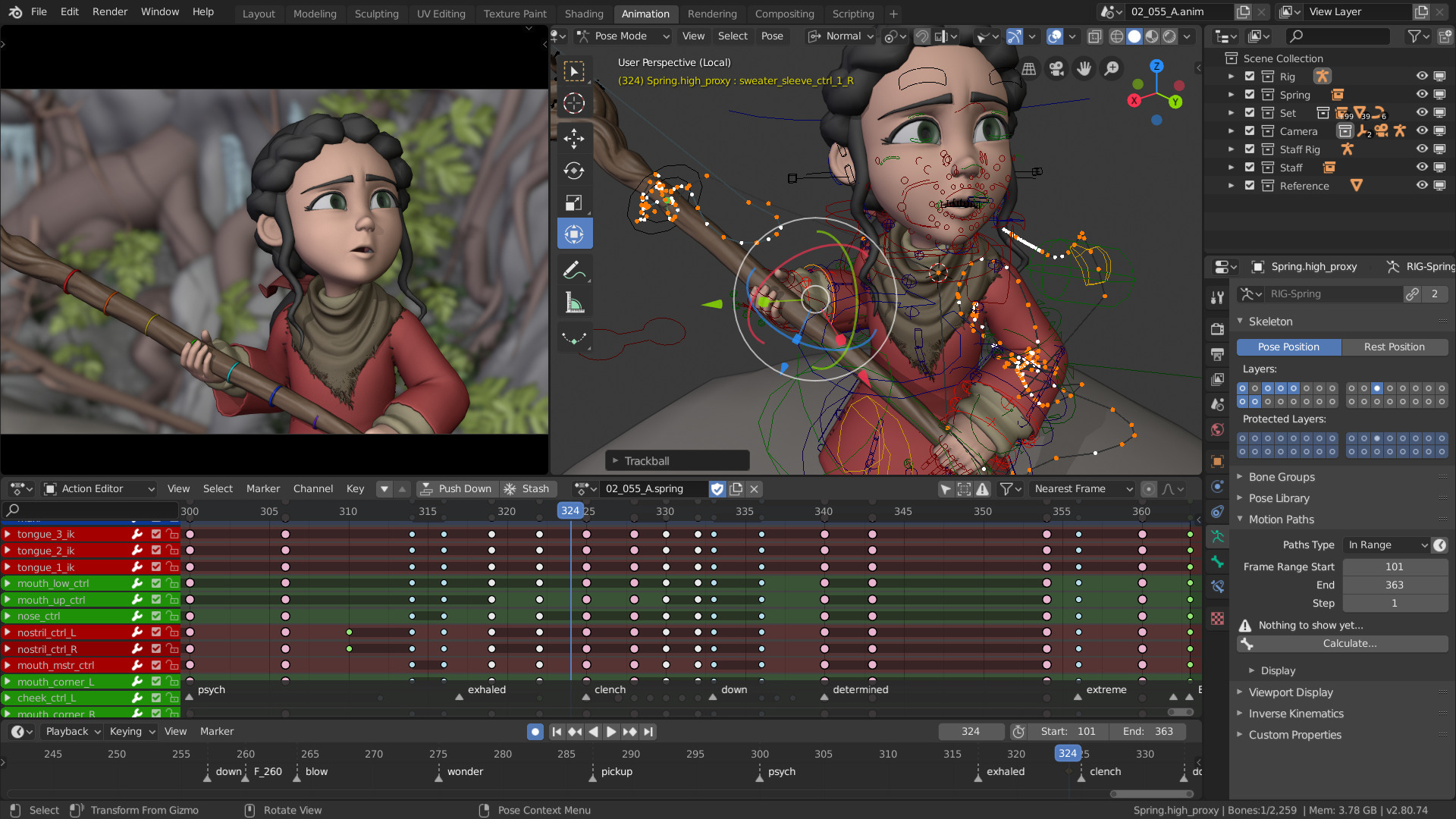
Grease Pencil makes it possible to draw directly in 3D space. It can be used for traditional animation, storyboarding, motion design, annotations, cut-out animation, and combining 2D drawings with 3D environments.
Blender’s interface is organised into editors and workspaces. A single window can display the 3D Viewport, Timeline, Properties, Shader Editor, Compositor, Video Sequencer, or another tool.
Each area can be transformed into another editor, split, merged, and adapted to the user’s workflow.
The Python API can automate almost every area of the software, create tools, add panels, process files in batches, or integrate Blender into a pipeline.
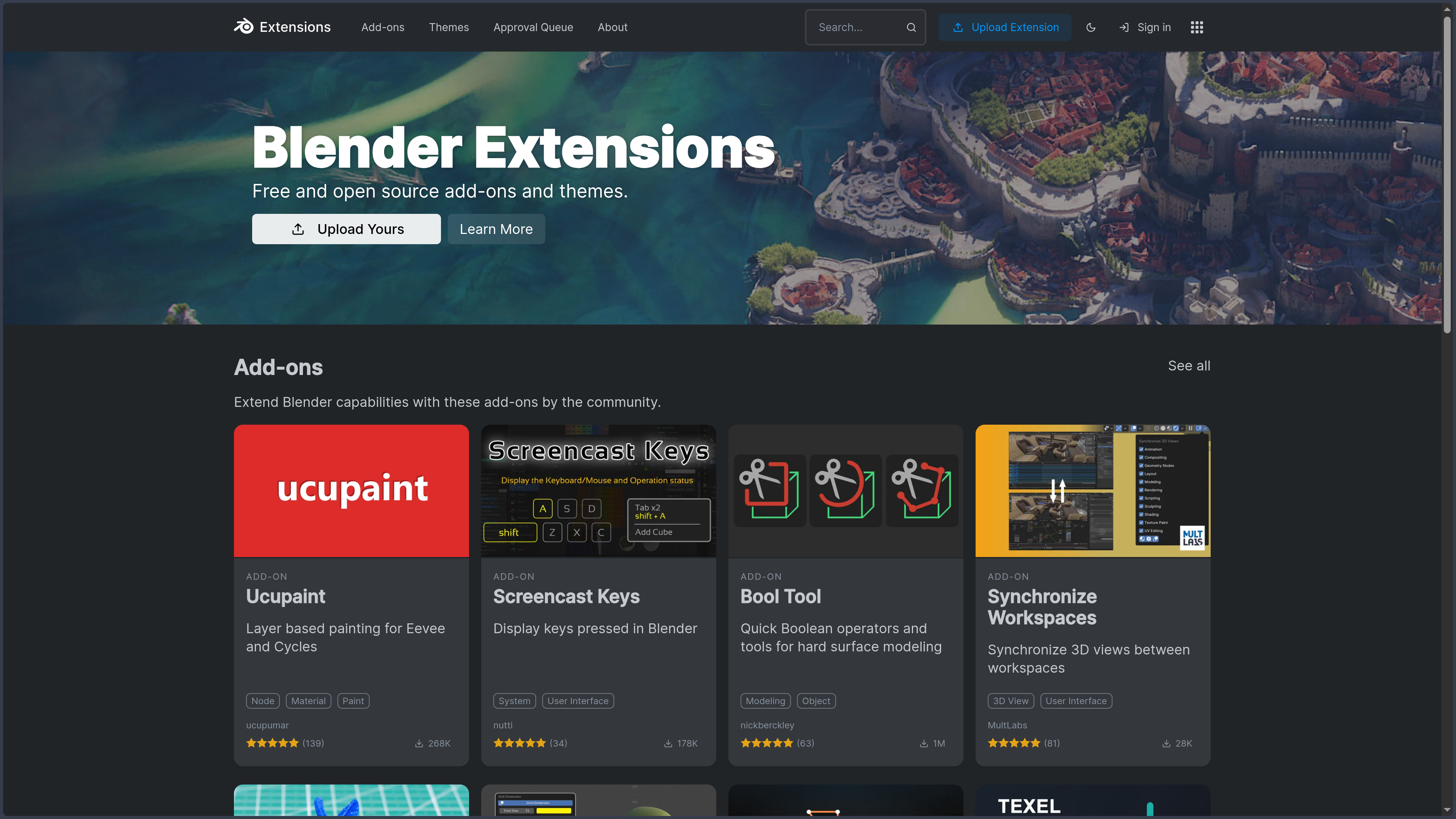
The Extensions system makes it possible to download, install, and update add-ons and themes from within Blender or from repositories configured by the user.
The official Blender Extensions platform hosts free and open-source extensions. Commercial add-ons are also available through external marketplaces.
Blender itself is distributed free of charge under the GNU GPL. There is no paid edition offering additional features or removing limitations.
Works produced with Blender do not automatically become open source. Users may create and sell images, animations, models, or games according to the licences of the resources they use.
Blender Studio is a service separate from the software. Its subscription finances open productions and provides access to training, assets, rigs, working files, and production logs.
These resources can be useful for learning professional workflows, but they are not required to use Blender.
Features
-
Integrated 3D suite: brings together most production stages within a single application.
-
Cross-platform interface: consistent environment on Windows, macOS, and Linux.
-
Portable installation: run from a folder or external drive without a complete system installation.
-
Offline use: local operation without an account or permanent connection.
-
Several simultaneous versions: retain different Blender branches on the same machine.
-
.blendfiles: native format storing scenes and project data. -
Resource packing: embed textures, fonts, and other external files in the document.
-
Autosave: create temporary backups at a configurable interval.
-
Recover Last Session: recover the last automatically saved session.
-
Save Incremental: create successive versions of a file.
-
Undo History: retain a history of multiple reversible operations.
-
Editor-based interface: transform each screen area into a specialised editor.
-
Workspaces: configurations dedicated to Layout, Modeling, Sculpting, UV Editing, Shading, Animation, Rendering, Compositing, or Geometry Nodes.
-
Custom workspace creation: save a layout adapted to a project or profession.
-
Multiple displays: open additional windows to distribute editors.
-
Customisable themes: modify colours and many visual elements.
-
Configurable shortcuts: fully adapt the keymap.
-
Industry Compatible Keymap: configuration that brings certain shortcuts closer to those of other 3D applications.
-
Operator Search: find a command by name.
-
Quick Favorites: personal menu gathering frequently used commands.
-
Pie Menus: circular menus accessed through shortcuts.
-
Collections: organise scene objects into nested groups.
-
View Layers: create several logical views and render configurations for a scene.
-
Outliner: hierarchically manage objects, collections, and data.
-
Local View: temporarily isolate a selection.
-
Scene Statistics: display the number of objects, vertices, faces, and other information.
-
Configurable units: use metric, imperial, or custom systems.
-
Numerical precision: directly enter positions, dimensions, rotations, and scales.
-
Global and local transformations: move elements according to several coordinate spaces.
-
Customisable pivot: transform around the origin, 3D Cursor, selection, or active element.
-
3D Cursor: placement, rotation, or reference point within the scene.
-
Snapping: snap to vertices, edges, faces, volumes, grids, or increments.
-
Proportional Editing: progressively transform neighbouring elements.
-
Polygon modelling: create and edit meshes composed of vertices, edges, and faces.
-
3D primitives: cubes, spheres, cylinders, cones, planes, toruses, and other starting shapes.
-
Extrude: create new geometry from a selection.
-
Inset: insert contours within faces.
-
Bevel: create chamfers and rounded edges.
-
Loop Cut: add edge loops to topology.
-
Knife: manually cut faces.
-
Bisect: cut an object along a plane.
-
Bridge Edge Loops: connect several loops.
-
Grid Fill: structurally fill an opening.
-
Merge: combine vertices.
-
Rip: locally separate vertices or edges.
-
Spin: generate geometry through rotation.
-
Screw: create helical or revolved shapes.
-
Duplicate Linked: duplicate an object while sharing the same mesh data.
-
Custom normals: control surface orientation and smoothing.
-
Auto Smooth: automatically manage transitions between smooth and hard faces.
-
Shade Smooth by Angle: smooth according to face angle.
-
Limited Dissolve: reduce coplanar geometry.
-
Tris to Quads: attempt to reconstruct quadrilaterals from triangles.
-
Boolean: perform union, difference, or intersection between volumes.
-
Subdivision Surface: non-destructively smooth a mesh.
-
Mirror: symmetrically duplicate geometry.
-
Array: repeat geometry linearly, radially, or according to an object.
-
Solidify: add thickness to a surface.
-
Shrinkwrap: project an object onto another surface.
-
Lattice: globally deform an object with a cage.
-
Curve Modifier: deform an object along a curve.
-
Simple Deform: twist, bend, stretch, or taper geometry.
-
Displace: move geometry according to a texture or attribute.
-
Decimate: reduce the polygon count.
-
Remesh Modifier: reconstruct uniform topology.
-
Weighted Normal: visually improve normals on hard-surface objects.
-
Geometry Nodes Modifier: apply a procedural system to an object.
-
Stackable modifiers: combine several non-destructive operations.
-
Bézier and NURBS curves: model profiles, cables, roads, hair, and continuous shapes.
-
Surface objects: use NURBS surfaces.
-
Metaballs: create organic volumes that automatically merge.
-
Text objects: generate and extrude 3D typography.
-
Conversion between object types: turn curves, text, and other structures into meshes.
-
Manual retopology: rebuild clean topology over a sculpture.
-
Surface snapping: position new vertices on a reference object.
-
Poly Build: rapidly create faces for retopology.
-
Modelling symmetry: duplicate modifications across one or more axes.
-
Topology statistics: monitor triangle and face counts.
-
UV Editing: unfold a 3D surface into a 2D space.
-
Unwrap: automatically calculate UV coordinates.
-
Smart UV Project: automatically divide selected objects.
-
Mark Seam: manually define unfolding seams.
-
Live Unwrap: update UVs while seams are modified.
-
UV Pack Islands: arrange islands within the available space.
-
UV Pinning: lock points during recalculation.
-
UDIM: organise textures across several high-resolution tiles.
-
Sculpt Mode: organically deform a mesh with brushes.
-
Draw Brush: add or remove volume.
-
Clay and Clay Strips: construct forms inspired by clay modelling.
-
Crease: create folds and grooves.
-
Inflate: locally inflate a surface.
-
Grab: move volumes.
-
Snake Hook: freely stretch geometry.
-
Smooth: reduce irregularities.
-
Flatten: create flatter surfaces.
-
Scrape: remove material from raised areas.
-
Pose Brush: approximately articulate a sculpture.
-
Elastic Deform: create flexible and extended deformations.
-
Cloth Brush: locally simulate textile behaviour while sculpting.
-
Multiresolution: sculpt across several subdivision levels.
-
Dynamic Topology: locally add or remove geometry according to detail level.
-
Voxel Remesh: uniformly reconstruct a sculpture according to a specified resolution.
-
QuadriFlow Remesh: automatically generate quadrilateral topology.
-
Face Sets: logically divide a sculpture into regions.
-
Sculpt masks: protect areas during modification.
-
Cavities and Automasking: limit brushes according to geometry, normals, or topology.
-
Sculpting symmetry: reproduce brush strokes across several axes.
-
Sculpt Layers with Shape Keys: preserve selected shape variations.
-
Texture Paint: paint directly onto a model’s textures.
-
Projection Painting: project textures or colours from the view.
-
Stencil: use an image as a stencil.
-
Clone Brush: copy areas of a texture.
-
Vertex Paint: paint colours onto vertices or attributes.
-
Weight Paint: visually define the influence of bones and deformations.
-
Brush Assets: save and reuse brushes as assets.
-
Asset Shelf: access brushes and other resources from the current working context.
-
Shader Editor: construct materials with nodes.
-
Principled BSDF: general-purpose PBR shader for many materials.
-
Diffuse, Glossy, Glass, and Emission: specialised material components.
-
Volumes: create smoke, fog, clouds, and volumetric effects.
-
Subsurface Scattering: simulate light passing through skin or selected materials.
-
Transmission: create glass, liquids, and transparent materials.
-
Coat and Sheen: add layers for varnish, fabric, and complex surfaces.
-
Normal Maps: simulate surface details without additional geometry.
-
Bump Maps: alter lighting according to a texture.
-
True displacement: modify the rendered surface in compatible configurations.
-
Image Textures: use images within materials.
-
Procedural textures: Noise, Voronoi, historical Musgrave, Wave, Gradient, and other generators.
-
Mapping Nodes: control texture scale, rotation, and projection.
-
Node Groups: create reusable materials and systems.
-
Material Slots: apply several materials to the same object.
-
Material Preview: rapidly preview materials with HDRI lighting.
-
Baking: convert lighting, normals, colours, or other information into textures.
-
Normal Baking: transfer details from a high-definition model to a lightweight version.
-
Ambient Occlusion Baking: generate an occlusion texture.
-
Emission and Combined Baking: export different rendering information.
-
Color Management: consistently manage colour spaces and transformations.
-
AgX: display transform suited to high-dynamic-range values.
-
OpenColorIO: integrate Blender into configured colour pipelines.
-
Cycles: physically based path-tracing render engine.
-
CPU rendering: calculate renders with the processor.
-
GPU rendering: accelerate rendering on several compatible graphics-card families.
-
CUDA: Cycles rendering on selected NVIDIA GPUs.
-
OptiX: NVIDIA acceleration supporting compatible hardware features.
-
HIP: rendering on selected compatible AMD cards.
-
Metal: acceleration on compatible Macs.
-
oneAPI: rendering on selected compatible Intel GPUs.
-
Hybrid rendering: potentially combine several devices depending on the configuration.
-
Adaptive Sampling: reduce sample counts in areas that have already converged.
-
Denoising: reduce noise using several compatible methods.
-
Motion Blur: render movement blur.
-
Depth of Field: simulate depth of field.
-
Physical volumes: render smoke, fire, atmosphere, and absorption.
-
Hair Rendering: render hair and fibres.
-
Light Linking: control which objects are affected by selected lights.
-
Shadow Linking: control shadow influence within the scene.
-
Light Groups: separate lighting groups for compositing.
-
Render Passes: export separate data such as depth, normals, diffuse, or specular information.
-
Cryptomatte: generate precise masks for objects and materials.
-
Open Shading Language: use OSL shaders in selected Cycles configurations.
-
Panoramic Rendering: render panoramic images and environments.
-
Stereo 3D: produce stereoscopic views.
-
Command Line Rendering: launch renders without a graphical interface.
-
Batch rendering: automate several scenes or files.
-
EEVEE: integrated real-time render engine.
-
Interactive preview: rapidly view materials and lighting.
-
Real-time shadows: dynamically display shadows.
-
EEVEE volumetrics: rapidly render fog and smoke.
-
EEVEE Motion Blur: simulate movement in compatible configurations.
-
Reflections and probes: improve reflective surfaces according to the scene.
-
Bloom through compositing: create glowing effects from render passes.
-
Workbench: fast engine for previews and modelling.
-
MatCap: viewport lighting useful for sculpting and inspection.
-
Cavity: visually strengthen recesses and edges.
-
Freestyle: generate stylised lines from rendered geometry.
-
Geometry Nodes: create procedural geometry with nodes.
-
Fields: calculate values that vary across geometry elements.
-
Instancing: efficiently duplicate objects or collections.
-
Distribute Points: place points on faces or within volumes.
-
Instance on Points: distribute objects on points.
-
Realize Instances: convert instances into individual geometry.
-
Mesh Primitives Nodes: generate basic shapes from a node graph.
-
Curve Nodes: procedurally create and modify curves.
-
Volume Nodes: manipulate selected volumetric data.
-
Raycast: spatially query geometry.
-
Sample Index and Sample Nearest: retrieve values from another structure.
-
Simulation Zones: retain and evolve data over time.
-
Repeat Zones: repeatedly execute operations within a graph.
-
Node Tools: create tools that can be run from editing modes.
-
Geometry Nodes Modifiers: expose parameters within the interface.
-
Group Inputs: create custom controls for a system.
-
Named Attributes: read and write data attached to geometry.
-
Viewer Node: temporarily inspect results.
-
Spreadsheet Editor: inspect geometric values and attributes.
-
Node-group asset creation: add procedural systems to a library.
-
Procedural environment generation: distribute vegetation, rocks, buildings, or accessories.
-
Procedural motion graphics: animate shapes, instances, and attributes.
-
Curve-based hair systems: generate and groom hair using tools and Geometry Nodes.
-
Keyframe animation: record values at specific moments.
-
Timeline: navigate through time and play animation.
-
Dope Sheet: view keyframes in a concise form.
-
Graph Editor: edit animation curves.
-
Configurable interpolation: Bézier, linear, constant, and other behaviours.
-
F-Curve Modifiers: add cycles, noise, limits, and other processing to curves.
-
Drivers: control a property with an expression or another value.
-
Shape Keys: create shape variations for morphing and expressions.
-
Armatures: construct skeletons for characters and objects.
-
Bones: articulated rig elements.
-
Parenting: create hierarchical relationships between objects.
-
Automatic Weights: automatically assign skeleton influences.
-
Inverse Kinematics: position an articulated chain from its endpoint.
-
Forward Kinematics: directly control joints.
-
Constraints: Copy Location, Track To, Limit Rotation, and other relationships.
-
Bone Constraints: automate rig-controller behaviour.
-
Bendy Bones: curved bones for flexible deformations.
-
Bone Collections: organise rig elements.
-
Custom Bone Shapes: visual controllers suited to animators.
-
Pose Mode: manipulate a rigged character.
-
Pose Library: save poses as assets.
-
Motion Paths: display the trajectory of an object or bone.
-
NLA Editor: non-linearly combine animation clips.
-
Actions: group reusable animation data.
-
Animation Layers and structured Actions: advanced organisation of animated data in compatible versions.
-
Audio Scrubbing: hear sound while moving through the timeline.
-
Markers: temporal references for shots and events.
-
Camera Markers: automatically change camera during a sequence.
-
Rigify: official extension facilitating the creation of human and animal rigs.
-
Grease Pencil: draw 2D strokes in 3D space.
-
2D Animation Template: starting workspace prepared for drawn animation.
-
Draw Mode: create new strokes with a mouse or stylus.
-
Sculpt Grease Pencil: deform drawings using brushes.
-
Edit Mode Grease Pencil: manipulate stroke points and curves.
-
Weight Paint Grease Pencil: prepare armature-based deformation.
-
Onion Skinning: display previous and following drawings.
-
Frame-by-frame drawing: create traditional animation from keyframes.
-
Drawing interpolation: create transitions between selected poses.
-
Multiframe Editing: modify several frames simultaneously.
-
Grease Pencil Layers: organise strokes and fills.
-
Stroke and fill materials: control colours and appearances.
-
Grease Pencil Modifiers: apply repetition, deformation, and non-destructive effects.
-
Visual Effects: apply effects to the appearance of drawings.
-
Parenting to 3D objects: attach drawings to an environment or character.
-
2D rigging: deform drawings with armatures.
-
Line Art: generate lines from 3D objects.
-
Storyboard: draw shots directly within a scene and around cameras.
-
Hybrid 2D and 3D animation: combine drawings and volumes in the same scene.
-
Rigid Body Simulation: simulate collisions and movement of solid objects.
-
Rigid Body Constraints: hinges, springs, and physical joints.
-
Soft Body: deform flexible objects.
-
Cloth Simulation: simulate fabrics, flags, and clothing.
-
Pressure and Sewing: create inflated volumes and seams in fabric.
-
Collision: manage interactions between objects and simulations.
-
Mantaflow: simulate fluids, smoke, fire, and gases.
-
Liquid Simulation: produce liquids with a meshed surface.
-
Gas Simulation: generate volumetric smoke and fire.
-
Flow Objects: define sources of liquid or smoke.
-
Effectors: define how obstacles interact with simulations.
-
Dynamic Paint: turn an object into a canvas reacting to other objects.
-
Force Fields: simulate wind, vortexes, turbulence, force, and magnetic fields.
-
Historical Particle Systems: create selected effects and distributions in compatible files.
-
Hair Curves: modern system for hair and fibres.
-
Geometry Nodes for hair: procedurally generate and modify strands.
-
Ocean Modifier: generate animated ocean surfaces.
-
Wave Modifier: create waves on a surface.
-
Cell Fracture through an extension: divide objects for selected simulations.
-
Compositor: post-process images with nodes.
-
Viewer Node: directly display an intermediate result.
-
Render Layers: access passes produced by rendering.
-
Color Correction: levels, curves, balance, and colour transformations.
-
Alpha Over: combine images according to transparency.
-
Keying: remove a green or blue background.
-
Masks: limit an effect to selected areas.
-
Glare: bloom, streaks, and lighting effects.
-
Blur: apply several blur methods.
-
Defocus: add depth of field in post-production.
-
Lens Distortion: simulate or correct optical distortion.
-
Denoise Node: process rendering noise.
-
Cryptomatte Node: create masks from Cryptomatte passes.
-
File Output: automatically export several passes and formats.
-
Viewport Compositor: preview selected effects while working.
-
GPU Compositing: accelerate many compatible operations.
-
Motion Tracking: track points within a video.
-
Camera Tracking: reconstruct the movement of a real camera.
-
Object Tracking: track an independent object.
-
Planar Tracking: track flat surfaces.
-
Tripod Solver: solve selected shots filmed from a fixed position.
-
Camera Solve: estimate camera parameters from tracks.
-
Lens Calibration: adjust focal length and distortion.
-
Footage Stabilization: reduce video movement.
-
Mask Editor: create animated masks.
-
Rotoscoping: manually or semi-manually isolate shapes.
-
3D Camera Projection: integrate objects into real footage.
-
Shadow Catcher: capture shadows from digital objects on a real background.
-
Holdouts: create cut-outs in a render.
-
Video Sequencer: edit video, audio, images, and scenes.
-
Video strips: position clips across several tracks.
-
Image Sequences: import image series as shots.
-
Scene Strips: directly edit Blender scenes in the sequencer.
-
Audio Strips: add and organise sound tracks.
-
Transitions: fades and other transitions between shots.
-
Speed Control: change clip speed.
-
Retiming: create speed-ups, slowdowns, and timing changes.
-
Transform Strips: move, rotate, and resize a shot.
-
Adjustment Layers: apply effects to several tracks.
-
Text Strips: create titles and typographic elements.
-
Colour Strips: add coloured backgrounds.
-
Masks in the Sequencer: apply effects to defined areas.
-
Audio waveforms: visualise the audio signal.
-
Proxies: create lightweight versions to improve playback.
-
Prefetch and Cache: store frames in memory for smoother playback.
-
Scopes: use a histogram, waveform, and vectorscope to monitor the image.
-
Video export: encode formats supported by FFmpeg.
-
Asset Browser: browse and insert reusable resources.
-
Object assets: save models in a library.
-
Material assets: reuse prepared shaders.
-
Pose assets: preserve character poses.
-
Node-group assets: share procedural systems.
-
World assets: preserve lighting environments.
-
Asset Catalogs: hierarchically classify resources.
-
Local Asset Libraries: browse shared folders on a disk or network.
-
Essentials Library: resources supplied with Blender.
-
Remote libraries: optionally discover and download online assets in Blender 5.2.
-
Offline Only mode: filter resources already available locally.
-
Local download of remote assets: use them later without a connection.
-
Linking: link data from another
.blendfile. -
Appending: copy objects or data from another project.
-
Library Overrides: locally and selectively modify linked data.
-
Linked Collections: share environments, characters, or rigs between several files.
-
Relative Paths: retain paths suited to moving a project.
-
Make Paths Relative: convert external references to relative paths.
-
Find Missing Files: locate moved resources.
-
Pack Resources: embed dependencies in the file.
-
OBJ import: exchange geometry with many applications.
-
FBX import: transfer meshes, rigs, and animations according to the supported features.
-
glTF 2.0: export suited to the Web, real-time engines, and selected games.
-
USD: exchange complex scenes within professional pipelines.
-
Alembic: transfer animation and geometry caches.
-
STL: export geometry for 3D printing.
-
PLY: exchange meshes and compatible point clouds.
-
Historical Collada support: support selected DAE workflows depending on the version and extensions.
-
SVG: import vector shapes as curves.
-
OpenVDB: exchange volumes such as smoke and fog.
-
OpenEXR: export high-dynamic-range and multipass images.
-
TIFF, PNG, JPEG, and WebP: read or export images depending on the available configuration.
-
VFX Reference Platform: align with a set of versions used in the VFX industry.
-
Extensions: install add-ons and themes in a managed format.
-
Blender Extensions Platform: official catalogue of free and open-source extensions.
-
Custom repositories: add internal or third-party extension sources.
-
Installation from disk: manually add a downloaded extension.
-
Extension updates: install recent versions from their repository.
-
Selective activation: enable only the tools that are needed.
-
Python add-ons: extend the software with the integrated API.
-
Themes: globally modify Blender’s appearance.
-
Application Templates: create configurations suited to a studio or use case.
-
Integrated Python: interpreter supplied with Blender.
-
bpyAPI: access objects, scenes, properties, and operators. -
Text Editor: write and run scripts within Blender.
-
Python Console: interactively test commands.
-
Scripting Workspace: environment combining code, console, and properties.
-
Operator creation: add custom commands.
-
Panel creation: integrate interfaces specific to a tool.
-
Handlers: execute functions when events occur.
-
Batch Processing: automatically process several files.
-
Headless Mode: use Blender without a graphical interface.
-
Command Line Arguments: control rendering, files, and scripts from a terminal.
-
Python Module
bpy: use selected Blender functions as a Python module in compatible builds. -
Render API: integrate external render engines.
-
Custom Render Engines: add specialised engines and interfaces.
-
Community translations: interface available in several languages.
-
Multilingual documentation: manual partially translated into many languages.
-
Graphics-tablet support: use pressure in sculpting, painting, and Grease Pencil.
-
3D mice: navigate with compatible peripherals.
-
High-resolution displays: adapt the interface to HiDPI screens.
Use cases
Modelling a 3D object
Blender can create an object from primitives or an empty mesh.
Extrusion, bevel, loop-cut, Boolean, and modifier tools cover both simple polygon modelling and more complex hard-surface objects.
The result can be rendered in Blender, exported to a game engine, or prepared for another pipeline stage.
Creating a character
A character can be sculpted in high definition, retopologised, UV-unwrapped, textured, and then rigged.
Shape Keys can be used for facial expressions, while an armature controls the body.
The complete character can be saved as an asset or linked to several animation shots.
Sculpting a creature
Sculpt Mode is suited to exploring organic forms.
Voxel Remesh facilitates major volume changes, while Multiresolution makes it possible to work across several detail levels.
Retopology and normal baking generally remain necessary to transform the sculpture into a lightweight asset.
Producing a video-game asset
Blender can create characters, weapons, buildings, vehicles, environments, and accessories intended for Unity, Unreal Engine, Godot, or other engines.
The workflow includes modelling, UVs, baking, rigging, animation, and export through glTF or FBX.
Scale, axis, material, and naming conventions must be adapted to the target engine.
Creating an environment
Geometry Nodes can distribute vegetation, rocks, buildings, or objects across terrain.
Instances reduce the memory required to display many copies.
Cycles and EEVEE can then light and render the environment in a realistic or stylised form.
Producing an architectural visualisation
Blender can model an interior, import selected exchange formats, create materials, and produce photorealistic images.
Cycles is suited to final rendering, while EEVEE offers rapid previews and real-time walkthroughs.
Blender is not, however, a complete BIM or parametric CAD application without specialised extensions.
Designing a product
The software can explore the form, material, and presentation of an object.
Booleans, bevels, subdivision, and modifiers suit many product concepts.
For industrial manufacturing requiring exact constraints, a CAD tool is generally preferable.
Creating a 3D illustration
A scene can combine models, lights, materials, volumes, and a camera to produce a still image.
Blender suits covers, posters, concepts, editorial visuals, and social-media illustrations.
The Compositor can finalise colours, effects, and passes without leaving the software.
Producing character animation
An armature, controllers, constraints, and Shape Keys make it possible to animate a character.
The Dope Sheet and Graph Editor adjust timing and curves.
The NLA Editor can combine several actions such as walking, running, dialogue, and gestures.
Making a short film
Blender covers storyboarding, layout, modelling, rigging, animation, lighting, rendering, compositing, and editing.
This continuity explains its adoption by many small studios and independent productions.
Strict organisation of files, assets, versions, and renders remains essential when a project becomes collaborative.
Creating a hybrid storyboard
Grease Pencil can draw directly around a camera and 3D objects.
A simple environment can provide perspective and camera movement while characters are sketched in 2D.
The storyboard can then evolve into an animatic or serve as the foundation of a complete production.
Producing 2D animation
Grease Pencil provides frame-by-frame drawing, onion skinning, layers, and materials.
Drawings can be combined with cameras, lights, and 3D objects.
This approach suits short films, music videos, animated illustrations, and stylised motion design.
Creating a title sequence or motion design
Text, curves, Geometry Nodes, modifiers, and procedural animation can create title sequences and graphics packages.
The Compositor adds glow, blur, and colour correction.
The Video Sequencer can assemble the different sequences and audio tracks.
Integrating a 3D object into video
Motion Tracking can reconstruct the movement of the real camera.
A 3D scene is then aligned with the footage so that an object or effect can be added.
Shadows, masks, and passes are combined in the Compositor.
Creating a green-screen composite
The Compositor provides keying, despill, masking, and correction nodes.
The isolated subject can be placed over an image or 3D scene.
Particular attention must be paid to edges, lighting, grain, and colour.
Creating smoke or fire effects
Mantaflow simulates gases within a defined domain.
Sources, collisions, and forces determine the behaviour of smoke or flames.
Calculation and caching can become extremely demanding at high resolution.
Simulating fabric
Cloth Simulation animates clothing, flags, and flexible surfaces.
Collisions, constraints, and material properties influence the result.
Character clothing often requires precise settings to prevent intersections and instability.
Preparing a model for 3D printing
Blender can create or correct a mesh and then export it as STL.
Normals, open faces, intersections, and thickness must be checked before printing.
The 3D Print Toolbox extension provides additional checks.
Producing a baked texture
A high-definition model can be projected onto a lightweight version.
Blender can generate normal maps, ambient occlusion, and various passes.
These textures are then used in a game engine or another application.
Creating procedural materials
The Shader Editor combines textures, coordinates, and calculations without relying only on images.
A material can be made reusable through a Node Group.
Complex systems must be optimised to avoid excessive compilation and rendering times.
Generating a procedural environment
Geometry Nodes can create roads, fences, repeating buildings, or natural distributions.
Exposed parameters turn the graph into a reusable tool.
This method suits variations and large scenes but requires a good understanding of data and instances.
Producing scientific visualisation
Meshes, volumes, curves, and Python scripts can represent data.
Specialised extensions import molecular structures, geographic data, or medical volumes.
Scientific validity depends on the data, conversions, and methods used, not only on the visual appearance.
Automating production
The Python API can open files, modify objects, launch renders, and export results.
Blender can run without an interface on a server or within a processing chain.
Scripts must be tested with the exact Blender version used in production.
Creating an asset library
Models, materials, worlds, poses, and node groups can be marked as assets.
A shared library enables several projects to reuse the same resources.
Catalogues, previews, naming conventions, and versions must remain consistent.
Editing a simple video
The Video Sequencer can combine clips, images, sounds, text, and transitions.
It suits animatics, demonstrations, timelapses, and relatively simple edits.
For long-form editing, advanced audio management, or editorial collaboration, DaVinci Resolve, Premiere Pro, or Kdenlive may be more appropriate.
Learning 3D
Blender provides the main areas of a professional 3D suite free of charge.
The community provides many tutorials, files, courses, and open productions.
The amount of functionality can nevertheless distract beginners; choosing a limited goal before exploring the entire application is preferable.
PANACHES review
Blender is one of the most important projects in creative open-source software.
It does not merely provide a reduced free alternative to a commercial suite: it covers almost the entire 3D-production chain and develops its own methods, tools, and standards.
Its main advantage is integration.
An object can be modelled, sculpted, textured, rigged, animated, rendered, and composited without leaving the application.
This continuity limits conversions and allows independent artists to construct a complete pipeline around a single primary application.
It is also a source of complexity.
Each area has its own vocabulary, editors, settings, and constraints. Learning Blender therefore means not only learning an interface, but discovering several digital-production professions.
The interface has improved considerably, and workspaces make it easier to separate tasks.
It nevertheless remains dense, with numerous shortcuts, modes, and context-sensitive interactions.
Users may feel that a command has disappeared when they are simply in the wrong mode, editor, or context.
Polygon modelling is strong and sufficiently flexible for most assets, environments, and objects.
Modifiers preserve a non-destructive workflow, although selected operations become difficult to manage when the stack is long.
Geometry Nodes is one of modern Blender’s major strengths.
The system can turn manual operations into reusable generators, tools, and rules.
This approach brings Blender closer to Houdini for selected procedural uses, although Houdini retains an advantage for complex simulations, large-scale data management, and fully procedural pipelines.
Sculpting is capable and integrated with the rest of the workflow.
It can replace specialised software for many characters and concepts, although ZBrush often remains more comfortable for extremely detailed sculptures and productions centred on that field.
Retopology tools are usable, but selected operations are faster with specialised add-ons or applications.
Cycles is a high-level render engine.
It can produce photorealistic images and benefits from GPU acceleration on several platforms.
Heavy scenes, volumes, hair, and high-resolution textures nevertheless remain limited by available memory and calculation time.
EEVEE is valuable for look development, previews, stylised animation, and productions that must render quickly.
It does not always reproduce Cycles results exactly. A project intended to switch engines should be tested early.
The Shader Editor and Compositor provide a genuine node-based pipeline.
This consistency facilitates movement from materials to compositing and Geometry Nodes, but graphs can become extremely difficult to read without naming conventions and organised frames.
Grease Pencil remains an almost unique feature within a general-purpose 3D suite.
Drawing directly in 3D space creates interesting possibilities for storyboarding, hybrid animation, comics, environments, and camera exploration.
The 2D workflow remains different from Clip Studio Paint, Krita, or Toon Boom Harmony. Blender is especially strong when drawing must interact with depth, cameras, and 3D objects.
Animation and rigging features cover the needs of a professional project.
Maya nevertheless retains a dominant presence in many large studios because of its historical pipelines, animation tools, and integration into existing infrastructure.
Blender is often more accessible to independent studios because it requires neither per-seat licences nor licence servers.
The Video Sequencer is useful, but is not Blender’s strongest area.
It can quickly assemble an animatic or a project’s shots, but does not always replace a dedicated editing application for long productions.
The Compositor is more powerful than a simple integrated effects system.
It can manage passes, masks, keying, and corrections, but Nuke or Fusion remain better suited to complex composites, collaboration, and very large graphs.
Physical simulations cover an impressive range of needs.
They nevertheless require time, memory, and a good understanding of caches, scale, and parameters.
A visually impressive simulation is not necessarily physically accurate.
The asset system is especially interesting for small studios.
It can create a local or shared library without imposing a cloud platform.
The remote libraries in Blender 5.2 add an optional layer without removing offline operation.
The Extensions system improves the discovery and maintenance of add-ons.
Users must nevertheless distinguish the official platform, external extensions, older add-ons, and internal scripts.
Quality, maintenance, security, and compatibility vary considerably.
Add-ons are both a major strength and a source of dependency.
Some workflows become extremely fast with a specialised tool but can be blocked when it is no longer maintained after a Blender update.
A production should avoid depending on a large number of poorly documented extensions.
The GPL licence is a fundamental advantage.
Blender can be installed on every required workstation, used commercially, modified, and audited without a subscription.
Artistic files are not contaminated by the GPL and can be distributed under the conditions chosen by their creator.
The situation of add-ons and modified distributions requires more attention.
Redistributing a modified Blender version or a tool closely linked to its API may impose licensing and source-code publication obligations.
The software runs locally and does not require projects to be uploaded to a remote service.
This characteristic directly matches PANACHES’ local-first philosophy.
Users retain their files, versions, scripts, and environments.
The absence of a mandatory account also reduces the risk of losing access to a project because of a subscription or service closure.
Blender Studio intelligently complements the ecosystem without locking the software.
The subscription finances productions and provides educational resources, but no essential Blender feature is reserved for subscribers.
Open Movies play an important role in development.
They confront Blender with real production needs and allow part of the resulting methods, assets, and improvements to be published.
File compatibility is generally good but not perfect in every direction.
An older version cannot always correctly interpret a file saved with newer features.
Keeping an LTS version and backups before migration remains good practice.
Hardware requirements are reasonable for getting started, but increase very quickly.
A lightweight scene may run on a modest computer, while an animation containing volumes, subdivision, 8K textures, and Cycles rendering may use several dozen gigabytes of memory.
A graphics card is not mandatory for every task, but significantly changes the rendering, sculpting, and viewport experience.
Video memory is often the main limitation for GPU rendering.
AlternativeTo presents Blender as a versatile suite comparable to applications such as Autodesk Maya, Cinema 4D, or Wings 3D.
This comparison must be qualified: Blender sometimes replaces several applications, but specialised tools retain advantages in their own fields.
Houdini remains deeper for procedural work and effects.
Maya remains heavily established for animation and large-studio pipelines.
Cinema 4D retains a particularly approachable workflow for motion design.
ZBrush focuses on sculpting.
Substance 3D Painter provides a more specialised layered-texturing experience.
DaVinci Resolve and Nuke go further for editing and compositing.
Blender’s value lies precisely in combining a large proportion of these needs within a free, coherent, and extensible foundation.
For PANACHES, Blender is a direct reference for the 3D module.
Its adaptable editor system demonstrates how many tools can be combined without requiring a separate window for every feature.
Workspaces provide a relevant model for evolving the interface according to the task.
Blender’s data system also provides valuable lessons.
An object, material, image, scene, or node group can be reused, linked, duplicated, or exposed as an asset.
This approach could inspire PANACHES libraries of components, styles, and resources.
Geometry Nodes is a major example of procedural creation made accessible through a visual interface.
PANACHES could draw inspiration from it for processing, media-generation, or automation workflows without always requiring users to write code.
The Python system demonstrates the value of a genuinely scriptable application.
Advanced users can automate their own work rather than waiting for a function to be integrated into the product.
Local and portable operation also matches PANACHES’ goals for sovereignty and control.
Blender proves that free software can evolve over several decades, compete with commercial products, and support a professional community.
For Character Creator, Blender can prepare poses, environments, accessories, cameras, and visual references.
It can also produce renders of 3D characters or help build guides for image models.
It does not directly replace a 2D or realistic character generator, but it can strengthen the consistency of angles, lighting, and environments.
Blender therefore deserves a central place in the PANACHES directory.
It simultaneously represents a complete creative tool, local infrastructure, an example of sustainable free software, and a learning foundation for almost every area of 3D.
Points to consider
-
Significant learning curve: Blender combines several professions and cannot be mastered like a single highly specialised tool.
-
Choose a precise initial objective: learning modelling, sculpting, animation, rendering, and compositing simultaneously quickly disperses effort.
-
Understand the modes: Object Mode, Edit Mode, Sculpt Mode, and Pose Mode do not expose the same commands.
-
Check the active editor: shortcuts strongly depend on the area beneath the mouse cursor.
-
Save frequently: heavy scenes, simulations, and extensions can cause freezes or crashes.
-
Enable Autosave: automatic saving makes recovery easier after a crash.
-
Create incremental versions: keeping
project_001.blend,project_002.blend, and other stages protects against mistakes. -
Do not overwrite the only file before migration: a new version may modify the data.
-
Use an LTS branch for long projects: it receives fixes for two years without major functional changes.
-
Avoid Alpha versions in production: they may corrupt or modify files.
-
Daily builds are experimental: a recent fix may come with new regressions.
-
Keep the previous Blender version: several installations can coexist without conflict.
-
Test files using a copy: opening a project with a newer release may trigger internal migrations.
-
Limited backward compatibility: an older version does not always understand data created by a newer one.
-
Archive the production installer: it makes it easier to reopen an old project in the same environment.
-
The
.blendformat does not always contain every resource: textures, videos, caches, and fonts may remain external. -
Use Pack Resources carefully: embedding makes transport easier but can greatly increase file size.
-
Maintain a consistent folder structure: relative paths make projects easier to move.
-
Check for missing files: a scene may appear correct while still referencing absent textures.
-
Simulation caches are separate: they must be copied and backed up with the project.
-
Heavy files require substantial RAM: a complex scene can quickly exceed the eight-gigabyte minimum.
-
Thirty-two gigabytes is more comfortable: requirements grow with textures, subdivisions, and simulations.
-
VRAM limits GPU rendering: an excessively heavy scene may not fit on the graphics card.
-
CPU rendering can be much slower: it remains useful when a scene exceeds GPU memory.
-
Check GPU compatibility: CUDA, OptiX, HIP, Metal, and oneAPI do not work with every device.
-
Keep drivers updated: older drivers can cause artefacts, crashes, or missing acceleration.
-
Test drivers before critical production: the newest version is not always the most stable.
-
Laptops may become extremely hot: rendering and simulations keep the CPU and GPU under sustained load.
-
Monitor temperatures: throttling reduces performance and can make rendering unstable.
-
Provide sufficient disk space: caches, EXR images, and sequences can consume hundreds of gigabytes.
-
Animation renders should use an image sequence: a crash during direct video export can invalidate the entire file.
-
Assemble the video after rendering: PNG or OpenEXR makes it possible to rerender only missing frames.
-
OpenEXR can become extremely large: multiple passes and high bit depth rapidly increase storage use.
-
Control Cycles samples: excessive values extend rendering time without visible improvement.
-
Use denoising carefully: it can remove details or create artificial textures.
-
Compare EEVEE and Cycles early: the two engines do not produce exactly the same lighting.
-
Materials are not always identical between engines: certain features belong specifically to Cycles or EEVEE.
-
Check colour management: changing the View Transform significantly alters contrast and colours.
-
Do not apply two colour transformations: an already transformed export may become incorrect if converted again.
-
Calibrate the display for sensitive work: Blender cannot correct a poorly adjusted monitor.
-
Test colours in the destination software: a game engine, browser, and editor may interpret images differently.
-
Normals must remain consistent: inverted faces cause shading and export problems.
-
Apply scale before selected operations: modifiers, bevels, simulations, and textures may depend on transformations.
-
Avoid uncontrolled negative transformations: mirrors and exports may produce unexpected orientations.
-
Monitor topology: a correct render does not mean that a mesh is suitable for animation or games.
-
Limit n-gons in deforming areas: they can create subdivision artefacts.
-
Review Booleans: complex intersections can produce topology that is difficult to clean.
-
Do not apply modifiers too early: their non-destructive nature makes corrections easier.
-
An excessively long modifier stack becomes fragile: operation order may produce unpredictable results.
-
Keep a copy before applying a modifier: the operation may remove the ability to return to the previous settings.
-
Check subdivision density: each level can greatly multiply the polygon count.
-
Dynamic Topology changes topology: it is not suited to a mesh already prepared for animation.
-
Voxel Remesh destroys selected data: UVs, Shape Keys, and attributes may be lost.
-
Retain the original sculpture: retopology and reductions must not replace the high-definition source.
-
Automatic retopology is not perfect: edge loops required for animation must be checked.
-
Test rig deformation: topology that looks correct at rest may fail during a pose.
-
Automatic Weights requires correction: influences around shoulders, fingers, and clothing are often imperfect.
-
Limit influences per vertex for games: engines sometimes impose a maximum number of bones.
-
Apply the target engine’s conventions: orientation, scale, and axes vary between Blender, Unity, Unreal, and Godot.
-
FBX is not a perfect interchange format: materials, constraints, and complex rigs can be lost or transformed.
-
Test a complete export early: waiting until the end of the project to verify the pipeline increases risk.
-
glTF is better suited to selected real-time workflows: it nevertheless does not carry every Blender feature.
-
USD must be validated for the pipeline: not every property or extension is supported identically.
-
Alembic produces heavy caches: it is suited to animated geometry, not full rig editing.
-
STL does not retain materials: it mainly transports geometry.
-
Check units before 3D printing: a scale error can produce an unusable object.
-
Check mesh watertightness: an open or self-intersecting model causes printing problems.
-
UVs require margins: islands placed too close together can cause texture bleeding.
-
Check texel resolution: objects within the same project should retain consistent density.
-
8K textures consume substantial memory: they are not useful for every object.
-
UDIM complicates the pipeline: the target software must support the same conventions.
-
Baking requires clean UVs: unintended overlaps create artefacts.
-
Adjust the baking cage: an incorrect distance projects details from the wrong surfaces.
-
Normal maps depend on tangent space: their appearance may change in another engine.
-
Test materials after export: Blender nodes are not directly transferred to every application.
-
Principled BSDF does not remove rendering differences: each engine interprets materials according to its own rules.
-
Procedural textures may need to be baked: an external engine does not understand Blender’s nodes.
-
Geometry Nodes systems can become difficult to maintain: use documented frames, labels, and groups.
-
Avoid monolithic graphs: separating functions makes debugging and reuse easier.
-
Understand instances: converting them unnecessarily into geometry greatly increases memory usage.
-
Realize Instances can explode complexity: check element counts before using it.
-
Geometry Nodes simulations require reliable caches: recalculation may change after a modification.
-
Preserve node-group versions: a shared asset may evolve and modify several scenes.
-
Do not depend on a remote asset for final rendering: download and archive important resources.
-
Remote libraries require network access: they remain optional and can be disabled.
-
Check each asset’s licence: Blender’s GPL does not automatically cover downloaded resources.
-
Essentials is not a universal library: external assets remain necessary for many projects.
-
Organise Asset Catalogs from the beginning: an unclassified library quickly becomes unusable.
-
Create consistent previews: thumbnails make it easier to select models and materials.
-
Avoid duplicate assets: several unidentified versions cause production errors.
-
Linked data can be difficult to modify: understand Linking, Appending, and Library Overrides before collaborative work.
-
Do not break Library Overrides: selected changes to the source can invalidate local adaptations.
-
Name objects and collections correctly: Cube.001 and Material.047 become unmanageable in a collaborative project.
-
Define project conventions: names, units, folders, colour spaces, and versions must be shared.
-
Extensions can execute code: install them only from trusted sources.
-
An extension may access files: review its documentation and implicit permissions.
-
Blender cannot block every network request from a malicious add-on: offline options also depend on the extension’s behaviour.
-
The official platform does not guarantee a complete absence of bugs: test every extension on a copy of the project.
-
Limit the number of active add-ons: they can slow startup or conflict with one another.
-
Add-ons may break after an update: check compatibility with the exact Blender version.
-
Avoid critical dependency on an abandoned add-on: preserve its installer and document an alternative.
-
Distinguish a free extension from a free asset: their licences and redistribution rights may differ.
-
Check GPL obligations for distributed add-ons: tools closely using Blender’s API may need a compatible licence.
-
The GPL does not apply to created works: images and animations remain under their creator’s control.
-
External resources retain their licence: models, HDRIs, sounds, fonts, and textures may restrict commercial use.
-
Do not redistribute an asset without permission: using it within a work does not necessarily grant the right to share the source file.
-
Review rights relating to scans and photographs: a real object or person may be protected.
-
Check visible trademarks: logos and industrial designs may limit commercial exploitation.
-
Human models require appropriate consent: photogrammetry and body scans involve personal data.
-
Do not use confidential files in a public library: a published asset may become available to the entire community.
-
Python programming can modify the whole project: review scripts before executing them.
-
Do not run an unknown script on important files: it may delete, rename, or transmit data.
-
Use a test environment: scripts and extensions should be validated on a copy.
-
The Python version changes with Blender: selected dependencies must be rebuilt or updated.
-
Blender uses its own Python environment: system packages are not automatically available.
-
Wheels must match the platform: an extension with native dependencies must provide the correct architectures.
-
Scripts must target a precise API: a property or operator may be renamed between versions.
-
Headless Mode does not always reproduce the interface: selected operations require a graphical context.
-
Test render-farm jobs: paths, extensions, and versions must be identical across every node.
-
Render-farm licences vary: check confidentiality and deletion rules for uploaded files.
-
Motion Tracking depends on footage quality: blur, noise, and low contrast make tracking difficult.
-
Place enough tracks: a reliable camera solve requires good distribution across the image.
-
Check reprojection error: a visually convincing camera solve may still be inaccurate.
-
Focal length and distortion must be consistent: incorrect parameters prevent proper integration of objects.
-
Keying requires suitable footage: uneven lighting and spill complicate isolation.
-
The Compositor does not always replace Nuke or Fusion: large pipelines may require specialised applications.
-
Organise compositing nodes: an undocumented graph rapidly becomes unreadable.
-
Keep the original passes: do not depend only on the final composite.
-
The Video Sequencer remains less complete than a specialised NLE: multicamera editing, sound, and collaboration may be limited.
-
Use proxies for heavy video files: direct playback of high-definition footage may stutter.
-
Control the Sequencer cache: it may consume significant memory and disk space.
-
Export audio and video using suitable settings: codec, bitrate, and container affect compatibility.
-
Check frame rate: mixing 24, 25, 30, and 60 fps can cause timing problems.
-
Simulations must use a realistic scale: an extremely small or enormous scene produces unstable behaviour.
-
Apply transformations before simulation: unapplied scale often changes the result.
-
Bake caches before rendering: an unfixed simulation may recalculate differently.
-
Do not modify the domain after baking: caches may become invalid.
-
High-resolution simulations are expensive: begin with a low resolution.
-
Cloth may pass through objects: increase quality and correct collisions when necessary.
-
Rigid bodies require suitable collision shapes: Mesh is more accurate but heavier than Convex Hull.
-
Hair uses substantial memory: prioritise guide curves and interpolation.
-
Rendering fine hair may produce noise: adjust samples, lighting, and thickness.
-
Grease Pencil does not replace every 2D application: its main value lies in combination with 3D.
-
Check the performance of complex strokes: many points, modifiers, and effects slow the scene.
-
Stroke rendering may differ from the viewport: test the final result early.
-
Line Art modifiers can be expensive: complex scenes increase calculation times.
-
Organise Grease Pencil layers: long animation quickly becomes difficult to manage.
-
Audio synchronisation remains basic: external audio software may be necessary.
-
Blender Studio is optional: its subscription does not unlock hidden Blender features.
-
Blender Studio assets have their own licences: check the conditions of each production or download.
-
Training does not replace practice: professional files may be difficult to understand without solid foundations.
-
Specialised alternatives remain relevant: Blender is not automatically the best tool for every stage.
-
Compare with Maya for selected animation pipelines: large studios may depend on its historical tools and integrations.
-
Compare with Houdini for advanced procedural work: its simulations and data-processing tools remain more specialised.
-
Compare with Cinema 4D for motion design: its workflow may be more direct for selected designers.
-
Compare with ZBrush for extreme sculpting: it remains highly specialised in high-definition meshes.
-
Compare with Substance 3D Painter for texturing: its layer-and-mask system is more focused.
-
Compare with DaVinci Resolve for editing: it provides a more complete timeline, grading, and audio environment.
-
Choose Blender for its unified pipeline: its primary strength is connecting creation, animation, rendering, and automation within a free foundation.