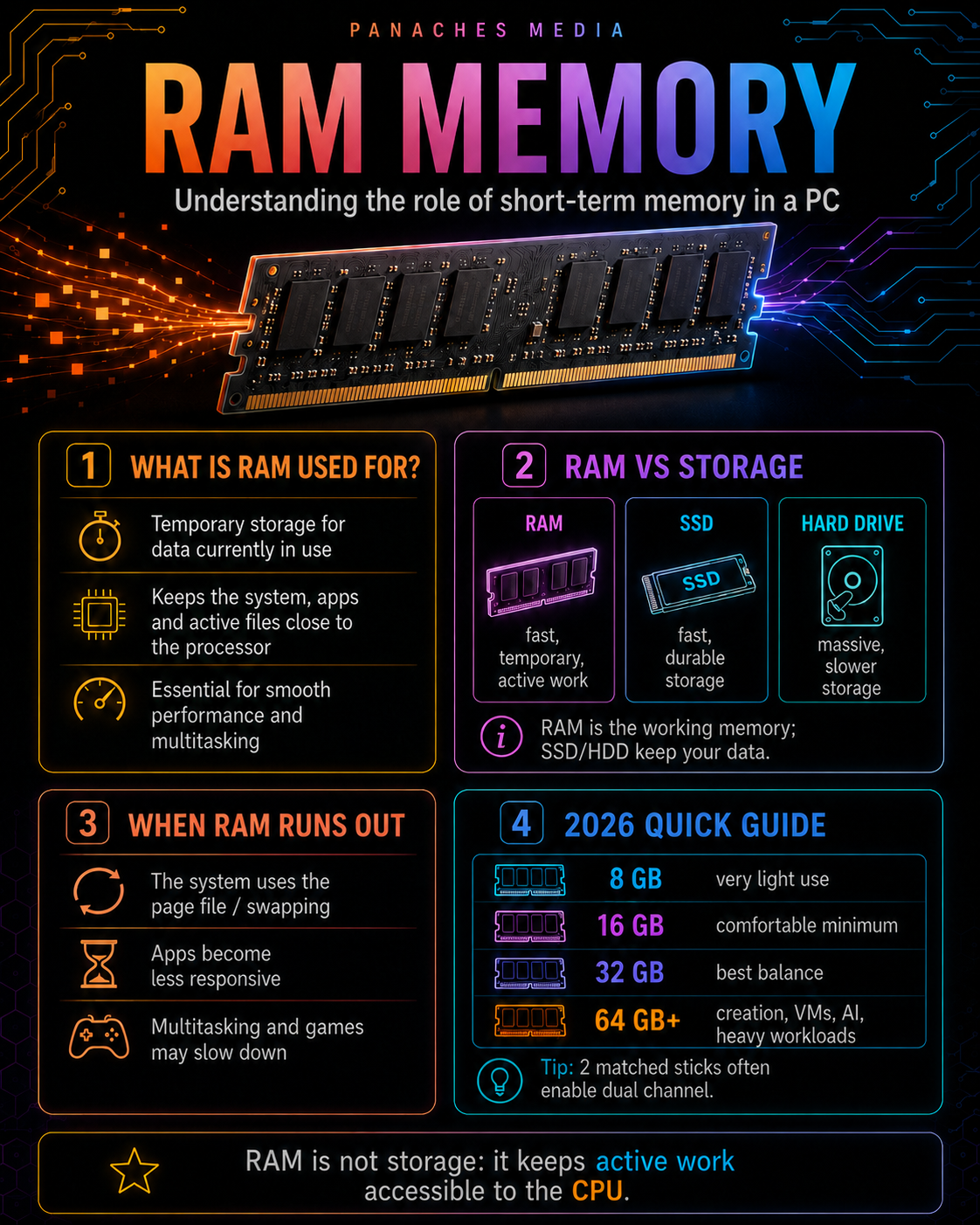
RAM, the computer’s working memory
When people talk about computer performance, they often mention the processor, graphics card or SSD first. Yet another component plays an essential role in everyday smoothness: random access memory, better known as RAM.
RAM stands for Random Access Memory. It is called “memory” because it temporarily stores the data the computer needs while it is running.
It does not keep files over the long term. It does not replace a hard drive or SSD. It is not used to archive your documents, photos or software.
Its role is different.
RAM keeps the data being used right now within reach: the operating system, open applications, browser tabs, files currently being edited, elements loaded by a game, creative software or a development environment.
You can think of it as a work desk.
The SSD or hard drive is the cabinet where files are stored. RAM is the desk where you place the documents you are using immediately.
The smaller the desk, the more often you have to put documents away and take them back out. The more comfortable it is, the easier it becomes to work with several things open at the same time.
Temporary, fast and volatile memory
The main characteristic of RAM is that it is volatile.
This means the data it contains disappears when the computer is turned off. Unlike an SSD or hard drive, RAM does not keep anything permanently.
If you open a document, it is loaded into RAM while you work on it. But to keep it after shutting down the computer, it must be saved to storage: SSD, hard drive, USB drive, network storage or cloud.
This volatility may sound like a limitation, but it allows RAM to be extremely fast.
RAM is designed to give the processor immediate access to the data it needs. The CPU can therefore work without constantly waiting for storage.
That is where the difference becomes important.
A modern SSD is already very fast. A mechanical hard drive is much slower. But RAM is still faster for immediate system operations.
To simplify:
- RAM is used for current work;
- the SSD is used for fast storage;
- the hard drive is mostly used for economical large-capacity storage.
Each component has its role.
Why the processor needs RAM
The processor, or CPU, executes program instructions. But it does not work alone. To perform calculations, it needs access to data.
This data can come from:
- the operating system;
- an application;
- an open file;
- a game;
- a browser;
- creative software;
- a development environment;
- a background process.
If the processor had to fetch all this information directly from storage for every operation, the machine would be much slower.
RAM therefore acts as an ultra-fast intermediary.
It keeps important data close to the processor. The CPU can access it much faster than it could access an SSD or hard drive.
That is why having enough RAM improves the feeling of smoothness: applications stay open, files are easier to handle, switching from one program to another is more comfortable, and the system avoids relying too much on storage as backup memory.
RAM and storage: two different roles
A common confusion is mixing up memory and storage.
When someone says “my PC has 16 GB of memory,” they are usually talking about RAM. When someone says “my PC has 1 TB,” they are usually talking about storage.
These are two different things.
RAM is fast, temporary and used while the computer is running. The SSD or hard drive keeps data even when the computer is turned off.
A computer can therefore have:
- a lot of storage but little RAM;
- a lot of RAM but little storage;
- a good balance between the two.
For example, a PC with a 1 TB SSD but only 8 GB of RAM can store many files, but become limited with many applications open.
Conversely, a PC with 32 GB of RAM but a small SSD can feel very smooth in multitasking, but quickly run out of space for games, videos, projects or heavy software.
Storage determines what you can keep. RAM determines what you can comfortably handle at the same time.
What happens when RAM runs out?
When RAM is not sufficient, the computer has to find a solution.
It cannot simply stop working as soon as memory is full. The system then uses part of the storage as substitute memory. This is often called the page file, virtual memory or swapping.
The principle is simple: some data that should stay in RAM is temporarily moved to the SSD or disk.
This allows the system to keep running, but with one major drawback: storage is much slower than RAM.
Even with a fast SSD, the effect can be felt immediately:
- applications take longer to respond;
- the browser becomes heavy;
- switching between windows becomes slow;
- creative software becomes less responsive;
- games stutter;
- the system feels “sticky”;
- fans become more active;
- loading happens more often.
A lack of RAM does not only reduce benchmark performance. It makes the computer less pleasant to use.
It often feels like general heaviness: everything still works, but everything requires more effort.
RAM and multitasking
Multitasking is one of the areas where RAM matters most.
A modern usage pattern can quickly stack many things:
- browser with several tabs;
- messaging app;
- music or video in the background;
- word processor;
- PDF;
- drawing software;
- code editor;
- screenshot tool;
- cloud storage;
- antivirus;
- system apps;
- sometimes a game or heavy software open as well.
Each element consumes part of the RAM.
A single browser tab is not a problem. But twenty tabs, several extensions, heavy web apps, a work tool, a document and a video can quickly change the situation.
RAM is used to keep all of this accessible without constantly reloading from storage.
That is why a PC with more RAM does not necessarily feel faster when only one light app is open, but becomes much more comfortable as tasks accumulate.
RAM is not only about speed. It is about headroom.
RAM and smoothness: what it really improves
Adding RAM does not always turn a slow computer into a high-end machine.
If the processor is too old, if the SSD is slow, if the graphics card is insufficient or if the system is poorly maintained, RAM will not solve everything.
But it strongly improves certain scenarios.
It mainly helps with:
- opening several applications at the same time;
- keeping many tabs active;
- handling larger files;
- working across several documents;
- reducing use of the page file;
- improving creative workflows;
- making the system more responsive under load;
- using virtual machines;
- supporting development environments;
- working with larger projects.
RAM does not directly increase FPS like a graphics card, nor raw compute power like a processor.
But when RAM is missing, everything else can be held back.
It is a component of comfort, stability and margin.
DRAM and SRAM: two memory families
Inside a computer, there are several types of memory.
The main RAM in a PC is generally based on DRAM, for Dynamic Random Access Memory.
DRAM is dense, relatively affordable and suitable for large capacities. It uses an organization that requires regular electrical refreshes to keep data while the machine is powered on.
This is the technology found in the RAM sticks installed on the motherboard.
There is also SRAM, for Static Random Access Memory.
SRAM is faster, but much more expensive and less dense. It is mainly used in the processor’s cache memory: L1, L2 and L3 cache.
The difference can be summarized simply:
- DRAM: the PC’s main memory, large capacity, good cost;
- SRAM: CPU cache memory, very fast, more expensive, more limited.
For users, the memory bought in stores is therefore almost always DRAM in the form of DDR4 or DDR5 sticks, depending on the platform.
DDR: the main family of modern RAM
The memory sticks used in modern PCs belong to the DDR family, for Double Data Rate.
This technology transfers data twice per clock cycle, improving bandwidth compared with older memory generations.
Over time, several generations have followed one another:
- DDR;
- DDR2;
- DDR3;
- DDR4;
- DDR5.
Each generation brings improvements: higher bandwidth, lower voltage, better efficiency, larger capacities and internal changes.
But be careful: these generations are not interchangeable.
A DDR4 stick does not work in a DDR5 slot. A DDR5 stick does not work in a DDR4 slot.
The motherboard determines which RAM generation is compatible.
In 2026, DDR5 dominates recent platforms, while DDR4 is still present on older or more economical platforms.
The RAM choice therefore depends directly on the trio:
processor + motherboard + platform.
DDR4 or DDR5: why the platform decides
You do not choose DDR4 or DDR5 only based on preference.
The platform often imposes the answer.
For example:
- an AMD AM5 platform uses DDR5;
- an AMD AM4 platform uses DDR4;
- an Intel LGA1851 platform uses DDR5;
- an Intel LGA1700 platform can use DDR4 or DDR5 depending on the motherboard.
That is why you must check the motherboard before buying RAM.
Two motherboards for the same Intel processor generation may sometimes exist in DDR4 and DDR5 versions. The memory sticks are not compatible with each other, even if the processor seems similar.
The classic mistake is buying a stick because it “looks recent” or because it is on sale, without checking the exact type supported by the motherboard.
RAM must match the motherboard.
That is non-negotiable.
Capacity, speed, latency: three different ideas
When reading a RAM spec sheet, three ideas appear often:
- capacity;
- speed;
- latency.
Capacity indicates the amount of memory available: 8 GB, 16 GB, 32 GB, 64 GB, 128 GB or more.
This is the most visible criterion. The higher the capacity, the more active data the computer can keep at the same time.
Speed is often expressed in MT/s, for mega-transfers per second. People still often say MHz out of habit, but MT/s better describes the effective transfer rate of DDR memory.
Latency indicates the delay needed to access certain data. It is often represented by values such as CL30, CL32, CL36 or CL40.
These three elements do not tell the same story.
RAM with a lot of capacity is not necessarily very fast. Very fast RAM with too little capacity can still be limiting. A high frequency with high latency is not always as advantageous as it appears.
For most users, the priority is first to have enough RAM. Speed, timings and optimization come next.
A PC with 32 GB properly configured will often be more comfortable than a PC with 16 GB of very fast RAM that is too tight for the real use case.
How much RAM do you need in 2026?
The amount of RAM needed depends directly on usage.
An office PC does not have the same needs as a video editing workstation, a development machine, a gaming PC or a local AI environment.
A simple guide looks like this:
| Amount | Typical use |
|---|---|
| 8 GB | Very light use, basic office work, limited browsing |
| 16 GB | Comfortable minimum for a modern PC |
| 32 GB | Best balance for gaming, multitasking, light creation, development |
| 64 GB | Heavy creation, video editing, large libraries, VMs, advanced development |
| 128 GB and more | Workstation, heavy 3D, local AI, intensive virtualization, professional projects |
In practice, 16 GB is now the comfortable minimum for many users.
But 32 GB is becoming the best balance for a modern machine designed to last, especially if you play games, create, develop, use many browser tabs or work with several applications open.
8 GB can still be enough for very simple use, but the margin is small. As soon as the browser, operating system and a few apps accumulate, the limits appear quickly.
Why 32 GB is becoming the comfortable choice
For a long time, 8 GB and then 16 GB were the classic reference points for consumer PCs.
But usage has changed.
Browsers are heavier. Web apps are richer. Creative software handles larger files. Games load more assets. Development environments sometimes use Docker, local servers, heavy IDEs, databases and background tools.
In this context, 32 GB offers very comfortable headroom.
That does not mean everyone needs 32 GB. A simple PC can work very well with 16 GB.
But for a versatile machine, 32 GB allows you to work with fewer constraints.
It is especially relevant for:
- recent gaming;
- photo editing;
- digital drawing;
- light to medium video editing;
- development;
- heavy multitasking;
- large browser sessions;
- working with several documents;
- creative tools;
- a machine you want to keep for several years.
RAM is often less spectacular than a CPU or GPU, but it can extend the comfort of a configuration.
Dual Channel: why two sticks are often better than one
RAM is not only about total capacity.
How it is installed matters too.
On many consumer platforms, installing two identical sticks enables dual channel.
Dual channel increases the width of communication between the RAM and the memory controller. To simplify, the system can access more data in parallel.
That is why it is often better to use:
- 2 × 8 GB rather than 1 × 16 GB;
- 2 × 16 GB rather than 1 × 32 GB;
- 2 × 32 GB rather than 1 × 64 GB.
This does not automatically double all performance, but it improves memory bandwidth and can have a noticeable impact depending on the workload, especially with some processors, some games, integrated graphics and memory-intensive tasks.
You also need to install the sticks in the correct motherboard slots, often A2 and B2 depending on the manuals. The motherboard manual remains the reference.
Mixing RAM sticks: possible, but not ideal
It is sometimes possible to mix different RAM sticks.
For example, adding a 16 GB stick to an older 8 GB stick.
But it is not always ideal.
The sticks may have:
- different frequencies;
- different timings;
- different voltages;
- different capacities;
- different memory chips;
- different XMP or EXPO profiles.
In that case, the system may run at the speed of the slowest stick, lose stability, disable some profiles or require manual settings.
For a stable machine, it is better to use a coherent memory kit, bought together, with two identical sticks.
This is even more important on fast DDR5 configurations, where stability can depend on the motherboard, processor, BIOS and memory profile.
The simple rule:
To avoid trouble, choose a matched kit rather than an improvised mix.
XMP and EXPO: why RAM does not always run at its advertised speed
A memory kit sold as DDR4-3600 or DDR5-6000 does not always automatically run at that speed immediately after installation.
By default, the motherboard may apply a more cautious standard speed.
To get the advertised kit speed, you often need to enable a memory profile in the BIOS.
The two most common names are:
- XMP, mostly associated with Intel;
- EXPO, associated with AMD Ryzen and DDR5.
These profiles contain settings defined by the manufacturer: speed, timings and voltage.
Enabling XMP or EXPO therefore allows the RAM to run according to its commercial specifications without manually adjusting everything.
But there is a nuance: a memory profile is still a form of overclocking validated by the kit, motherboard and processor under certain conditions. It may sometimes require a BIOS update or adjustment if the machine is not stable.
For most users, enabling the right profile is enough. But it is useful to know that RAM may not run at its maximum speed until this setting is enabled.
RAM, motherboard and processor: an inseparable trio
RAM is never chosen alone.
It depends on the motherboard, the processor and the platform.
The motherboard determines:
- DDR4 or DDR5;
- number of slots;
- maximum capacity;
- supported frequencies;
- XMP or EXPO profiles;
- kit compatibility;
- memory channel organization.
The processor also plays a role, because the memory controller is integrated into the CPU on modern platforms. Some processors handle certain speeds or memory configurations more easily than others.
The platform, finally, provides the general framework.
That is why a perfect RAM kit for one PC may not be the best choice for another.
Before buying, you need to check:
- the compatible RAM type;
- the desired capacity;
- the number of sticks;
- the reasonable speed for the platform;
- the motherboard QVL if you want to maximize safety;
- XMP or EXPO profiles;
- stick height if the CPU cooler is large.
RAM is simple to install, but not always simple to choose correctly.
RAM in laptops
On laptops, RAM sometimes follows a different logic.
Some laptops use SO-DIMM modules, smaller than desktop RAM sticks. They can sometimes be replaced or upgraded.
But more and more thin machines use memory soldered directly to the motherboard, especially with LPDDR.
LPDDR, for Low Power DDR, is optimized for energy efficiency. It is very common in smartphones, tablets, ultraportables and compact machines.
Its advantage is energy efficiency.
Its drawback is often the lack of upgradeability: if the RAM is soldered, you cannot increase it later.
This is an essential point to check before buying a laptop.
On a desktop PC, you can often add RAM. On a laptop with soldered RAM, the amount chosen at purchase may be final.
RAM and graphics cards: do not confuse RAM with VRAM
Another trap is confusing system RAM with graphics memory.
The PC’s RAM is used by the system and applications. The graphics card memory, often called VRAM, is used by the GPU.
VRAM is used especially for:
- game textures;
- 3D rendering;
- GPU computing;
- video editing;
- graphic effects;
- local AI on a graphics card;
- heavy scenes;
- high-resolution display.
A graphics card often has its own memory, usually based on GDDR.
This does not replace system RAM.
A PC can have 32 GB of RAM and a graphics card with 8 GB of VRAM. These are two different memories with different roles.
For some uses such as gaming, 3D or local AI, both matter.
RAM helps the system and software. VRAM helps the GPU.
RAM in a modern workspace
Modern computing uses are increasingly hybrid.
The same computer may be used for writing, browsing, reading PDFs, organizing files, editing images, developing, managing projects, testing local AI, listening to music, watching videos and keeping several tools open at once.
In this context, RAM becomes a major comfort component.
A unified workspace like Panaches illustrates this logic well. When several modules can coexist in the same environment — browser, documents, notes, PDFs, files, media, creative tools or specialized modules — smoothness depends heavily on the machine’s ability to keep several elements active without saturating.
The processor calculates. The SSD stores. The motherboard connects. RAM keeps current work accessible.
That is what makes multitasking pleasant.
Common mistakes to avoid
The first mistake is confusing RAM and storage. Adding an SSD does not replace a lack of RAM, even if it can improve overall responsiveness.
The second mistake is choosing too little capacity. In 2026, 8 GB quickly becomes limiting for a modern main PC.
The third mistake is buying DDR5 for a DDR4 motherboard, or the other way around. Generations are not compatible.
The fourth mistake is using a single stick when two identical sticks could enable dual channel.
The fifth mistake is mixing different sticks without checking stability.
The sixth mistake is forgetting to enable XMP or EXPO in the BIOS.
The seventh mistake is paying for very fast RAM while capacity is insufficient. It is often better to have 32 GB well chosen than 16 GB that is very fast but too tight.
The eighth mistake is not checking RAM stick height with a large CPU air cooler.
The ninth mistake is buying a laptop with too little soldered RAM, impossible to upgrade later.
The tenth mistake is believing that more RAM always improves everything. Beyond the real need, adding unused RAM does not necessarily provide a visible gain.
Key takeaways
Random access memory, or RAM, is the computer’s working memory.
It temporarily stores the data used by the system, open applications and active files. It is much faster than storage, but it is volatile: its contents disappear when the computer is turned off.
RAM allows the processor to quickly access the data it needs. It therefore plays an essential role in smooth performance, multitasking and user comfort.
When RAM is missing, the system uses storage as backup memory, which strongly slows down the machine.
In 2026, 16 GB is the comfortable minimum for many users, while 32 GB is becoming the best balance for a versatile modern PC. Heavy uses such as creation, virtualization, advanced development, 3D or local AI may require 64 GB or more.
The choice of RAM always depends on the platform: motherboard, processor, DDR4 or DDR5, number of slots, XMP or EXPO profiles, dual channel and compatibility.
RAM is not the most spectacular PC component, but it is one of the components that most affects everyday comfort.
It does not do everything.
But when it is missing, everyone feels it.