Why documents are becoming the real ground for AI
At first, many users discovered AI as a simple conversation space.
You asked a question.
The assistant answered.
You asked for a rewrite.
It proposed a clearer version.
You wanted an idea.
It generated a list.
That was already useful.
But in 2026, the most important use of AI is no longer only chatting with a model. It is working with your own documents.
PDFs, notes, reports, articles, contracts, scripts, transcripts, spreadsheets, sheets, presentations, videos, emails, project documentation, drafts, research folders: the real value is often in the material already accumulated.
The problem is not a lack of information.
The problem is fragmentation.
One document is in Drive.
One PDF is in a local folder.
One script is in a notepad.
One source is in a browser.
One screenshot is in a moodboard.
One summary is in a chat.
One translated version is somewhere else.
One important idea is lost in a conversation.
AI becomes truly interesting when it helps connect these elements.
It can read, summarize, compare, extract, rewrite, classify, question, transform, and prepare.
But it should not become a machine that produces disconnected answers.
To work well with documents, one simple rule should remain central:
AI should start from sources, not replace them.
Working with documents is not just “uploading a PDF”
Importing a document into an AI tool is easy.
Understanding it properly is another matter.
A tool can summarize a PDF, but that does not guarantee it has identified the most important passages. It can answer a question, but that does not mean it has read the entire corpus with equal precision. It can cite a source, but the citation still needs to be checked against the actual claim. It can produce a very fluent synthesis, but forget an essential nuance.
Working with documents therefore requires a method.
Several uses need to be distinguished:
- quick reading;
- information retrieval;
- source comparison;
- synthesis;
- data extraction;
- transformation into content;
- verification;
- archiving;
- reuse inside a project.
Each use requires a different way of questioning AI.
Asking “summarize this document” is not always enough.
It is better to ask:
What are the main points, limitations, important data, passages to verify, and questions raised by this document?
With this approach, AI becomes a reading assistant, not a replacement for reading.
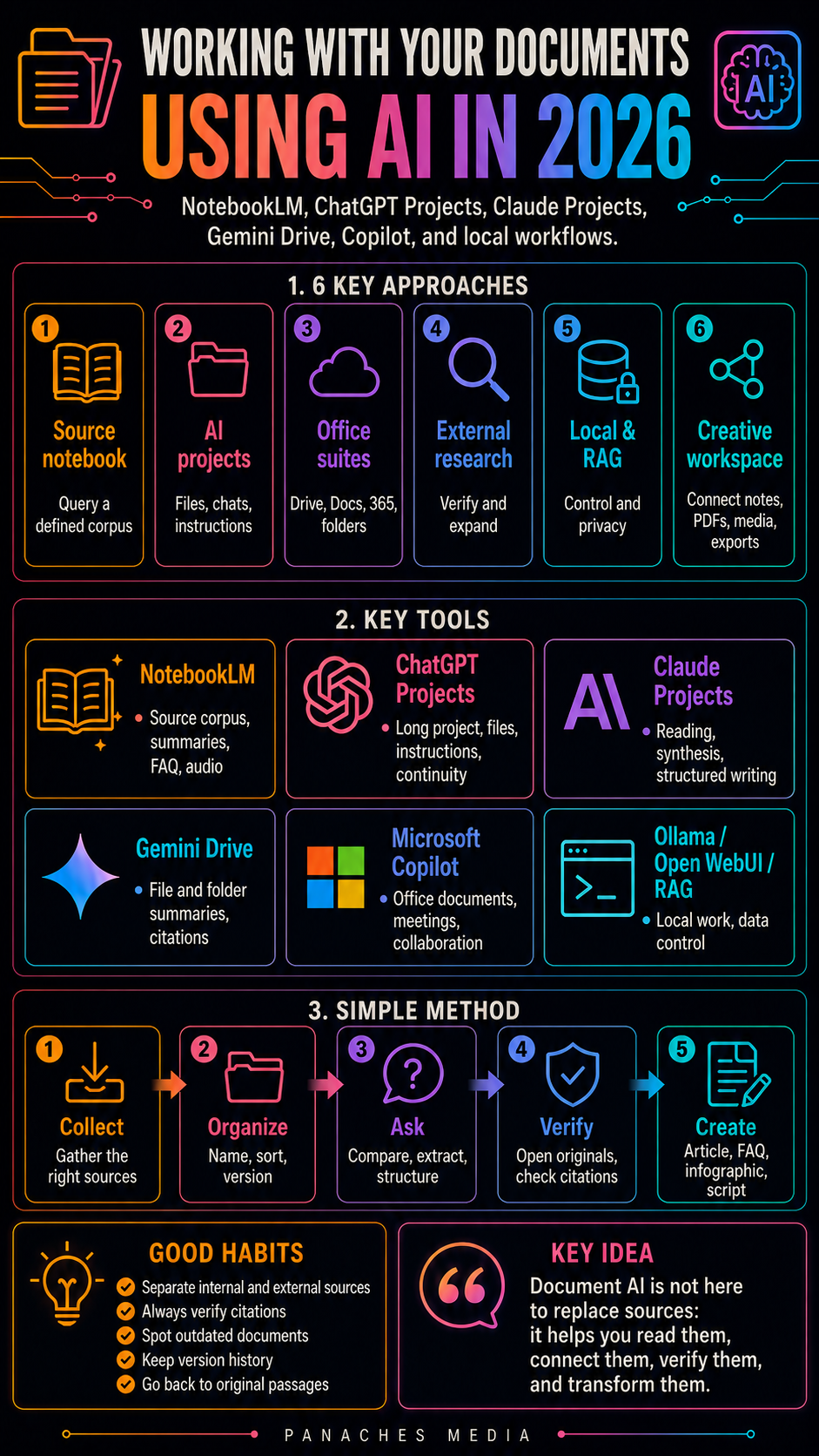
The main families of tools for working with documents
AI document tools can be grouped into several families.
The first family is source notebooks. NotebookLM is the clearest example. You add a corpus of documents, then query that corpus and generate summaries, guides, audio summaries, mind maps, or other formats.
The second family is general AI projects. ChatGPT Projects and Claude Projects make it possible to gather conversations, files, instructions, and working context around a long-term project.
The third family is assistants integrated into office suites. Gemini in Drive, Microsoft Copilot in Microsoft 365, and similar tools allow users to work directly inside existing files, folders, emails, documents, and collaborative spaces.
The fourth family is research and verification tools. Perplexity, Elicit, Consensus, or Semantic Scholar are not necessarily built to manage personal documents, but they can complement documentary work by finding external sources.
The fifth family is local and open-source workflows. Tools around Ollama, LM Studio, Open WebUI, AnythingLLM, Dify, Obsidian, or RAG systems make it possible to work with documents while keeping more technical control.
The sixth family is creative workspaces. This is where Panaches fits in: bringing together documents, notes, media, files, code, moodboards, articles, images, and AI inside a more coherent environment.
The right choice depends on the need.
Do you want to read a corpus?
Manage a long project?
Work inside Drive or Microsoft 365?
Explore scientific sources?
Keep your documents local?
Connect documents, notes, and creation?
Each answer leads to a different tool.
NotebookLM: the augmented source notebook
NotebookLM is one of the most important tools for understanding the evolution of document work with AI.
Its principle is simple: you add sources, then work from those sources.
It is not just a chatbot.
It is an augmented research notebook.
NotebookLM is especially useful for:
- importing a set of sources;
- summarizing several documents;
- asking questions to a corpus;
- retrieving information;
- comparing several texts;
- generating a briefing;
- preparing a study;
- producing an outline;
- turning documents into an audio podcast;
- creating revision materials;
- preparing an editorial synthesis.
Its great strength is that it brings AI back to a defined set of documents.
That changes a lot.
Instead of asking AI to answer from its general knowledge, you ask it to work on a specific corpus. For students, researchers, trainers, consultants, or writers, that is a real methodological gain.
NotebookLM is very well suited when the question is:
Here are my sources. Help me understand them.
It is less suited if you want to manage a complete creative project with many file types, media, versions, scripts, visuals, and exports.
NotebookLM is therefore excellent for reading and document synthesis.
But it does not replace a full production workspace.
ChatGPT Projects: organizing long work with files, chats, and instructions
ChatGPT Projects answers a different need.
The goal is not only to work on a corpus of sources. The goal is to bring together several conversations, files, and instructions around the same effort.
A project can contain:
- reference files;
- chats related to the same topic;
- specific instructions;
- contextual memory;
- repeated tasks;
- successive versions;
- content produced over time.
This is very useful for long-term work.
An editorial folder.
A development project.
A marketing plan.
A series of articles.
A course.
A strategy.
A book.
A production workflow.
A customized assistant for a client or brand.
The strength of ChatGPT Projects is continuity.
Instead of starting from scratch in every conversation, the project keeps context: documents, instructions, goals, style, constraints, and work history.
For a creator, it can become a real production station.
You can prepare an article, generate an infographic, translate, rewrite, create a video script, build a tracking table, analyze a file, think through a strategy, or produce social media adaptations.
But an AI project remains a conversational environment.
It does not necessarily replace a real file tree, document manager, local folder, moodboard, or production software.
ChatGPT Projects is therefore very strong for organizing collaboration with AI.
But files, exports, versions, and sources still need to be managed rigorously.
Claude Projects: long context, documents, and structured work
Claude Projects plays a similar role, but with a different sensitivity.
Claude is often appreciated for long texts, synthesis, clarity, and reasoning. Inside a project, those qualities become especially useful.
A Claude Project can be used to:
- gather documents;
- keep instructions;
- work on a long folder;
- analyze a corpus;
- structure a reflection;
- write with consistency;
- improve a style;
- compare several sources;
- prepare documentation;
- support an editorial or technical project.
Claude Projects is especially valuable when reading quality, writing quality, and synthesis matter most.
For authors, writers, researchers, consultants, or trainers, it can be a strong environment for turning a mass of notes into a clear structure.
Claude is also useful for dense documents: reports, long texts, briefs, strategy notes, documentation, educational content.
But, as always, the work needs to be framed.
A project needs:
- a goal;
- clearly named documents;
- clear instructions;
- a conversation structure;
- limits;
- verification rules;
- an output method.
Otherwise, even a good AI project can become a large messy drawer.
Claude Projects is therefore very useful for working with long documents and complex reasoning.
But it should be organized like a real work folder.
Gemini Drive and Workspace: working where the files already are
Gemini in Google Drive and Google Workspace follows another logic: not moving documents out of their environment.
For many users, the work is already in Google.
Docs.
Sheets.
Slides.
Drive.
Gmail.
Calendar.
Meet.
Shared PDFs.
Team folders.
In that case, the best assistant is not necessarily the one where you import documents. Sometimes it is the one that can work directly where the documents already exist.
Gemini in Drive can help:
- summarize a file;
- ask a question about a folder;
- retrieve information;
- compare documents;
- analyze several files;
- extract important points;
- verify an answer with citations;
- prepare a synthesis from Workspace sources.
This is very useful for Google-first teams.
The main gain is proximity.
There is no need to move files into another tool. AI can help inside the existing work context.
But this logic also has a limit.
The more an assistant is integrated into an ecosystem, the more it depends on that ecosystem. If your work is spread across local folders, PDFs, creative tools, code, images, videos, Markdown notes, and exports, a Drive assistant will not always be enough.
Gemini Workspace is therefore very relevant for organizations that already live inside Google.
But it does not necessarily replace a broader creative workspace.
Microsoft Copilot: documents inside the enterprise environment
Microsoft Copilot plays a similar role in the Microsoft ecosystem.
Its value comes from integration with Word, Excel, PowerPoint, Outlook, Teams, OneDrive, SharePoint, and professional environments.
For a company, working with documents does not only mean summarizing a PDF.
It also means respecting:
- permissions;
- identities;
- shared folders;
- emails;
- meetings;
- versions;
- Office files;
- security policies;
- compliance rules;
- collaboration between teams.
Copilot is useful for:
- summarizing meetings;
- preparing emails;
- analyzing Excel files;
- turning a Word document into a presentation;
- retrieving internal information;
- working with shared files;
- helping teams produce content;
- organizing scattered elements inside Microsoft 365.
Its strength is integration.
But for a solo creator, artist, writer, or independent developer, this strength may matter less if the work does not live inside Microsoft 365.
Copilot is therefore an excellent enterprise document tool.
It is not necessarily the best choice for a local-first creative workflow.
Perplexity, Elicit, and Consensus: complementing internal documents with external sources
Working with your own documents is not always enough.
Sometimes you also need to verify, complete, or compare them with external sources.
This is where tools like Perplexity, Elicit, Consensus, or Semantic Scholar become useful.
They can help:
- find web sources;
- verify information;
- identify official documents;
- explore scientific literature;
- compare viewpoints;
- find recent data;
- strengthen an article;
- avoid being locked inside your own corpus.
This step is essential.
A personal corpus can be incomplete, outdated, biased, or too limited. AI can summarize your documents very well, but if your documents are weak, the synthesis will be weak too.
A good workflow therefore alternates between:
- internal sources;
- external sources;
- verification;
- synthesis;
- production.
A serious article does not rely only on what you already have.
It also checks what has changed, what is missing, and what contradicts the corpus.
Local AI and RAG: keeping control over your documents
Another path is becoming increasingly important: working with documents locally or inside controlled infrastructure.
This logic is especially interesting for:
- developers;
- technical teams;
- organizations sensitive to privacy;
- freelancers who want to control their data;
- advanced users;
- local-first projects;
- open-source workflows.
With tools such as Ollama, LM Studio, Open WebUI, AnythingLLM, Dify, LlamaIndex, LangChain, or custom RAG systems, it becomes possible to build an assistant that queries a document base.
The principle of RAG is easy to understand.
Instead of asking the model to know everything, you provide it with relevant passages from your documents. The model then answers based on those elements.
This approach can be used to:
- query internal documentation;
- search through notes;
- create a project assistant;
- analyze PDFs;
- work with local files;
- build a document chatbot;
- keep more control;
- reduce exposure of sensitive data.
But RAG is not magic.
It depends on the quality of:
- documents;
- chunking;
- indexing;
- retrieval;
- the model;
- prompts;
- interface;
- verification;
- citations.
A bad RAG system can create an impression of precision while retrieving the wrong passages.
Local AI and RAG workflows are therefore very powerful, but they require a real technical method.
Obsidian, Notion, Readwise, and personal knowledge bases
Working with documents does not only mean using PDFs.
It also means organizing personal knowledge.
Notes, excerpts, quotes, ideas, readings, drafts, outlines, references, links, mind maps: all of this forms a thinking base.
Tools such as Obsidian, Notion, Readwise, Heptabase, Reflect, or Tana can play an important role in this logic.
AI can help:
- retrieve a note;
- connect ideas;
- summarize a series of excerpts;
- turn notes into an outline;
- prepare an article;
- create a synthesis;
- rewrite a reflection;
- organize a knowledge base;
- surface connections.
But there is one trap to avoid.
A knowledge base is not useful because it contains many notes. It is useful because it helps you think better.
AI can speed up search inside notes, but it does not replace the work of selection, hierarchy, and formulation.
The real challenge is turning accumulation into structure.
The simple method: collect, organize, ask, verify, produce
To work well with documents using AI, a simple method is often enough.
1. Collect
Gather the useful documents.
PDFs, notes, articles, links, transcripts, scripts, screenshots, tables, reports, files, emails, images, videos.
At this stage, you should avoid throwing everything into the same space without thinking. The corpus should match the subject.
2. Organize
Name, sort, and structure.
A file named document-final-v3-copy.pdf helps no one. AI can sometimes manage, but good naming improves the entire workflow.
You need to identify:
- main sources;
- secondary sources;
- outdated documents;
- versions;
- languages;
- formats;
- priorities.
3. Ask
Do not ask only for a summary.
Ask real questions:
- What are the strong ideas?
- Which points repeat?
- What is missing?
- What contradictions appear?
- Which information is dated?
- Which passages should be cited?
- Which elements need verification?
- What outline can emerge from the corpus?
4. Verify
Open the documents.
Read the important passages.
Compare the sources.
Check the citations.
Look at dates.
Confirm figures.
Identify uncertainty.
AI can help point out what needs verification, but it should not be the only verification step.
5. Produce
Once the material is understood, AI can help produce:
- article;
- synthesis;
- FAQ;
- script;
- infographic;
- carousel;
- video;
- documentation;
- report;
- translation;
- action plan.
But production should come after understanding.
Otherwise, you generate quickly, but produce something fragile.
Good questions to ask a document AI
The quality of the work depends heavily on the questions asked.
Instead of asking:
Summarize these documents.
It is better to ask:
Summarize these documents by distinguishing facts, interpretations, figures, uncertainties, and points to verify.
Instead of asking:
Write me an article with these sources.
It is better to ask:
Propose an article outline based only on these sources, then indicate which parts require additional research.
Instead of asking:
What is the conclusion?
It is better to ask:
Give me three possible conclusions, with the arguments supporting them and the limitations of each.
Instead of asking:
Find the important points.
It is better to ask:
List the ideas that appear in several documents, then the ideas that appear in only one source but are still important.
Instead of asking:
Explain this folder to me.
It is better to ask:
Explain this folder at three levels: beginner, busy professional, and expert who wants to know the limitations.
AI becomes much more useful when it is used as an analysis tool, not only as a summary tool.
Pitfalls to avoid
The first pitfall is confusing imported source with understood source.
Importing a file does not mean AI has used it correctly.
The second pitfall is mixing too many documents without structure.
A corpus that is too broad, poorly organized, or contradictory can produce vague syntheses.
The third pitfall is not checking citations.
A citation or reference should always be verified in the original document.
The fourth pitfall is working with outdated documents.
In AI, law, pricing, tools, models, and platforms, information can change very quickly.
The fifth pitfall is believing AI knows what matters for your project.
It can identify themes, but it does not always know your real priorities.
The sixth pitfall is not separating internal documents from external sources.
A personal note, official documentation, an opinion article, a scientific report, and a commercial page do not have the same value.
The seventh pitfall is losing versions.
When a document evolves, you need to know which version was used for which synthesis.
The eighth pitfall is producing too quickly.
AI makes production fast. But serious content still requires selection, verification, and intention.
The article workflow: from sources to published content
For a media project like Panaches Media, the document workflow can become very effective.
An article can follow this chain:
- collect the sources;
- classify them by type;
- make a first synthesis;
- identify the strong points;
- verify sensitive information;
- build an outline;
- write the article;
- create the infographic;
- produce a video script;
- translate into EN and ES;
- prepare social posts;
- archive sources and exports.
This chain turns a document folder into a content system.
A source is not used only once.
It can feed:
- an article;
- a FAQ;
- a comparison table;
- an infographic;
- a carousel;
- a short video;
- a newsletter;
- a resource page;
- internal documentation.
That is where AI becomes truly valuable.
It is not only used to “make a summary.”
It is used to transform documentary material into several coherent formats.
Inside Panaches
Panaches has a very natural place in this topic.
Because the problem with document work is not only the intelligence of the model.
The problem is the workspace.
Today, creators often use:
- a browser to search;
- a local folder to store;
- a text editor to write;
- an AI tool to summarize;
- another tool for images;
- another for videos;
- another for notes;
- another for exports;
- another for the CMS.
The result is permanent fragmentation.
Panaches is precisely trying to reduce that fragmentation.
Inside a local workspace, a project can bring together:
- articles;
- notes;
- PDFs;
- images;
- moodboards;
- scripts;
- translations;
- code;
- media;
- exports;
- sources;
- AI assistance.
AI is then not just an external chatbot. It becomes an assistance layer inside a broader work environment.
For a folder like “AI 2026,” this changes everything.
You can keep the sources, write the article, prepare the infographic, write the video script, store images, organize translations, and keep project files in the same place.
Panaches does not replace NotebookLM, ChatGPT Projects, or Claude Projects.
But it answers another question:
Where does all the creative work stay organized?
That question becomes essential when projects grow.
Conclusion: document AI should strengthen sources, not make them disappear
In 2026, working with documents using AI is becoming one of the most important use cases.
NotebookLM helps query corpora.
ChatGPT Projects organizes chats, files, and instructions around long work.
Claude Projects is very useful for documents, synthesis, and structured writing.
Gemini Drive and Microsoft Copilot bring AI closer to files already present in Google and Microsoft ecosystems.
Local workflows and RAG provide more control.
Creative workspaces like Panaches raise the question of global organization.
But the rule remains the same.
AI should not make sources disappear.
It should help read them, connect them, verify them, transform them, and reuse them.
A good document workflow does not begin with an answer.
It begins with a clear corpus, visible sources, precise questions, and a verification method.
That is the condition for AI to become truly useful.
Not as a summary machine.
But as a workshop for turning documents into understanding, then into creation.
FAQ
What is the best AI tool for working with documents?
It depends on the need. NotebookLM is excellent for querying a source corpus. ChatGPT Projects and Claude Projects are useful for organizing long work with files, conversations, and instructions. Gemini Drive and Microsoft Copilot are better suited if your documents already live inside Google Workspace or Microsoft 365.
What is the difference between NotebookLM and ChatGPT Projects?
NotebookLM is mainly centered on a source corpus. ChatGPT Projects is more of an AI workspace that groups files, chats, instructions, and context around a long-term project.
Is Claude Projects suitable for long documents?
Yes. Claude is especially interesting for long texts, synthesis, analysis, and structure. Projects make it possible to keep document context and dedicated instructions.
Can AI replace reading a document?
No. It can speed up reading, summarize, extract ideas, and identify important points, but sensitive passages should always be checked in the original document.
What is RAG?
RAG, or retrieval augmented generation, consists in giving the model relevant passages from a document base so it can answer based on those sources rather than only from its general knowledge.
Why work locally with documents?
Local workflows can be useful for privacy, control, experimentation, or integration into a specific workflow. However, they often require more configuration and technical method.
What role can Panaches play in document work?
Panaches can serve as a workspace for bringing together notes, documents, PDFs, images, moodboards, scripts, translations, exports, and AI assistance inside one project, helping reduce fragmentation.