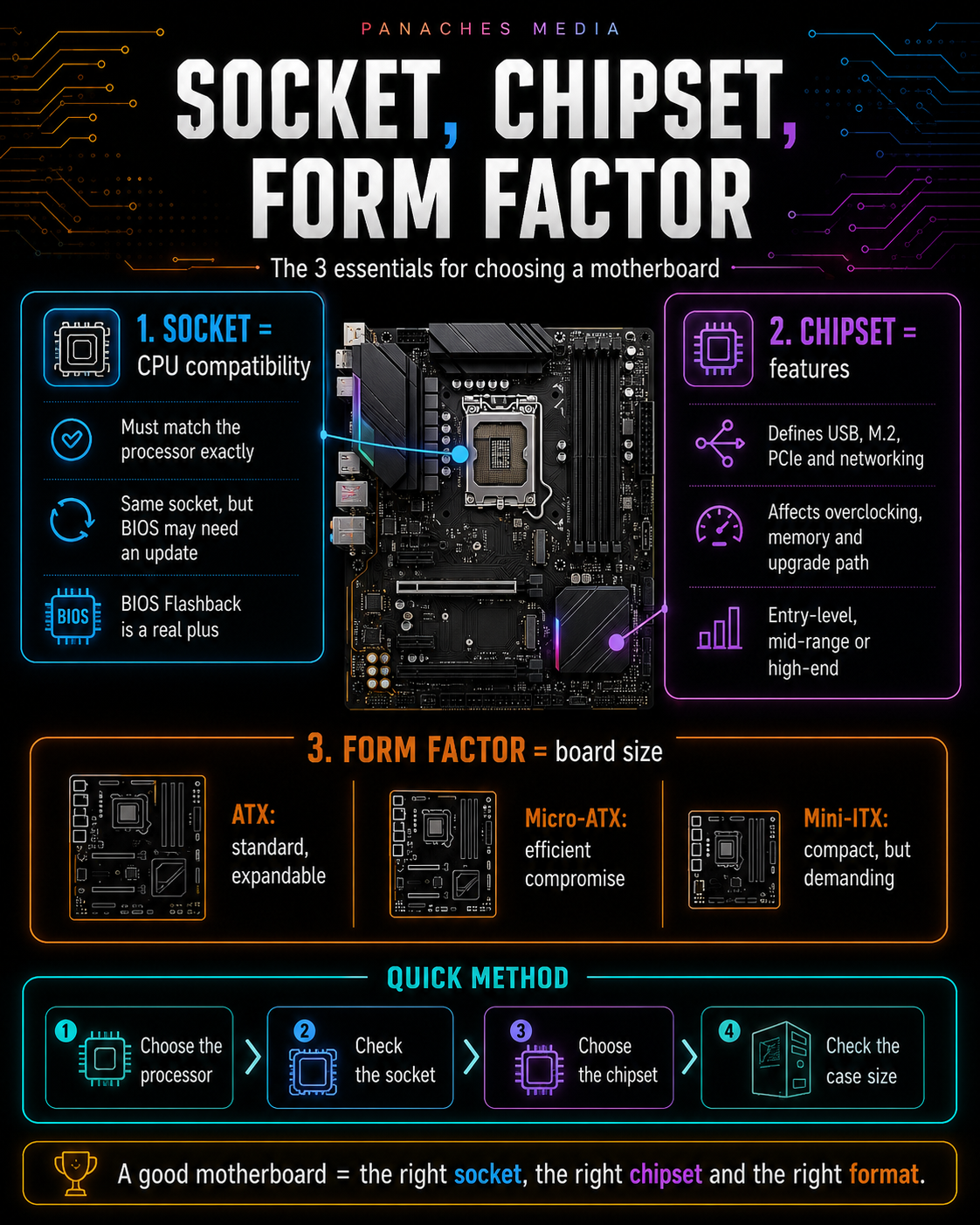
Three criteria before everything else
Choosing a motherboard can quickly feel intimidating. There are countless references, chipset names often look similar, and spec sheets list ports, standards, numbers and features that are not always easy to understand.
Yet the basic logic is fairly simple.
Before looking at the design, Wi-Fi, USB ports or advanced options, you need to understand three essential criteria:
- the socket;
- the chipset;
- the form factor.
These three elements answer three fundamental questions.
The socket answers:
“Is my processor compatible with this motherboard?”
The chipset answers:
“What features does this motherboard provide?”
The form factor answers:
“Will this motherboard fit inside my case?”
If one of these three criteria is chosen poorly, the rest of the configuration can become complicated, limited or simply incompatible.
The socket: compatibility with the processor
The socket is the physical location where the processor is installed.
It is the strictest criterion when choosing a motherboard. A processor cannot be installed on just any board. It must match the intended socket exactly.
An AMD processor does not install on an Intel motherboard. A recent Intel processor will not necessarily install on an older Intel motherboard. Even within the same brand, generations can change sockets.
That is why the processor and motherboard should always be chosen together.
The right method is simple:
- choose or identify the processor;
- check its socket;
- choose a motherboard with the same socket;
- then check the chipset and other features.
The socket is not optional. It is not a secondary technical detail. It is the foundation of compatibility.
If the socket does not match, the processor will not fit or will not work.
Physical socket and BIOS compatibility
There is also an important nuance to understand: a motherboard can have the right socket, but still require a BIOS update to recognize a recent processor.
This happens when a motherboard was released before certain processors compatible with its platform. Physically, the processor can match. Technically, the board may need a newer BIOS to boot properly.
That is why you should check:
- the socket;
- the list of processors supported by the motherboard;
- the required BIOS version;
- the possible presence of a BIOS Flashback feature.
BIOS Flashback is a very useful feature. Depending on the motherboard, it allows you to update the BIOS without a processor installed. This can avoid a blocking situation: having a theoretically compatible motherboard that cannot boot with the processor until it has been updated.
For a safer purchase, especially with a recent processor, this feature is a real plus.
The chipset: motherboard features
Once the socket has been checked, the second important criterion is the chipset.
The chipset is part of the platform and defines many of the motherboard’s possibilities. It does not only change the commercial name of the board. It influences the available features.
The chipset can determine:
- the number of USB ports;
- the number of M.2 ports;
- the number of PCIe lanes;
- overclocking possibilities;
- memory management;
- certain network features;
- internal connectivity;
- storage options;
- the motherboard’s entry-level, mid-range or high-end positioning.
Two motherboards can have the same socket, but different chipsets. They may accept the same processor, but they will not offer the same possibilities.
An entry-level motherboard can be enough for a simple PC. A mid-range board can be ideal for a versatile or gaming PC. A high-end board can become useful for a large processor, several SSDs, many peripherals, heavy creative work or a workstation.
The chipset does not automatically make your processor more powerful. But it defines the environment in which it operates.
Entry-level, mid-range, high-end
Chipsets are often organized by range.
Entry-level chipsets target simple configurations. They provide the essentials: processor compatibility, RAM, storage, basic ports, sometimes one or two M.2 slots. They are well suited to office work, multimedia, simple family PCs or budget configurations.
They are limited, but that does not mean they are bad. A simple motherboard can be perfectly suitable if the use case is simple.
Mid-range chipsets often offer the best balance. They generally provide more connectivity, better VRMs, more M.2 ports, better upgrade potential and enough features for a gaming or versatile PC.
This is often the most rational choice for most users.
High-end chipsets target demanding configurations. They may offer more PCIe lanes, better connectivity, more fast ports, stronger overclocking options, reinforced VRMs and advanced features.
They become relevant for powerful processors, workstations, creators, users who install several SSDs or anyone who needs a lot of connectivity.
But they are not necessary for everyone.
The trap of an overly expensive chipset
A common mistake is buying a high-end motherboard “just in case”.
It may seem reassuring, but it is not always useful.
If you use a mid-range processor, a single SSD, a standard graphics card and a few USB peripherals, a very high-end motherboard may not bring much to your daily experience.
The budget may sometimes be better spent elsewhere:
- more RAM;
- a better SSD;
- a better graphics card;
- a stronger power supply;
- a better case;
- a better monitor;
- quieter cooling.
A good motherboard is not necessarily the one with the most features. It is the one with the right features for your use case.
The chipset should therefore be chosen according to real needs, not according to the idea that “higher-end” always means “better purchase”.
The form factor: motherboard size
The third essential criterion is the form factor.
The form factor defines the physical size of the motherboard. It determines which cases it can be installed in, how many connectors it can provide and how comfortable the build will be.
The three most common form factors are:
- ATX;
- Micro-ATX;
- Mini-ITX.
This choice may seem secondary, but it is very important. A motherboard that is too large will not fit inside the case. A board that is too small may lack ports or slots for certain configurations.
The form factor also influences:
- the number of RAM slots;
- the number of PCIe slots;
- the number of M.2 ports;
- space between components;
- ease of assembly;
- airflow;
- price;
- the type of machine you can build.
ATX: the standard format
The ATX format is the most common in traditional desktop PCs.
It usually measures 30.5 x 24.4 cm. It offers plenty of space for components and fits most mid-tower and full-tower cases.
An ATX motherboard often provides:
- 4 RAM slots;
- several M.2 ports;
- several PCIe slots;
- more internal connectors;
- more comfortable connectivity;
- clearer assembly;
- more room for heatsinks.
It is the easiest format to recommend for a classic desktop PC, gaming PC, creative PC or upgradeable configuration.
ATX is not always mandatory, but it gives you good flexibility. If your case supports it and you are not trying to build a compact machine, it is often the most comfortable choice.
Micro-ATX: the efficient compromise
The Micro-ATX format, often called mATX, is more compact than ATX.
It usually measures 24.4 x 24.4 cm. It can fit into smaller cases while keeping many essential features.
A Micro-ATX board often provides:
- 2 or 4 RAM slots depending on the model;
- one or more M.2 ports;
- fewer PCIe slots than ATX;
- enough connectivity for many uses;
- often an attractive price.
It is a very good format for budget configurations, family PCs, office machines, reasonable gaming PCs or users who want a smaller case without moving to Mini-ITX.
Micro-ATX can offer excellent value for money.
Its main compromise is upgradeability: fewer expansion slots, sometimes fewer internal ports, and tighter space depending on the case.
But for many users, these limits will never be a problem.
Mini-ITX: compact, but demanding
The Mini-ITX format is designed for very compact PCs.
It usually measures 17 x 17 cm. It allows you to build SFF configurations, for Small Form Factor, meaning very small machines.
This format is attractive: a powerful, discreet, compact PC that is easy to place on a desk or in a living room.
But Mini-ITX comes with real constraints.
A Mini-ITX board generally provides:
- 2 RAM slots;
- one main PCIe slot;
- fewer internal ports;
- less space around the processor;
- more difficult thermal management;
- more delicate assembly;
- often a higher price for equivalent features.
Mini-ITX is therefore not the best choice for everyone. It is excellent for enthusiasts of compact machines, but it requires careful planning around the case, cooling, power supply, graphics card and cabling.
For a first build, ATX or Micro-ATX are often simpler.
Quick form factor table
| Form factor | Usual size | Strengths | Limits |
|---|---|---|---|
| ATX | 30.5 x 24.4 cm | Connectivity, upgradeability, comfortable assembly | Larger case |
| Micro-ATX | 24.4 x 24.4 cm | Good price, smaller size, enough features | Fewer expansion slots |
| Mini-ITX | 17 x 17 cm | Very compact, ideal for SFF | More expensive, harder assembly and cooling |
The form factor must always be chosen with the case in mind.
An ATX motherboard will not fit in a case designed only for Micro-ATX or Mini-ITX. A Mini-ITX board can often fit in a large case, but that is not always logical if compactness is not the goal.
Socket, chipset, form factor: how to read them together
These three criteria should not be considered separately. They work together.
The socket defines compatibility with the processor.
The chipset defines features and platform level.
The form factor defines size, case compatibility and part of the expansion possibilities.
A simple example:
You want a gaming PC with a modern processor, a dedicated graphics card, two M.2 SSDs, 32 GB of RAM and a mid-tower case.
In this case, you will probably look for:
- a board compatible with the processor socket;
- a mid-range or high-end chipset depending on budget;
- an ATX or Micro-ATX form factor;
- at least two M.2 ports;
- decent VRMs;
- good rear connectivity;
- enough space for the graphics card.
Another example:
You want a small, quiet office PC, without a dedicated graphics card, with a single SSD and few peripherals.
In this case, an entry-level or mid-range Micro-ATX or Mini-ITX board may be enough, as long as it is compatible with the processor and the case.
The right choice always depends on the complete project.
DDR4, DDR5 and memory compatibility
Even though socket, chipset and form factor are the three starting criteria, you should quickly check RAM compatibility.
The motherboard determines whether you need DDR4 or DDR5. The two standards are not compatible with each other.
A DDR4 motherboard accepts DDR4. A DDR5 motherboard accepts DDR5. You cannot replace one with the other.
In 2026, DDR5 dominates recent platforms. But DDR4 is still useful on some budget or older platforms.
You should therefore check:
- RAM type;
- number of slots;
- maximum capacity;
- supported frequencies;
- XMP or EXPO profiles;
- manufacturer compatibility information.
For simple use, 16 GB may be enough. For modern gaming, creation, development or heavy multitasking, 32 GB often becomes more comfortable.
The choice of motherboard can therefore directly influence the lifespan of the configuration.
M.2 ports, PCIe and storage
After memory, you need to look at storage.
M.2 ports allow fast NVMe SSDs to be installed directly on the motherboard. For a modern machine, it is better to have at least two M.2 ports: one for the system, one for games, software or projects.
Higher-end motherboards may offer more M.2 ports, sometimes with dedicated heatsinks.
You should also look at the PCIe standard:
- PCIe 3.0;
- PCIe 4.0;
- PCIe 5.0.
PCIe 4.0 is already very fast and more than enough for many uses. PCIe 5.0 can be interesting for very high-end SSDs or professional use cases, but it is not essential for everyone.
You also need to distinguish PCIe for SSDs from PCIe for the graphics card. A motherboard can offer PCIe 5.0 for an SSD, but not necessarily for the GPU, or the opposite depending on platform and model.
Once again, the important thing is knowing what you actually need.
VRM and cooling: especially with large processors
VRMs are the circuits that provide stable power to the processor.
For a small office CPU, a simple motherboard may be enough. For a large processor, a Ryzen 9, Core i9, Core Ultra 9 or a machine used under long workloads, VRMs become much more important.
A motherboard with weak or poorly cooled VRMs can heat up and limit processor performance.
You should look at:
- power delivery quality;
- VRM heatsinks;
- load tests;
- the processor being used;
- the case and airflow;
- the real use case.
The number of phases can help you get oriented, but it is not enough to judge the entire quality of a motherboard. A well-cooled and well-tested design is better than an impressive number used poorly.
For a simple PC, there is no need to overpay. For a workstation or heavy creative PC, this point should not be neglected.
Connectivity: count your real needs
Connectivity is one of the most practical criteria, but also one of the most often forgotten.
Before buying a motherboard, ask yourself:
- how many USB ports do I use;
- do I need front USB-C;
- do I need integrated Wi-Fi;
- do I need Bluetooth;
- how many fans will be connected;
- how many SSDs or drives will be installed;
- do I need specific audio ports;
- do I need 2.5 GbE networking or more;
- do I need USB4 or Thunderbolt.
A motherboard that is too limited can quickly become frustrating. Conversely, a very connectivity-rich board can be useless if you only use a keyboard, mouse, monitor and one SSD.
The right choice is to plan current needs and a little margin, without paying for features that will never be used.
Common mistakes with socket, chipset and form factor
The first mistake is confusing socket and chipset.
The socket concerns physical and technical compatibility with the processor. The chipset concerns the motherboard’s features. The two are linked, but they do not mean the same thing.
The second mistake is choosing a motherboard because it “looks high-end” without checking the real need.
The third mistake is choosing a form factor that is incompatible with the case.
The fourth mistake is buying a Mini-ITX board without anticipating heat, cabling and expansion limits.
The fifth mistake is pairing an entry-level board with a very power-hungry processor.
The sixth mistake is forgetting M.2 ports, fan connectors or the internal USB-C header.
The seventh mistake is forgetting the BIOS update for a recent processor.
The eighth mistake is comparing only the motherboard price, without looking at total cost: CPU, RAM, cooling, case and storage.
Which motherboard for which use case?
For office work, you mainly need a compatible, reliable board with enough ports, an NVMe SSD, good stability and possibly Wi-Fi/Bluetooth if needed. An entry-level or mid-range chipset is often enough.
For a versatile family PC, Micro-ATX or ATX are good choices. Aim for enough RAM, one or two M.2 ports, decent connectivity and a balanced chipset.
For gaming, you need to check the balance with the processor and graphics card. ATX or Micro-ATX works well. A mid-range chipset is often enough, except for high-end configurations or overclocking.
For content creation, you should pay more attention to VRMs, M.2 ports, maximum RAM, fast connectivity and stability under long workloads.
For a workstation, the motherboard becomes critical: large CPU, lots of RAM, several SSDs, fast networking, advanced ports, serious cooling and a robust platform.
For a compact machine, Mini-ITX can be very interesting, but it requires more attention to the case, power supply, airflow and graphics card size.
The total cost of the platform
A motherboard should never be judged only by its price.
It is part of a complete platform.
The real cost depends on:
- the motherboard;
- the processor;
- compatible RAM;
- cooling;
- case;
- power supply;
- storage;
- sometimes the graphics card.
A cheaper motherboard can become a bad choice if it limits upgrades too much or forces annoying compromises. Conversely, a very expensive board can be unnecessary if the rest of the configuration does not benefit from it.
You need to find the right balance.
For many users, a well-chosen mid-range motherboard is smarter than an underused high-end board.
The budget must remain coherent with the whole machine.
The motherboard in a modern workspace
Current uses often mix several tasks: browser, documents, files, PDFs, notes, creative tools, communication, development, storage, sometimes local AI.
In this context, the motherboard is not necessarily noticeable directly. Yet it influences configuration coherence: RAM capacity, number of SSDs, processor stability, connectivity, networking, upgrade possibilities.
A unified workspace like Panaches illustrates this logic well. When several modules coexist in the same environment, comfort does not depend only on the processor or SSD. It depends on the whole machine, and therefore also on the motherboard that allows the components to work together properly.
Socket, chipset and form factor are therefore not just technical details. They are the foundations of the PC.
Key takeaways
To choose a motherboard, you should start with three essential criteria.
The socket guarantees compatibility with the processor. Without the right socket, the configuration cannot work.
The chipset defines features: connectivity, storage, overclocking, PCIe lanes, platform level and possibilities.
The form factor determines the motherboard’s size, case compatibility, number of available ports and ease of assembly.
Once these three elements are validated, you need to look at RAM, M.2 ports, PCIe, VRMs, BIOS, connectivity and total cost.
The right motherboard is not necessarily the most expensive. Nor is it the one with the most features on paper.
It is the one that matches your processor, your case, your real use case and the upgrade path you expect from your machine.