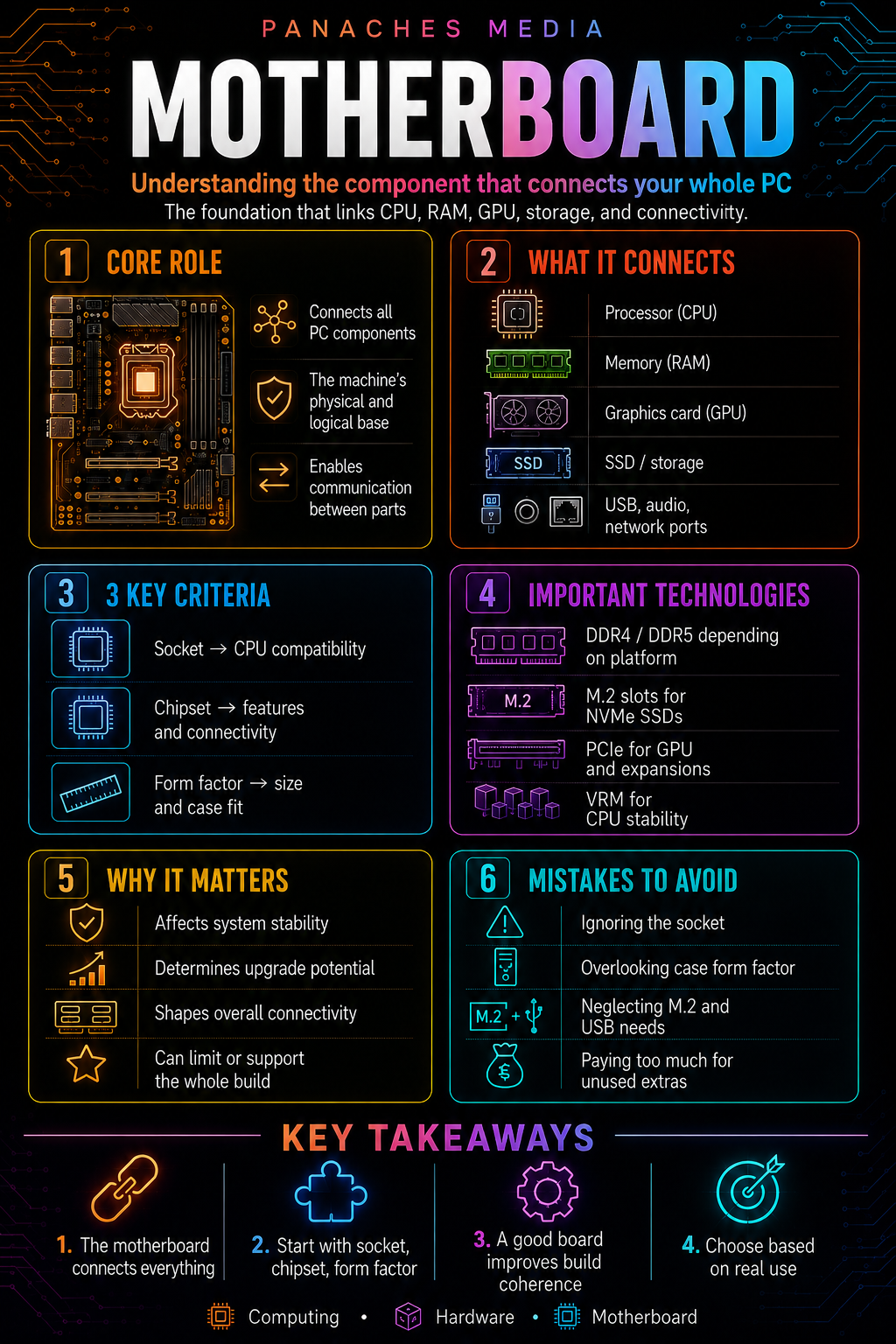
The motherboard, the discreet foundation of your computer
When we talk about PC components, we often think first of the processor, the graphics card, RAM or the SSD. These are the parts most often mentioned in performance discussions: more FPS, faster exports, smoother software, shorter loading times.
The motherboard attracts less attention.
And yet, it is one of the most important components in a computer. It does not directly make a machine faster in the same way a better CPU or GPU can, but it determines what your PC can accept, how components communicate, which technologies are available and what upgrades will be possible later.
You can see it as the backbone of the PC. All essential components connect to it: processor, RAM, graphics card, SSDs, power supply, fans, USB ports, networking, audio, and sometimes Wi-Fi and Bluetooth.
Without a motherboard, the components remain separate parts. With it, they become a system.
What is a motherboard used for?
The motherboard is a large printed circuit board that connects the main elements of the computer.
Its role is to allow components to communicate with each other. The processor needs to access RAM. The graphics card needs to receive data. SSDs need to send and receive files. USB ports need to communicate with the system. The power supply needs to deliver energy to the right places. Fans need to be controlled.
The motherboard organizes all of this.
It is used to:
- host the processor;
- connect the RAM;
- receive the graphics card;
- connect SSDs and storage drives;
- provide USB, audio, network and video ports depending on the model;
- distribute power to certain components;
- manage fans and some sensors;
- allow BIOS updates;
- define part of the machine’s upgrade possibilities.
It is therefore not just a board where components are plugged in. It is the logical and physical support that gives the computer its coherence.
Why the motherboard is never chosen alone
A common mistake is choosing a motherboard as if it were an isolated component.
In reality, it always depends on the rest of the configuration.
Before buying a motherboard, you need to know:
- which processor you want to use;
- what type of RAM you plan to install;
- what size of case you have;
- how many SSDs you want to install;
- whether you use a dedicated graphics card;
- how many USB ports you need;
- whether you need integrated Wi-Fi;
- whether you plan future upgrades;
- whether your use case is simple, gaming, creative or professional.
A motherboard can be excellent in absolute terms, but bad for your configuration if it is not compatible with your processor, too large for your case, too limited in M.2 ports, or unnecessarily expensive for your use case.
The right choice is therefore not:
“What is the best motherboard?”
But rather:
“Which motherboard matches my processor, my case, my budget and my use case?”
The socket: the processor’s slot
The first element to understand is the socket.
The socket is the physical location where the processor is installed. It is one of the strictest criteria of a motherboard: if the socket does not match the processor, installation is impossible.
An AMD processor and an Intel processor generally do not use the same socket. Even within the same brand, generations can change sockets.
For example, a motherboard designed for a recent AMD platform cannot receive an Intel processor. An Intel motherboard from an older generation may not accept a recent Intel processor.
That is why the socket must always be checked before buying.
The socket answers a simple question:
“Can my processor physically and technically work with this motherboard?”
If the answer is no, everything else no longer matters.
The chipset: the motherboard’s feature set
The socket determines compatibility with the processor. The chipset determines a large part of the available features.
The chipset influences:
- the number of USB ports;
- the number of PCIe lanes;
- the number of M.2 ports;
- overclocking possibilities;
- compatibility with certain technologies;
- the richness of the connectivity;
- networking features;
- some storage options;
- the entry-level, mid-range or high-end positioning.
Two motherboards can use the same socket, but offer very different experiences depending on their chipset.
An entry-level motherboard may be enough for a simple PC. A mid-range motherboard can be ideal for a gaming or versatile PC. A high-end motherboard can be useful for a powerful processor, several SSDs, rich connectivity, heavy creative use or a workstation.
The chipset does not automatically make the processor faster, but it defines the ground on which it will work.
The form factor: the size of the motherboard
Not all motherboards have the same size.
The form factor determines compatibility with the case, the number of available connectors, the space between components and sometimes the ease of assembly.
The three most common formats are:
- ATX;
- Micro-ATX;
- Mini-ITX.
The ATX format is the most common standard. It generally offers more connectors, more space, several expansion slots, several M.2 ports and a more comfortable installation. It is a good choice for most classic desktop PCs.
The Micro-ATX format is more compact. It reduces the size of the board while often keeping enough connectivity for a family, office or reasonable gaming PC. It can offer very good value for money.
The Mini-ITX format is much smaller. It makes it possible to build very compact PCs, but it brings more constraints: fewer RAM slots, fewer expansion ports, more delicate assembly, more difficult heat management and sometimes a higher price.
The form factor therefore answers another essential question:
“Will this motherboard fit inside my case, with enough room for my components?”
RAM: DDR4, DDR5 and number of slots
The motherboard also determines what type of RAM you can use.
Some platforms use DDR4, others use DDR5. The two are not interchangeable: a DDR4 module does not fit in a DDR5 slot, and vice versa.
On recent platforms, DDR5 has become the standard. But DDR4 is still present on some older or more economical platforms.
Before buying, you must therefore check:
- the compatible memory type;
- the number of RAM slots;
- the maximum accepted capacity;
- supported frequencies;
- compatibility with memory profiles;
- the manufacturer’s compatibility list, often called QVL.
The number of RAM slots matters. An ATX or Micro-ATX board often offers four slots, which makes upgrading easier. A Mini-ITX board is generally limited to two slots, which means you need to plan memory capacity more carefully from the start.
For a modern PC, 16 GB of RAM may be enough for many simple uses, but 32 GB becomes comfortable for creation, development, heavy multitasking or local AI.
The motherboard does not create the memory, but it defines what you can install.
The graphics card and PCIe slots
The graphics card connects to the motherboard through a PCIe slot.
On a gaming, creative or 3D-oriented PC, this slot is essential. It must be well placed, strong enough and compatible with modern graphics cards.
Recent motherboards may offer PCIe 4.0 or PCIe 5.0 depending on the platform and model. But there is one trap to avoid: PCIe 5.0 for the graphics card is not always a decisive criterion for most users.
In many configurations, a modern graphics card still works very well with a PCIe 4.0 slot. The most important factors are often elsewhere: CPU/GPU balance, power supply, cooling, case space and overall build quality.
PCIe slots can also be used for other expansion cards:
- sound card;
- network card;
- capture card;
- USB controller card;
- storage expansion card;
- specialized professional card.
The number of slots strongly depends on the motherboard form factor. An ATX board offers more possibilities than a Mini-ITX board.
M.2 ports and storage
Modern SSDs often connect through M.2 ports directly on the motherboard.
These small slots allow you to install very fast NVMe SSDs without a separate data cable or power cable. This is one of the major advantages of modern motherboards.
For a current PC, it is recommended to aim for at least two M.2 ports:
- one for the system;
- one for games, projects, software or work files.
Higher-end motherboards may offer three, four or even more M.2 ports. This is useful for creators, developers, players with large libraries, or users who work with large files.
Recent motherboards can support PCIe 4.0 or PCIe 5.0 SSDs. PCIe 5.0 offers higher throughput, but it is not always essential.
For many use cases, a good PCIe 4.0 SSD is already extremely fast. PCIe 5.0 becomes especially interesting for certain heavy workloads, massive transfers, professional creation or high-end configurations.
Once again, the right criterion is real use, not just the most impressive number.
VRM: stable power for the processor
VRMs, or voltage regulation modules, are an essential part of the motherboard.
Their role is to provide stable and suitable power to the processor. The more powerful the processor, the more important VRM quality becomes.
A high-end CPU can consume a lot under load. If the VRMs are too weak or poorly cooled, the motherboard can heat up, lose stability or limit performance.
VRMs are especially important for:
- Ryzen 9 processors;
- Core i9 or Core Ultra 9 processors;
- overclocking;
- long rendering workloads;
- workstations;
- poorly ventilated configurations;
- machines used intensively.
However, you should not judge a motherboard only by the announced number of phases. Component quality, heatsinks, overall design and real behavior under load also matter.
A good VRM does not magically make your processor faster. But it helps it remain stable, especially when it works for a long time.
Connectivity: USB, network, audio and rear ports
The motherboard also defines much of your PC’s connectivity.
At the back of the machine, it can provide:
- USB-A ports;
- USB-C ports;
- Ethernet;
- audio outputs;
- video outputs depending on the CPU;
- Wi-Fi antennas;
- BIOS Flashback or Clear CMOS buttons;
- Thunderbolt or USB4 ports depending on the model.
Inside, it can provide:
- fan connectors;
- RGB connectors;
- SATA ports;
- internal USB ports for the case;
- front audio connectors;
- headers for front USB-C;
- pump connectors for liquid cooling;
- M.2 slots.
Connectivity is often underestimated. Yet it greatly changes the comfort of use.
If you use several peripherals, external drives, audio interfaces, graphics tablets, screens, capture cards or USB accessories, a motherboard with limited connectivity can quickly become frustrating.
The right reflex is to count your real needs before buying.
Wi-Fi, Ethernet and Bluetooth
Not all motherboards include Wi-Fi or Bluetooth.
Some boards only provide an Ethernet port. Others integrate Wi-Fi and Bluetooth directly. On recent mid-range or high-end models, fast Wi-Fi and 2.5 GbE Ethernet are increasingly common.
For a desktop PC, Ethernet often remains the best solution if you can connect a cable: stable, fast and low-latency.
Integrated Wi-Fi becomes useful if the PC is far from the router, if you cannot run a cable, or if you want a simpler configuration.
For Bluetooth, usefulness depends on the accessories used: headset, controller, keyboard, mouse, tablet or wireless peripherals.
It is not always essential, but it is better to plan it from the start if you need it. Adding a Wi-Fi card or Bluetooth dongle later is possible, but it is not always as clean as an integrated solution.
BIOS and updates
The BIOS, or more precisely UEFI on modern machines, is the motherboard’s low-level software.
It allows the machine to boot, recognize components, configure memory, manage certain processor settings, control fans and activate advanced options.
The BIOS is important for compatibility.
A motherboard may be physically compatible with a processor, but require a BIOS update to recognize it properly. This often happens when a new processor is released after the motherboard.
This is where a feature like BIOS Flashback becomes very useful.
It allows you to update the BIOS without a processor installed, depending on the motherboard. This can avoid a blocking situation: having a motherboard that is theoretically compatible, but unable to boot with your CPU until the BIOS is updated.
For a safer purchase, especially with a recent processor on a motherboard released earlier, this feature is a real plus.
Entry-level, mid-range, high-end: what changes?
Not all motherboards target the same audience.
An entry-level motherboard can be enough for an office, family or budget PC. It provides the essentials: compatible socket, RAM slots, one or two M.2 ports, decent connectivity, sometimes Wi-Fi depending on the model. It is limited, but not necessarily bad.
A mid-range board often offers the best balance. It may provide better VRMs, more M.2 ports, better connectivity, more modern networking, better audio, more serious heatsinks and a better upgrade path. It is often the most rational choice for gaming or a versatile PC.
A high-end board targets demanding users: big processors, overclocking, several SSDs, advanced connectivity, USB4 or Thunderbolt, fast networking, reinforced design, integrated diagnostics, many ports and better power delivery.
But high-end is not always useful.
For a simple PC, paying for a very expensive motherboard will not necessarily improve the experience. It may be better to invest in more RAM, a better SSD, a better graphics card or a better monitor.
A good motherboard is the one that matches the need, not the one with the most spectacular spec sheet.
Common mistakes to avoid
The first mistake is buying a motherboard without checking the socket. This is the most serious trap, because it makes the processor incompatible.
The second mistake is forgetting the case form factor. An ATX motherboard does not fit into every compact case.
The third mistake is choosing a motherboard only for its design. Style can matter, but it should not come before compatibility, VRMs, M.2 ports and connectivity.
The fourth mistake is paying too much for unnecessary features. Not everyone needs four M.2 ports, USB4, Wi-Fi 7, 10 GbE networking or extreme power delivery.
The fifth mistake is neglecting VRMs with a large processor. A board that is too basic can limit a powerful CPU under long workloads.
The sixth mistake is not checking compatible RAM. Type, frequency, capacity and stability should be checked before buying.
The seventh mistake is forgetting the BIOS. With some recent processors, an update may be necessary.
The eighth mistake is not counting the ports that are actually useful. A motherboard may look complete, but lack the internal USB-C header required by your case, or only offer one M.2 port when you want several SSDs.
The motherboard in a modern machine
Computer use is becoming increasingly hybrid.
The same computer may be used to write, browse, play, create, watch videos, manage PDFs, organize files, develop software, edit images, test local AI or work with several tools open at the same time.
In this context, the motherboard is not always noticed when everything works well. But it becomes important as soon as you want to add an SSD, change processor, increase RAM, upgrade the graphics card, connect several peripherals or keep a machine stable for a long time.
A unified workspace like Panaches illustrates this logic well: when several modules can coexist in the same environment — browsing, documents, files, PDFs, notes, creation or specialized tools — comfort does not depend on a single spectacular component. It depends on a balance between processor, RAM, storage, possible graphics card, cooling, software and a motherboard capable of supporting the whole system.
The motherboard is therefore less of a direct performance component than a coherence component.
How can we summarize its role?
The motherboard connects, organizes and enables.
It connects components to each other. It organizes their communication. It enables the machine to evolve.
It does not turn an average processor into a high-end processor. It does not magically make a graphics card more powerful. It does not replace a fast SSD or a large amount of RAM.
But a bad motherboard can limit a good configuration. And a good motherboard can make a machine more stable, more practical, more upgradeable and more pleasant to use.
That is why it deserves as much attention as the more visible components.
Key takeaways
The motherboard is the central component that connects all the main elements of a computer.
It hosts the processor, RAM, graphics card, SSDs, ports, network connectivity, audio and part of the internal power delivery. It also defines a large part of the machine’s upgrade possibilities.
To choose it well, you need to look at the socket, chipset, form factor, compatible memory, M.2 ports, VRMs, connectivity, BIOS and total configuration cost.
An entry-level motherboard may be sufficient for simple use. A mid-range board often offers the best balance. A high-end board becomes relevant for large processors, creative work, workstations or highly upgradeable configurations.
The most important thing is not to choose the motherboard as a secondary accessory.
It does not do everything, but it allows everything else to work together.
In a modern PC, performance does not only come from the most powerful components. It comes from the balance between them. And the motherboard is precisely the component that makes this balance possible.