
Overview
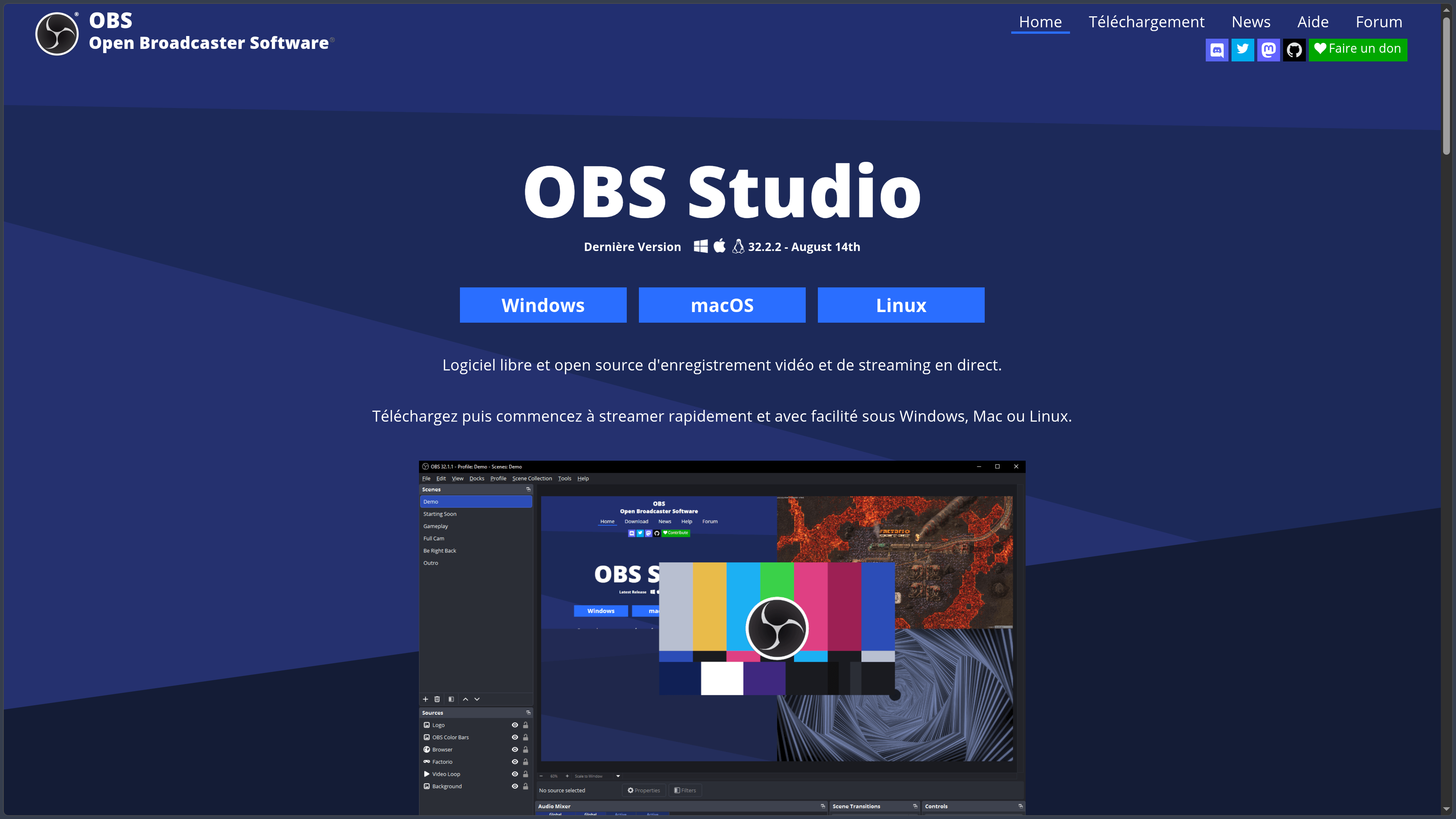
OBS Studio (Open Broadcaster Software) is free and open-source software designed to record videos and produce live broadcasts. It brings together video and audio from a computer, webcam, game, capture card or other sources, then combines them into a production intended for recording or streaming over the Internet.
Its operation rests on a simple distinction: a source is an individual captured or added element, while a scene arranges several sources into a single composition. A scene can, for example, display a game in full screen with a webcam in the corner, a title and graphic overlays; another can serve as a waiting screen or presentation. Switching between scenes allows a show to be produced in real time without having to edit it afterward.
OBS is therefore aimed at streamers, video creators, trainers, associations and teams that want to record a tutorial, broadcast an event or prepare a multicamera production. It does not replace video-editing software: its primary role is to capture, compose and encode video and audio during recording or a live broadcast. The resulting files can then be edited in a specialized application.
The program is completely free and open source, with no Pro version or subscription. Its code is released under the GPL-2.0-or-later license, and development is carried out by the OBS Project and its community. It runs on Windows, macOS and Linux; it is neither a streaming service that hosts videos itself nor a native mobile app intended for recording directly on a smartphone.
As of September 18, 2026, the stable version listed is OBS Studio 32.2.2, released on August 14, 2026. This release series notably modernizes source addition, following the introduction of a plugin manager in the 32.0 series and the audio mixer redesign in version 32.1.
Features
Scenes and sources: building a real-time production
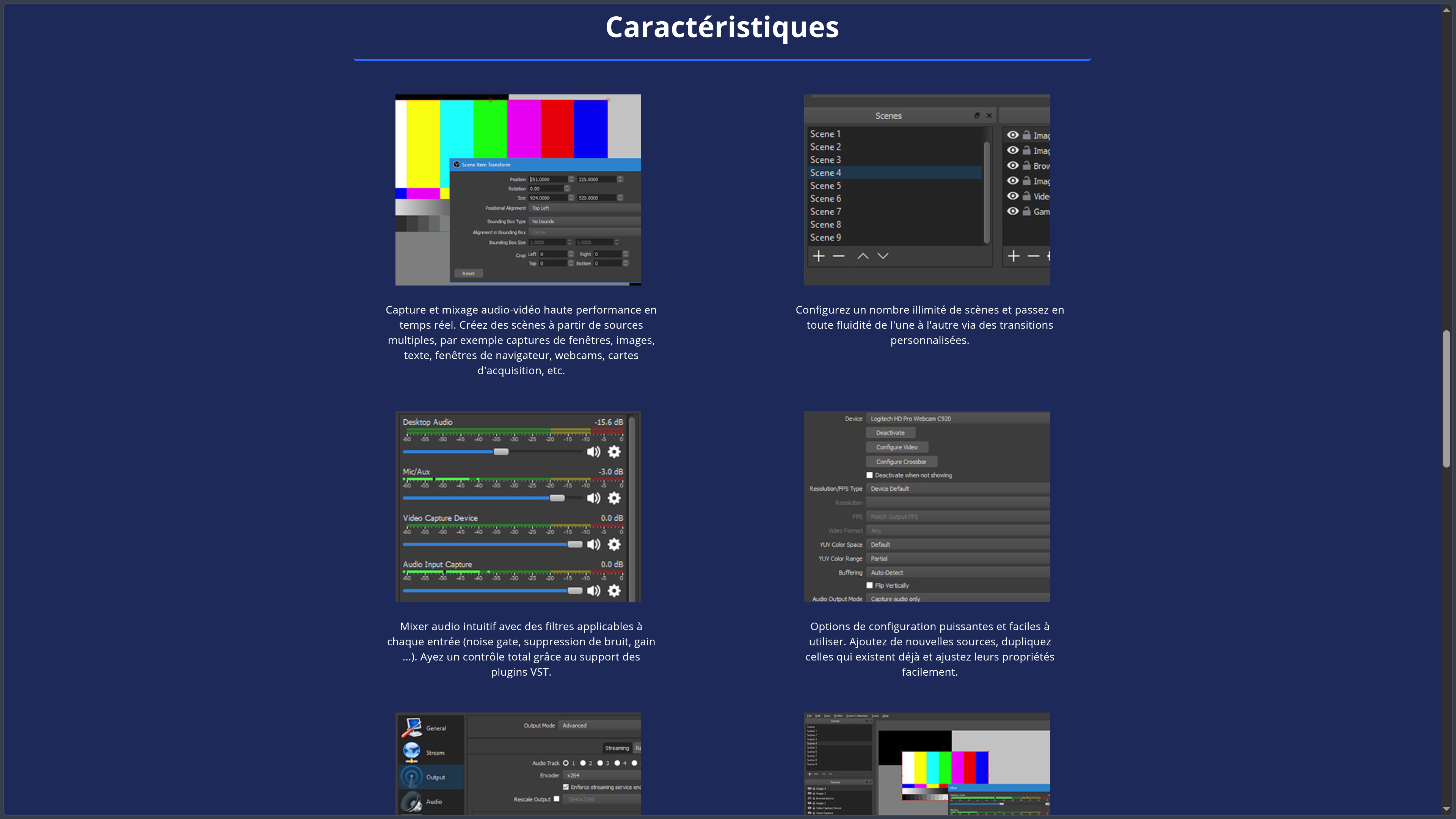
Visual composition is at the heart of OBS. Users can capture an entire screen, a window, a game or a webcam, then add images, text, a web page or the signal from a capture card. Each element can be moved, resized, cropped, masked or layered in the preview area.
Scene collections preserve different arrangements for multiple projects: one setup for gaming, another for a conference and a third for tutorials. Profiles, which are separate from scene collections, save streaming and recording settings. This separation avoids rebuilding the entire configuration when switching contexts.
OBS 32.2 replaces the previous source-addition drop-down menu with a more visual window featuring previews. The principle remains the same: assembling a production from independent, reusable elements without imposing a predefined graphic template.
Live streaming, Studio Mode and virtual camera
OBS can stream to compatible platforms, notably Twitch and YouTube, using a service connection or stream key. It also supports custom servers when the protocol and configuration match the intended service. Resolution, frame rate, bitrate and encoder must be adjusted to the available upload connection and the platform's requirements.
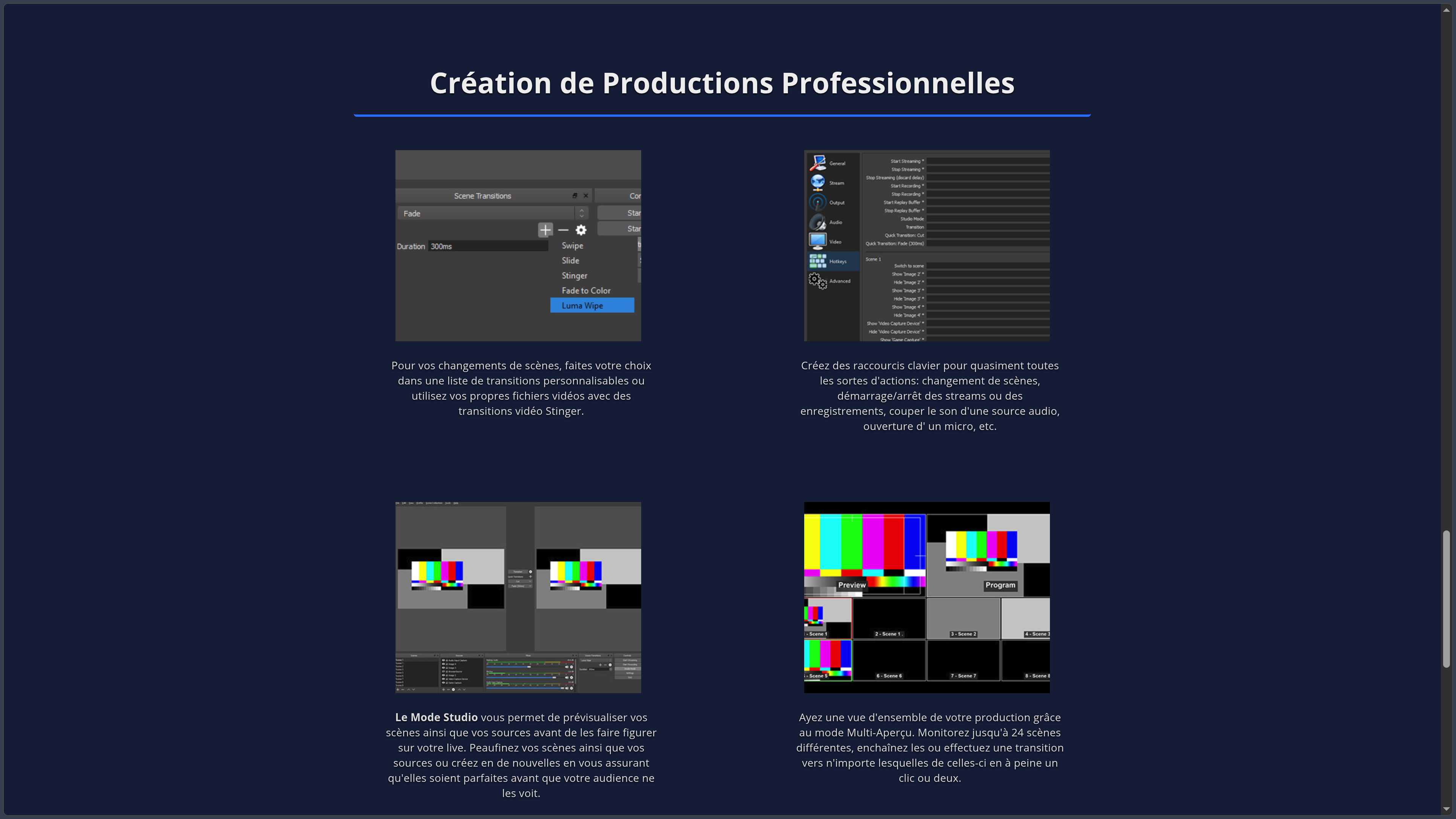
Studio Mode separates the image currently being broadcast from the one being prepared. Users can modify a scene off-air, check the layout and then trigger a transition. Keyboard shortcuts, custom transitions and multiview displays provide a workflow similar to a small video control room.
The virtual camera sends the OBS composition to a videoconferencing application as if it were a webcam. This is useful for displaying a presentation, sharing a screen and incorporating a camera into a single video signal. Compatibility depends on the destination application; on Linux, it may require configuring v4l2loopback.
Local recording and preparation for editing
OBS can record without streaming, or record and stream simultaneously. This is an important use for software demonstrations, gameplay capture and video courses: users choose the destination folder, resolution, frame rate and encoding settings.
Recording formats deserve particular attention. Hybrid MP4 and Hybrid MOV containers combine improved resistance to interruptions with practical compatibility for editing; they are used by default on new installations, as appropriate for each operating system. MKV remains a robust option, particularly for combinations of codecs and audio tracks, and OBS can convert its container to MP4 through remuxing without re-encoding the video.
In advanced output mode, it is possible to record up to six audio tracks to keep the microphone, game audio or voice conversations separate. This setting prepares for later editing, when levels can be adjusted independently. The replay buffer also makes it possible to save the last seconds or minutes of a session when the user triggers the save operation.
Audio mixing, filters and source control
The audio mixer provides individual controls for levels, muting and monitoring. Filters can be applied to the microphone or other inputs, notably to reduce noise, suppress quiet sounds with a noise gate, adjust gain or process the voice with compatible VST plugins.
Version 32.1 substantially reorganized the mixer: vertical display by default, easier access to monitoring and the ability to pin certain sources. This development makes it easier to monitor a broadcast in which several speakers, music sources and applications must remain audible without clipping the output.
Video filters complement audio processing with color correction, cropping, masks and chroma key for green-screen compositing. Their effectiveness depends on source quality and recording conditions: uneven lighting or already degraded sound will not be automatically fixed by the software.
Encoding, performance and output settings
OBS supports software encoding as well as various hardware encoders depending on the operating system and graphics card. Choosing between H.264, HEVC or AV1, when available, affects quality, compatibility and the load placed on the computer. The Auto-Configuration Wizard provides a starting point suited to the machine's capabilities and intended use.
Local recording and live streaming can use different settings: it is therefore possible to keep a higher-quality copy while broadcasting at a more modest resolution or bitrate. The right configuration mainly depends on available processing power, scene complexity and connection stability.
Version 32.2 notably adds a filter for integrating SDR sources into an HDR composition, as well as dynamic bitrate management for certain multitrack video workflows. These functions still depend on actual support from devices, encoders and streaming platforms.
Plugins, scripts and automation
The OBS ecosystem relies on an extensible architecture. Plugins can add source types, filters, outputs or integrations; Lua and Python scripts can automate certain actions. A plugin manager arrived with OBS 32.0, but plugin compatibility must always be checked against the installed version and operating system.
The obs-websocket system, integrated into the software, also enables remote control from an application or controller: switching scenes, starting a recording or triggering certain operations. This openness is useful for a control room, studio or automated workflow, provided access is protected through authentication.
Use cases
Recording a tutorial or demonstration
A developer or trainer can record an application, display their webcam and narrate the steps through a microphone. Scenes make it easy to switch between a full-screen view, a close-up and a presentation. The local recording can then serve as source footage for a video edited and published on YouTube or incorporated into documentation.
Streaming gameplay or a live event
OBS can bring together gameplay, webcam, graphics and audio before sending the signal to a streaming platform. Studio Mode prepares scene changes without exposing the adjustments to the audience; the mixer maintains control over game audio, speech and music. For a conference or an event broadcast by an association, a capture card can also receive a signal from an external camera.
Improving a video call or presentation
With the virtual camera, a meeting can receive an already arranged composition: presenter, slides and shared screen. This makes it possible to prepare a presentation that is more structured than a simple webcam feed, but it remains necessary to check audio transmission and videoconferencing-app compatibility separately.
Preparing footage for post-production
A video creator can record demonstrations or sessions with multiple audio tracks, then import the result into editing software. The container and codecs should be chosen according to the destination application: OBS produces the media, while a tool such as DaVinci Resolve or another editor handles further editing and finishing.
Conclusion
OBS Studio combines a flexible video control room with a capable recording tool. Its scene-and-source approach makes it possible to move from basic screen capture to a production combining several cameras, windows, text elements and audio tracks without changing applications.
Its free and open-source model is central to its appeal: the main features are not split between a limited edition and a paid subscription. Plugins and automation capabilities allow the software to be extended as requirements become more specific, although these additions require particular attention to maintenance and compatibility.
Getting started nevertheless involves a few technical concepts. A smooth broadcast depends as much on the computer, peripherals, encoder and connection as on OBS itself. The software replaces neither the platform hosting a live broadcast nor a video editor for extensively reworking sequences after recording.
For capturing a screen, recording narrated videos, streaming a show, producing a multicamera presentation or gathering source footage, OBS Studio offers a complete environment that is particularly adaptable to both creative and professional uses.
Points to consider
Price and license. OBS is free and distributed under GPL-2.0-or-later. Donations are optional; certain streaming services, equipment or third-party plugins may have their own pricing or licenses.
Compatibility. Version 32.2.2 runs on Windows 10/11, macOS 13 or later, and Linux with a compatible configuration. On macOS 12, the project recommends staying with OBS 32.1.2. Official Linux installation methods notably include Flatpak or the repository provided for Ubuntu 24.04 and later.
NVIDIA drivers. With OBS 32.2.2, using NVENC requires an NVIDIA driver version 570 or later because of the SDK update. The driver should be checked before upgrading an installation that relies on this encoder.
Hardware and network load. A complex scene, high-resolution capture or demanding encoding can cause dropped frames or slowdowns. Testing the configuration before going live remains essential.
Recordings. The container and audio-track setup should be chosen before capture. A file containing multiple tracks may require editing software to make proper use of each audio source.
Plugins and automation. Plugins can become incompatible after an update; WebSocket remote control must be password-protected. Particular care is needed with installations obtained from unofficial sources.
Software scope. OBS handles capture, composition, recording and streaming, but does not host live broadcasts or provide the full narrative editing of a post-production suite. Copyright and other rights covering music, videos and images being broadcast must still be respected.