Overview
Visual Studio Code, commonly shortened to VS Code, is a code editor developed by Microsoft. It is available free of charge on Windows, macOS, and Linux, as well as through a lighter version that can be used from a web browser.
The tool aims to preserve the speed and simplicity of a text editor while providing many of the features expected from an integrated development environment. These include syntax highlighting, intelligent completion, code navigation, debugging, testing, version control, a terminal, and project management.
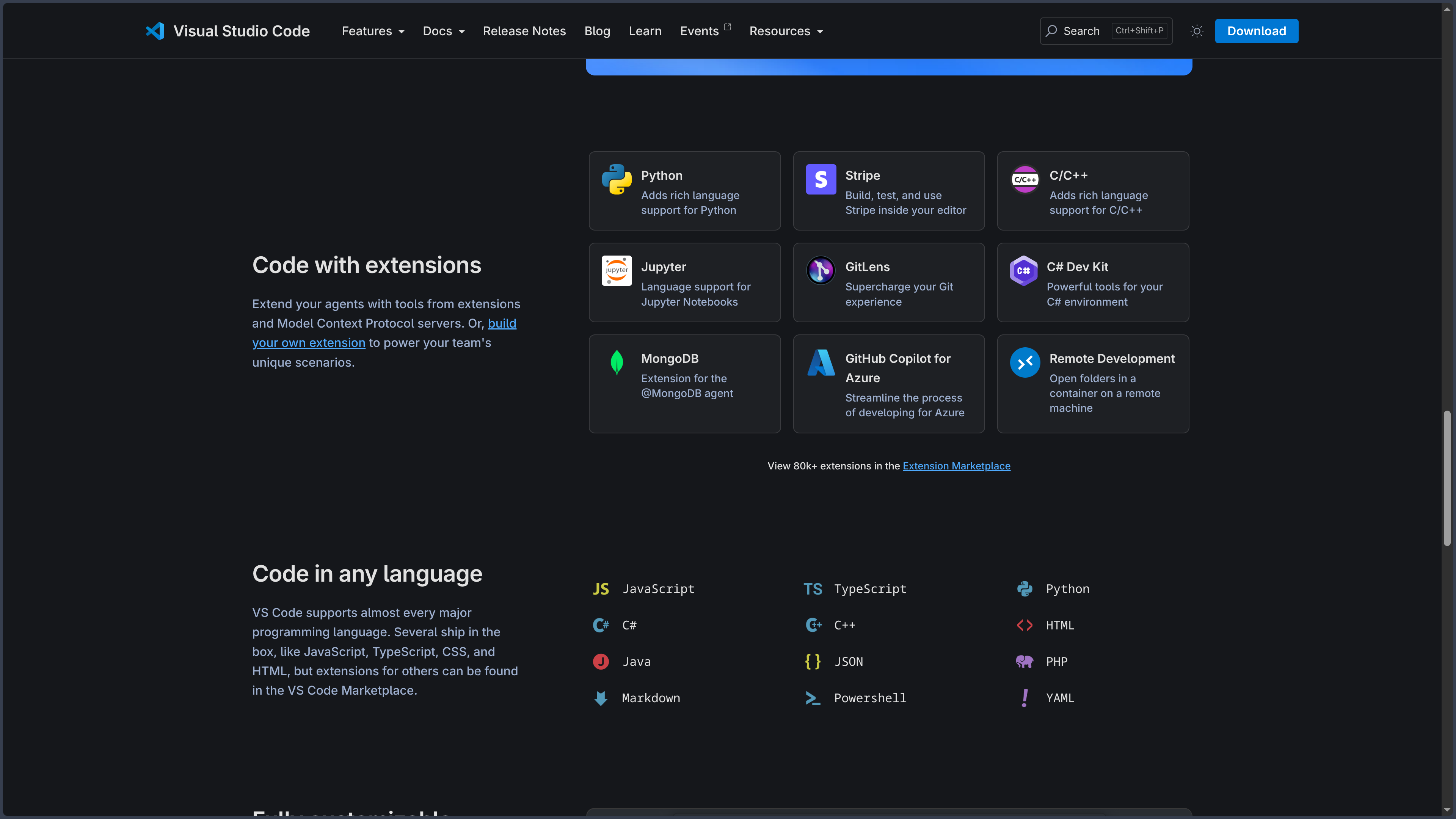
Unlike a traditional IDE delivered with a fixed set of tools for a specific language, Visual Studio Code relies heavily on an extension system. Users can build an environment suited to Python, JavaScript, TypeScript, Rust, C++, Java, PHP, Go, .NET, web technologies, notebooks, and many other uses.
This modularity allows the same editor to be used for very different projects. A minimal installation can be used to quickly modify a few files, while a richer configuration can become a complete environment for developing, testing, documenting, containerising, and deploying an application.
Visual Studio Code is built from the Code - OSS project, whose source code is published by Microsoft under the MIT licence. However, the official version downloaded from the Visual Studio Code website adds Microsoft-specific elements, including branding, access to the Visual Studio Marketplace, certain extension recommendations, and some integrations under proprietary licences.
This distinction explains why Visual Studio Code is sometimes described as open source and sometimes as proprietary. Its main foundation is open, but Microsoft’s official distribution is not exactly equivalent to a neutral build of the Code - OSS repository.
Distributions such as VSCodium rebuild this open foundation while removing Microsoft-specific branding and telemetry elements. They provide a similar experience, but may encounter differences relating to the Marketplace or certain extensions reserved for the Visual Studio product family.
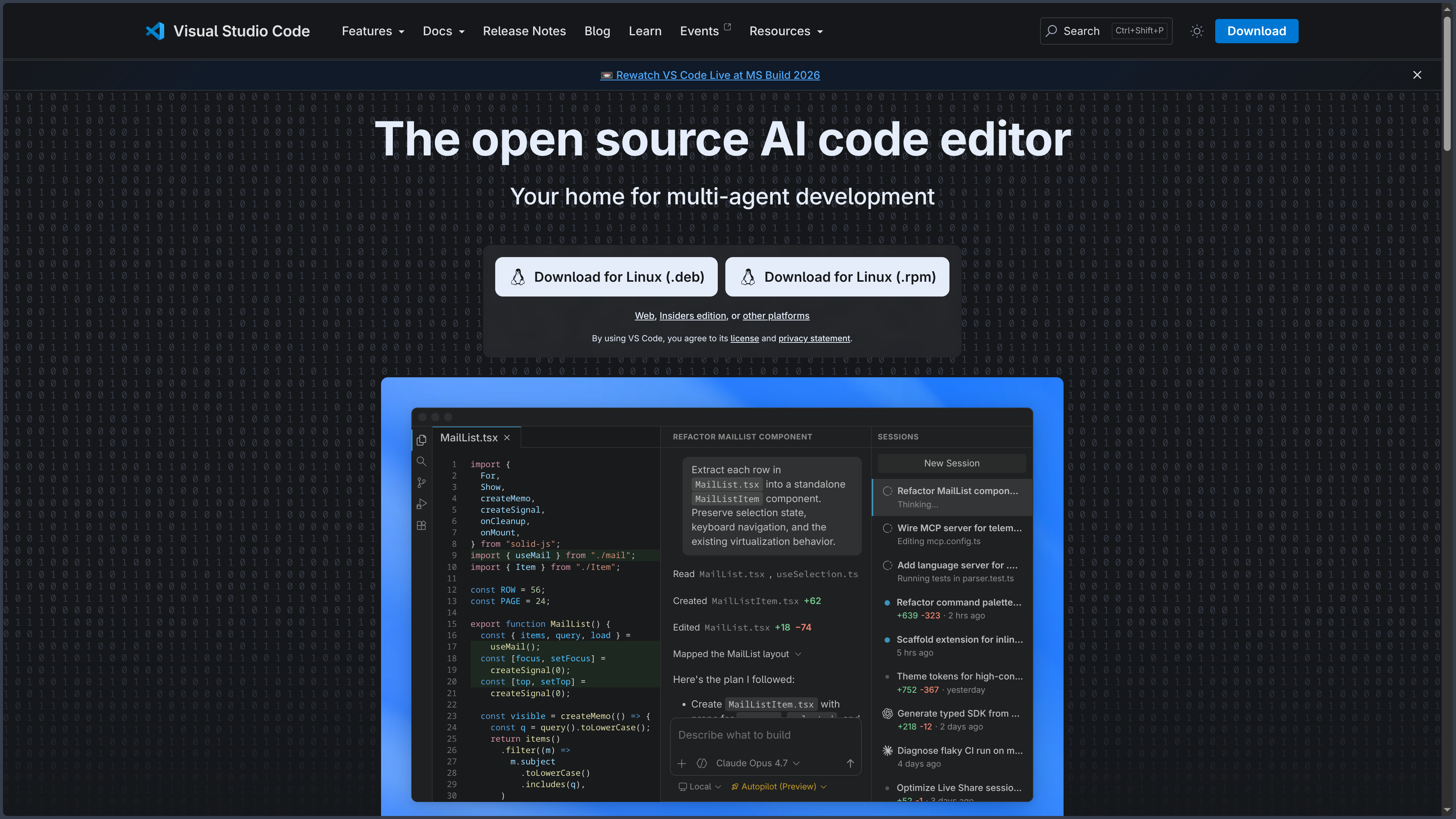
Visual Studio Code also occupies a central place in the AI-assisted development ecosystem. GitHub Copilot provides inline suggestions, chat, targeted edits, agents capable of working across several files, and connections to external tools.
These AI features do not change VS Code’s core business model: the editor remains free. GitHub Copilot is nevertheless a separate service, with a limited free plan and several paid offerings.
Features
-
Cross-platform code editing: use on Windows, macOS, and Linux with an interface and shortcuts that remain largely consistent across operating systems.
-
Web version: access a lightweight edition of VS Code from a browser through vscode.dev, without installing the desktop application.
-
File Explorer: navigate through a project tree, create files and folders, move or rename items, and perform common file operations.
-
Workspaces: open a complete folder or create a workspace that brings several folders together in the same window.
-
Tabbed editing: open many files simultaneously, create editor groups, split the workspace horizontally or vertically, and rearrange the layout.
-
Syntax highlighting: recognise and format code according to the language being used.
-
IntelliSense: contextual completion, parameter information, integrated documentation, symbol suggestions, and typing assistance.
-
Code navigation: access definitions, references, implementations, symbols, calls, and project structures.
-
Symbol renaming: consistently rename a function, variable, class, or method across the relevant files when supported by the language.
-
Refactoring: extract methods, organise imports, move code, and apply other transformations provided by language extensions.
-
Real-time diagnostics: display errors, warnings, and problems detected by compilers, linters, or language servers.
-
Quick actions: suggest fixes, automatic imports, code transformations, and solutions for certain diagnostics.
-
Snippets: quickly insert reusable code structures with input fields and variables.
-
Multiple cursors: edit several positions or occurrences in a document simultaneously.
-
Global search: search and replace within a file, folder, or an entire workspace.
-
Regular expressions: advanced filtering and complex transformations using pattern-based searches.
-
Command Palette: quickly access most editor functions without navigating through menus.
-
Customisable shortcuts: fully modify key combinations and import keymaps inspired by other editors.
-
Integrated terminal: run commands, scripts, build tools, package managers, and servers without leaving the editor.
-
Multiple terminals: create tabs, split panels, and use several shells simultaneously.
-
Shell integration: recognise commands, create file links, display execution status, navigate between commands, and detect certain errors.
-
Automated tasks: configure commands to build, test, launch a server, generate files, or perform other repetitive operations.
-
Integrated debugger: breakpoints, variable inspection, call stack, step-by-step execution, and a debugging console.
-
Launch configurations: define several startup and debugging scenarios within project files.
-
JavaScript and TypeScript debugging: built-in support for Node.js applications and web applications running in Chrome or Edge.
-
Debug adapters: add support for other languages and environments through extensions.
-
Test management: discover, launch, filter, and monitor tests through a dedicated interface.
-
Code coverage: display coverage results when supported by the framework and extension being used.
-
Integrated Git: automatically detect repositories, track modified files, stage changes, create commits, manage branches, synchronise, and inspect differences.
-
Difference editor: compare versions of a file side by side or inline.
-
Conflict resolution: integrated tools and a three-way merge editor for resolving Git conflicts.
-
Graphical history: visualise branches, commits, relationships between versions, and changes made to files.
-
Git worktrees and stashes: manage several working branches and temporarily save modifications.
-
GitHub integration: clone and publish repositories, authenticate, and access certain GitHub features.
-
Pull requests and issues: create, inspect, and review them through the official GitHub Pull Requests and Issues extension.
-
Other version-control systems: add Subversion, Mercurial, Azure DevOps, or other providers through extensions.
-
Visual Studio Marketplace: extension catalogue adding languages, debuggers, themes, linters, cloud tools, and various integrations.
-
Automatic extension updates: keep extensions up to date according to the user’s settings.
-
Extension recommendations: suggestions adapted to the project type, open files, or a configuration shared by the team.
-
Project-specific extensions: declare a list of recommended extensions in the workspace configuration folder.
-
Extension API: develop custom commands, views, languages, debuggers, specialised editors, and integrations.
-
Visual themes: change interface colours, syntax colours, icons, and the overall appearance.
-
Fonts and ligatures: customise typography used in the code editor and terminal.
-
Customisable layout: move panels, sidebars, views, terminals, and editors.
-
Zen Mode: reduce interface elements to focus the screen on the code.
-
Profiles: create separate configurations grouping extensions, settings, shortcuts, themes, and layouts.
-
Profile sharing: export a profile to a file or GitHub Gist for reuse or sharing with a team.
-
Settings Sync: synchronise settings, shortcuts, extensions, snippets, and profiles across several devices.
-
User and project settings: separate global preferences from settings specific to a workspace.
-
JSON configuration: directly access settings and automation options for advanced users.
-
Markdown files: syntax highlighting, preview, heading navigation, and support for links and images.
-
Jupyter notebooks: open, edit, and execute notebooks through the Python and Jupyter extensions.
-
Custom editors: support specialised views for certain files, graphs, data, or interfaces.
-
Remote development through SSH: open a folder located on a remote machine while keeping a local interface.
-
Visual Studio Code Server: install a component on the remote machine to run extensions and tools close to the project.
-
Remote Tunnels: connect to another machine through a secure tunnel without directly configuring an SSH server.
-
Windows Subsystem for Linux: develop inside a Linux distribution installed with WSL from the Windows VS Code interface.
-
Dev Containers: open a project inside a container with its own dependencies, tools, and settings.
-
devcontainer.json configuration: provide a reproducible description of a containerised development environment.
-
Port forwarding: access a server or service running in a remote environment from the local machine.
-
GitHub Codespaces: connect to hosted development environments from the desktop or Web version.
-
Browser version for GitHub: quickly inspect a repository with github.dev from a GitHub project page.
-
Workspace Trust: limit the automatic execution of code in untrusted projects.
-
Accessibility: keyboard navigation, screen-reader support, zoom, high contrast, and other adapted settings.
-
Localisation: translate the interface into several languages through language packs.
-
Frequent updates: regular evolution of the editor, APIs, platform support, and development features.
-
Insiders version: preview edition for testing new features earlier.
-
GitHub Copilot suggestions: propose lines or blocks of code directly in the editor.
-
Copilot Chat: conversational interface for asking questions about code, requesting explanations, or preparing a modification.
-
Inline chat: issue a targeted instruction directly inside a file or selection.
-
Agent mode: delegate tasks involving project exploration, modification of several files, and use of tools.
-
Intelligent actions: generate commit messages, fix diagnostics, and perform other AI-assisted operations.
-
AI model selection: access several models depending on the GitHub Copilot plan, account policies, and service availability.
-
Custom instructions: add project-specific rules to guide the assistant’s responses and modifications.
-
MCP integration: connect agents to servers compatible with the Model Context Protocol.
Use cases
Developing a web application
Visual Studio Code provides good native support for HTML, CSS, JavaScript, TypeScript, and JSON. IntelliSense, browser debugging, the terminal, and Git cover a large part of the web-development lifecycle.
Extensions then add tools specific to React, Vue, Angular, Svelte, Astro, Django, Laravel, Node.js, and other frameworks.
The editor can launch a local server in the terminal, detect errors, format the code, and open a debugging session in the browser.
Programming in Python
The Python extension adds interpreter selection, script execution, debugging, virtual environments, testing, and integration with various analysis tools.
The Pylance extension complements this environment with type information, improved navigation, and more precise diagnostics.
VS Code can therefore be used both for learning Python and for developing an application, API, automation script, or scientific project.
Working with notebooks and data
Jupyter extensions allow users to open notebooks, execute cells, display their results, and inspect certain variables.
This integration brings traditional code, notebooks, the terminal, Git, and documentation together within the same workspace.
It can suit data analysis, machine learning, research, teaching, and prototyping.
Building an environment for a specific language
Users can turn VS Code into a Rust, Go, Java, C++, C#, PHP, Ruby, or other development environment by installing suitable extensions.
These extensions may provide a language server, debugger, build tools, formatter, linter, and integration with the testing system.
The quality of the experience therefore depends as much on the chosen extension as on the editor itself.
Managing a Git project
The source-control interface makes it possible to view modified files, inspect differences, select changes to stage, and create a commit.
It also facilitates branch creation, synchronisation with a remote repository, and conflict resolution.
Developers accustomed to the terminal can continue using traditional Git commands in the integrated terminal while benefiting from VS Code’s visual tools.
Reviewing a pull request
With the corresponding GitHub extension, a pull request can be opened, browsed, and commented on directly from the editor.
It becomes possible to inspect differences within the context of the project, navigate to definitions, and locally run the proposed branch.
This approach can be more comfortable than relying on the web interface alone when reviewing a complex modification.
Developing on a remote server
Remote - SSH allows users to keep VS Code on their computer while working directly with the files and tools of a server.
The commands, builds, debuggers, and extensions required by the project run on the remote machine. The local computer primarily serves as the interface.
This setup is useful for Linux servers, machines equipped with GPUs, cloud environments, and projects too demanding for the personal computer.
Working with WSL
On Windows, WSL integration allows development inside a Linux environment while using the graphical interface of VS Code.
Files, terminals, dependencies, and tools remain within the Linux distribution. This separation avoids some compatibility issues between Windows and tools designed for Unix.
Reproducing an environment with Dev Containers
A devcontainer.json file can describe the image, tools, extensions, and commands required by the project.
When a collaborator opens the repository, VS Code can create or reuse a container matching this configuration.
This method reduces environmental differences between team members and makes onboarding new contributors easier.
Quickly editing a repository from the browser
The Web version makes it possible to open a repository or files without installing the desktop application.
It is suitable for reading, light corrections, writing documentation, and modifications that do not require a complete local environment.
Its capabilities remain more limited than the desktop version when a project requires a local terminal, native processes, or certain extensions.
Writing technical documentation
Visual Studio Code is also suitable for Markdown, YAML, JSON, XML, and other documentation formats.
Markdown preview, global search, spell-checking through extensions, and Git make it easier to write documentation that is versioned alongside the code.
It can therefore be used for manuals, technical notes, static websites, and knowledge bases.
Learning programming
The interface remains lighter than a large IDE while still providing access to important tools such as the terminal, debugger, Git, and extensions.
Beginners can start with a minimal configuration and progressively discover more advanced features.
However, the number of settings and extensions can become confusing without a clear selection of the tools that are actually needed.
Developing an extension
The Visual Studio Code API makes it possible to create new commands, views, editors, themes, languages, diagnostics, and integrations.
An extension can then be distributed as a package or published on a compatible registry.
This architecture largely explains the diversity of the VS Code ecosystem.
Programming with AI assistance
GitHub Copilot can explain a section of code, suggest an implementation, generate tests, investigate an error, or modify several files.
Agent mode makes it possible to entrust the assistant with a broader task, allowing it to explore the workspace and use certain authorised tools.
These features can accelerate repetitive operations, but modifications should be reviewed, tested, and understood before being integrated.
Building a customised environment for a team
Workspace settings, extension recommendations, tasks, debugging configurations, and Dev Containers can be stored in the repository.
The team can therefore share part of its environment without forcing every member to use exactly the same personal preferences.
Profiles also make it possible to keep several configurations adapted to different projects.
PANACHES review
Visual Studio Code has become a reference in modern development because it successfully positions itself between a lightweight editor and a complete IDE. It can remain simple for modifying a few files, but it can also support a highly sophisticated environment around a professional project.
Its main strength lies in its extensibility. The same software can be adapted to almost every common language, framework, and workflow. This flexibility avoids having to completely change environments when a project combines several technologies.
The interface is also fairly consistent. The Explorer, Command Palette, terminal, Git, debugger, and extensions are brought together around the same workspace. Once the shortcuts have been learned, most operations remain accessible without multiplying windows.
Git integration is particularly successful for everyday tasks. It makes modifications visible, simplifies commits, and helps users understand differences between versions. The terminal remains available for more advanced commands, avoiding the limitations of a purely graphical interface.
Remote development is another major advantage. SSH, WSL, Dev Containers, Tunnels, and Codespaces allow the local interface to be separated from the environment that actually runs the project. This architecture works equally well with servers, containers, virtual machines, and cloud infrastructure.
Profiles and workspace-specific settings provide a good response to the diversity of projects. A developer can keep a minimal configuration for writing, another for Python, another for the Web, and another for a remote environment.
The growing integration of artificial intelligence is also transforming VS Code into a working interface for development agents. Copilot is no longer limited to completing a line: it can participate in the analysis, modification, and review of several files.
This evolution can improve productivity, but it also makes the boundary between the free editor and the commercial services associated with it less clear. VS Code remains free, while intensive use of Copilot, Codespaces, or other services may require a subscription.
The extension ecosystem is both a strength and a weakness. The thousands of available extensions can meet almost every need, but their quality, maintenance, performance, and privacy policies vary considerably.
An installation loaded with many extensions can become slower, consume more memory, or create conflicts. It is often preferable to keep a limited set of genuinely useful extensions and use Profiles to separate different contexts.
The distinction between Visual Studio Code and Code - OSS also deserves to be clearly explained. Most of the code is available under the MIT licence, but the official distribution includes Microsoft customisations and uses a separate product licence.
For people wishing to avoid Microsoft telemetry or use a more strictly open-source distribution, VSCodium is a logical alternative. However, it may lose direct access to certain Microsoft Marketplace extensions or integrations.
AlternativeTo also highlights Sublime Text for its speed, Zed for its modern and collaborative approach, and editors such as Vim, Neovim, and Kate for users seeking a different or lighter environment.
For PANACHES, Visual Studio Code is an important reference for the Editor Code module. Its command system, panels, palette, terminal, Git differences, extensions, workspaces, and remote development all provide useful points of comparison.
The aim of PANACHES would not necessarily be to reproduce the entirety of VS Code, but to identify the essential features of an editor integrated into a creative workspace: clear navigation, syntax highlighting, terminal, Git, search, difference previews, diagnostics, and contextual AI assistance.
Visual Studio Code therefore deserves a central place in the PANACHES directory. It remains one of the most versatile environments for learning, programming, documenting, testing, and managing projects without immediately adopting a heavier specialised IDE.
Points to consider
-
Distinguish Visual Studio Code from Code - OSS: the open-source repository under the MIT licence is not exactly identical to Microsoft’s official distribution.
-
Do not describe the official distribution as entirely open source: it contains customisations, branding assets, and integrations governed by other conditions.
-
Review the Microsoft licence: the rights attached to the distributed software must be distinguished from those applying to the Code - OSS source code.
-
Check extension licences: every extension can use its own licence, including those published by Microsoft.
-
Check the origin of an extension: favour identified publishers, maintained projects, and extensions with clear documentation.
-
Review extension permissions and behaviour: an extension can read workspace files, execute code, or communicate with an external service.
-
Avoid installing too many extensions: accumulation can slow startup, increase memory consumption, and create conflicts.
-
Disable unnecessary extensions by workspace: some are only needed for a specific language or type of project.
-
Use Profiles: they separate configurations and limit the number of extensions active at the same time.
-
Review telemetry: Visual Studio Code collects certain usage and diagnostic data depending on applied settings and policies.
-
Configure the telemetry level: settings can reduce part of the data transmission, but extensions may use their own mechanisms.
-
Review Copilot privacy separately: prompts, code excerpts, and contexts sent to the service follow the rules of the GitHub account and plan being used.
-
Disable data use for training when necessary: individual Copilot users should review the options associated with their account.
-
Do not send secrets to an AI assistant: keys, passwords, personal data, and confidential code must be protected.
-
Review AI-generated modifications: a plausible suggestion may contain an error, introduce a vulnerability, or ignore a project constraint.
-
Run tests after agentic modifications: an agent may change several files and produce consequences that are difficult to notice visually.
-
Check commands proposed by agents: the terminal and MCP tools can execute actions affecting files or the environment.
-
Use Workspace Trust with unknown projects: a repository may contain tasks, recommended extensions, or configurations capable of executing code.
-
Inspect configuration files before execution:
tasks.json,launch.json,settings.json, anddevcontainer.jsonmay trigger or configure sensitive operations. -
Secure integrated terminals: they have the same permissions as the user account and can modify or delete files.
-
Check external dependencies: VS Code does not automatically provide every compiler, interpreter, SDK, and tool required by programming languages.
-
Install Git separately: VS Code’s Git interface uses the Git installation available on the machine.
-
Keep runtimes up to date: Python, Node.js, Java, .NET, Rust, and other environments must be managed independently of the editor.
-
Test the Web version before adopting it: vscode.dev is convenient for light modifications, but remains limited for native processes, local terminals, and certain extensions.
-
Check Web compatibility of extensions: only extensions designed for the browser environment can work fully within vscode.dev.
-
Distinguish vscode.dev from Codespaces: the former is a lightweight Web editor, while the latter can provide a remote development machine billed separately.
-
Monitor external service costs: Copilot, Codespaces, cloud machines, and APIs used by extensions may have their own billing.
-
Protect SSH connections: use properly secured keys, verify the remote host, and limit the permissions of the account being used.
-
Understand VS Code Server installation: remote development installs and runs components on the remote machine.
-
Check remote-development licences: certain Remote Development extensions and server components use proprietary licences.
-
Control forwarded ports: a development service should not be exposed publicly without authentication or a clear need.
-
Protect Dev Containers: an image or configuration file from an unknown repository can execute commands while the container is being created.
-
Use trusted container images: verify their origin, updates, and known vulnerabilities.
-
Review Settings Sync: synchronised settings, profiles, and extensions are linked to the account being used.
-
Avoid storing secrets in synchronised settings: use environment variables or suitable secret managers.
-
Back up important configurations: workspace files should be versioned when they need to be shared with the team.
-
Review updates: a new version may change an API, behaviour, extension, or compatibility with an older operating system.
-
Distinguish Stable from Insiders: the Insiders version provides earlier access to new features, but may be less suitable for a critical environment.
-
Monitor performance on large repositories: indexing, language servers, and extensions can consume substantial CPU and memory.
-
Exclude unnecessary folders: generated dependencies, caches, and large directories can be removed from search and file monitoring.
-
Choose a tool suited to the project: VS Code is versatile, but a specialised IDE may sometimes provide deeper analysis for Java, .NET, C++, or other ecosystems.
-
Compare with VSCodium when openness is a priority: this distribution reduces Microsoft components, but may present differences in Marketplace access and extension compatibility.
-
Plan a reproducible configuration: document the required extensions, dependencies, tasks, and versions so that the project does not depend solely on one developer’s machine.