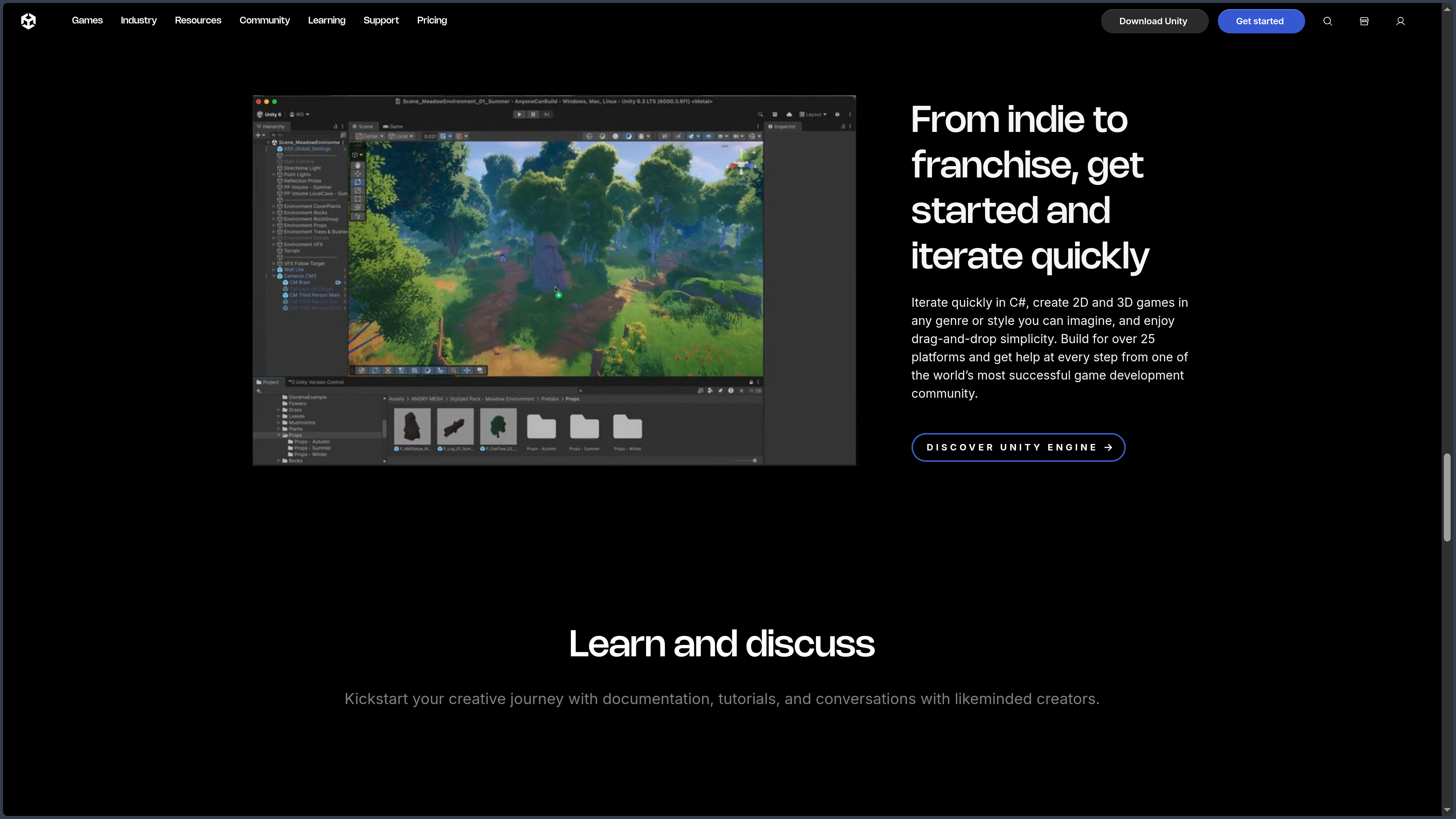
Overview

Unity is a proprietary game engine and real-time development platform created by Unity Technologies.

The software can be used to create video games, interactive applications, simulations, virtual or augmented reality experiences, visualisations, educational tools, and real-time content.

It combines a 2D and 3D scene editor, a C# programming environment, rendering systems, animation, physics, audio, interface, navigation, profiling, and cross-platform deployment tools within a single application.

Unity is not merely a display engine.

Its ecosystem also includes Unity Hub, the Package Manager, the Asset Store, Unity Cloud, Unity Version Control, Build Automation, Unity Gaming Services, multiplayer tools, LiveOps services, and optional artificial intelligence features.

The main stable version available at the time of the latest review is Unity 6.3 LTS, released in December 2025.

This version receives two years of support, through December 2027. Unity Enterprise and Unity Industry subscribers receive a third year of support.

Unity now distinguishes between LTS and Update releases.

An LTS release prioritises stability, fixes, and compatibility over an extended period. It is suitable for live games, advanced productions, and teams that want to lock down their environment.

Update releases are also considered production-ready, but receive new features and support for recent platforms more quickly. They remain supported until the next Update release is published.

Beta and Alpha versions are intended for testing features under development. They should not replace a production version for a project without solid backups.

Unity runs as an editor on Windows, macOS, and Linux.

Installation and version management are primarily handled through Unity Hub. This application can install several editor versions, their build modules, and project templates.

Several Unity versions can coexist on the same computer.

This is important because a project generally remains associated with a precise engine version and a defined set of packages.

The Unity Editor is organised around windows and panels.

The Scene View is used to construct the world, the Game View displays the result from the cameras, the Hierarchy presents the scene’s objects, the Project Browser contains the files, and the Inspector exposes the properties of the selected element.

A Unity scene is primarily composed of GameObjects.

A GameObject is a container to which Components are added. A character may therefore combine Transform, Renderer, Collider, Rigidbody, Animator, and custom scripts.

This component-based architecture facilitates the reuse and combination of behaviours.

The Transform component defines the position, rotation, and scale of each GameObject.

C# scripts generally inherit from MonoBehaviour so they can receive engine events such as Awake, Start, Update, FixedUpdate, OnEnable, or OnCollisionEnter.

Prefabs make it possible to save a GameObject and its hierarchy as a reusable template.

A modification made to the prefab can be propagated to all its instances, while overrides allow selected parameters to be adapted locally.

Unity supports nested prefabs and Prefab Variants.

ScriptableObjects make it possible to store data in assets that are independent of scenes and instances.

They are commonly used for character statistics, items, configurations, dialogue, inventories, and data systems.

Programming is mainly performed with C#.

Unity provides its own runtime environment and supports several compilation modes, including Mono for selected workflows and IL2CPP for many platforms.

IL2CPP converts intermediate C# code into C++ before native compilation.

This method improves compatibility with selected platforms and ahead-of-time execution constraints, but increases build times and requires care with reflection, dynamic code generation, and stripping.

Unity can be used with Visual Studio, Visual Studio Code, JetBrains Rider, or other compatible editors.

Project and solution files can be generated automatically to facilitate navigation, autocompletion, and debugging.

The Package Manager organises a significant part of the engine’s functionality.

Systems such as Input System, Cinemachine, Timeline, Localization, Addressables, Entities, Netcode, Visual Scripting, and the render pipelines are distributed or updated as packages.

This modularity prevents every project from loading every tool.

It also creates dependencies between the editor version, package versions, and any experimental features they contain.

Unity provides three main families of render pipelines.

The Built-in Render Pipeline is the historical pipeline. It remains compatible with many older projects and assets but receives fewer innovations than newer pipelines.

The Universal Render Pipeline, or URP, is designed to cover a wide range of hardware: mobile, Web, desktop, console, and XR.

It aims to offer a balance between visual quality, flexibility, and performance.

The High Definition Render Pipeline, or HDRP, targets high-end computers and consoles, realistic visualisation, and projects requiring advanced graphical features.

URP and HDRP are based on the Scriptable Render Pipeline, which allows Unity and developers to construct programmable render pipelines.

The pipeline should be selected early in the project.

Shaders, materials, lights, and effects are not always directly compatible between Built-in, URP, and HDRP.

Shader Graph makes it possible to create shaders through a node graph without systematically writing HLSL code.

Visual Effect Graph is intended for complex visual effects calculated primarily on the GPU.

The historical particle system, often called Shuriken, remains available for lighter or more widely compatible effects.

Unity 6.3 LTS notably improves Shader Graph, VFX Graph, terrain materials, shader templates, hybrid 2D and 3D rendering, and several graphical workflows.

3D elements can now be combined more easily with the sorting rules, lights, and masks used in 2D scenes.

Unity provides a complete set of 2D features.

These include sprites, Sprite Renderer, Sprite Atlas, Tilemap, Tile Palette, 2D Animation, 2D IK, Pixel Perfect Camera, 2D Lights, and 2D physics tools.

Unity 6.3 also introduces a low-level 2D physics API based on Box2D 3, with goals including multithreading, improved determinism, and visual debugging.

The 3D features cover meshes, materials, lights, cameras, terrains, levels of detail, occlusion culling, navigation, and integration with applications such as Blender, Maya, and 3ds Max.

Unity is not, however, a complete 3D modelling application.

Assets are generally created in Blender, Maya, Cinema 4D, 3ds Max, ZBrush, or a CAD tool and then imported into the project.

The ProBuilder package provides construction and blockout tools directly within the editor.

It is suitable for prototypes, simple levels, and reference geometry but does not replace a specialised modelling suite.

The animation system is based on Animation Clips, Animator Controllers, state machines, Blend Trees, Avatars, and different rig types.

Mecanim notably allows humanoid animations to be reused between compatible characters.

Timeline organises animations, cameras, sounds, events, and other tracks along a temporal sequence.

Cinemachine provides virtual cameras, tracking, composition, transitions, rails, and behaviours suited to games and cinematics.

The Animation Rigging package adds constraints for procedural animation, IK, and adjustments applied after the primary animation.

3D physics is mainly based on NVIDIA PhysX.

It includes Rigidbodies, Colliders, Joints, Character Controller, raycasts, volume casts, and collision detection.

2D physics uses a separate stack based on Box2D.

2D objects and components should not be mixed carelessly with 3D physics systems.

Unity integrates several interface solutions.

UI Toolkit is the modern system recommended for many new projects and editor extensions.

It draws inspiration from Web technologies, with a visual structure, USS style sheets, and a retained-mode interface model.

Unity UI, often called uGUI, remains widely used for game interfaces constructed with Canvas, RectTransform, Images, Buttons, and EventSystem.

IMGUI is mainly used for selected editor tools and historical interfaces.

The audio engine includes AudioSource, AudioListener, Audio Clips, Audio Mixer, effects, snapshots, and spatialisation.

External plugins such as FMOD or Wwise can be integrated when the project requires a more specialised audio workflow.

Unity provides several diagnostic and optimisation tools.

The Profiler analyses the processor, rendering, memory, physics, audio, and other areas.

Unity 6.3 notably adds a Highlights module intended to summarise selected data and guide analysis.

The Frame Debugger breaks down the rendering calls used to produce a frame.

The Memory Profiler helps explain the memory occupied by objects, textures, meshes, and allocations.

The Profile Analyzer compares and aggregates several captures.

External tools such as RenderDoc, Xcode Instruments, Android Profiler, PIX, or console-manufacturer tools remain necessary for selected low-level diagnostics.

Unity supports cross-platform development.

A single project can target Windows, macOS, Linux, Android, iOS, the Web, several XR headsets, televisions, embedded systems, and consoles, subject to the necessary licences and SDKs.

Unity advertises support for more than twenty runtime platforms.

Deployment to PlayStation, Xbox, Nintendo Switch, and other closed platforms requires manufacturer approval, access to its SDK, and generally Unity Pro or a licence supplied by the platform partner.

Unity 6.3 introduces Platform Toolkit.

This package provides a common API for functions such as accounts, saves, controllers, achievements, and platform-specific services.

Its goal is to reduce the amount of platform-specific code required for Android, iOS, Steam, Windows GDK, PlayStation, Xbox, and Nintendo Switch.

Unity also provides XR tools.

XR Plugin Management organises platform integrations.

OpenXR provides a common foundation for several headsets and runtimes.

AR Foundation can be used to develop augmented reality experiences based particularly on ARCore and ARKit.

Available features always depend on the hardware, plugin, operating system, and platform version.

Multiplayer is organised around several packages and services.

Netcode for GameObjects targets projects based on GameObjects and MonoBehaviours.

Netcode for Entities is intended for projects using Entities and a data-oriented architecture.

Unity Transport provides a low-level networking layer compatible with the Netcode solutions.

The Multiplayer Services SDK brings together Sessions, Lobby, Relay, and Matchmaker services through a more consistent API.

Relay connects players without directly exposing their addresses and without necessarily maintaining a dedicated server.

Lobby organises the creation, discovery, and management of player groups.

Matchmaker finds partners or servers according to configured rules.

Vivox provides voice and text chat features.

Unity also provides Dedicated Server tools, multiplayer-testing modes within the editor, and ready-to-study examples.

Unity Gaming Services cover Authentication, Analytics, Cloud Code, Cloud Save, Economy, Leaderboards, Remote Config, Cloud Content Delivery, Push Notifications, and In-App Purchasing.

These services are optional and can be combined with external backends.

They simplify selected operations but create a commercial, technical, and legal dependency on Unity Cloud.

Unity Cloud also includes collaboration and production tools.

Unity Version Control, formerly Plastic SCM, is designed for projects containing large binary files and collaboration between artists and developers.

Build Automation automatically compiles the project in the cloud or, depending on the offer, within infrastructure controlled by the company.

Asset Manager organises and shares large assets.

Cloud Diagnostics collects crashes, exceptions, and diagnostic data.

Addressables and AssetBundles facilitate deferred loading and content distribution.

Cloud Content Delivery can host catalogues and bundles so content can be updated without immediately publishing an entirely new version of the application.

The Asset Store provides models, animations, textures, sounds, shaders, tools, templates, SDKs, and extensions.

Assets may be free or paid.

Most are created by third-party publishers and licensed under the standard Unity Asset Store EULA.

Selected products use a non-standard licence or are marked as Restricted Assets.

An asset licence does not mean that the source file may be redistributed, sold separately, or freely shared with another organisation.

Unity provides an artificial intelligence system that is integrated into or connected with the editor.

Available features may include code assistance, agents, contextual search, content generation or modification, and MCP connections.

Unity AI uses separate pricing, credits, and terms. It should not be confused with the engine’s fundamental features included free of charge.

Unity is distributed through several tiers.

Unity Personal is free and intended for games and entertainment applications when applicable revenue and funding remain below 200,000 dollars over the previous twelve months.

Unity Pro becomes mandatory when these finances exceed 200,000 dollars, except where specific rules relating to clients, partners, or platforms apply.

Unity Enterprise becomes mandatory above 25 million dollars in revenue or funding.

Unity Industry applies to applications created outside games and entertainment. This plan becomes mandatory when the company’s total finances exceed one million dollars.

Users working for a client must determine whether the client’s finances are included when calculating the required licence tier.

Every user within the same organisation must use a compatible plan level. Mixing Personal, Pro, and Enterprise licences is strictly controlled or prohibited.

Unity Pro is billed per seat.

The prepaid annual subscription costs 2,310 dollars per user, while the monthly payment option costs 210 dollars per month with an annual commitment.

Enterprise and Industry are priced on request.

Cloud services, hosting, artificial intelligence credits, assets, support, and selected modules may be billed separately.

The Unity Runtime Fee announced in 2023 was removed in 2024.

The current terms permit distribution of the Unity Runtime without per-installation fees, royalties, or revenue sharing for projects created with Unity 6 or earlier versions, provided the applicable licence and financial-tier rules are respected.

Its removal does not prevent Unity from changing subscription prices, financial thresholds, or terms for future uses.

Projects, games, and content created with Unity remain the property of their authors.

Rights covering third-party assets, plugins, fonts, music, models, and services must nevertheless be checked separately.

Features

  • 2D and 3D scene editor: visually construct environments and interactions.

  • Scene View: navigate and manipulate objects within the creation space.

  • Game View: preview the result from the active cameras.

  • Hierarchy: display the GameObjects present in a scene as a hierarchy.

  • Inspector: modify the components and properties of the selected element.

  • Project Browser: navigate through project files and assets.

  • Console: display logs, warnings, errors, and exceptions.

  • Search: find assets, objects, scenes, commands, and data.

  • Overlays: display contextual tools within the Scene View.

  • Customisable layouts: organise panels according to the workflow.

  • Multiple windows: distribute the editor across several screens.

  • Dark and light modes: choose the editor’s overall appearance.

  • Configurable shortcuts: modify keyboard commands.

  • Shortcut Manager: view and customise shortcuts.

  • Context-sensitive commands: access functions that depend on the object, component, and active window.

  • Unity Hub: install and manage editor versions.

  • Platform modules: add Android, iOS, Web, or desktop build tools.

  • Project templates: begin with 2D, 3D, URP, HDRP, or specialised configurations.

  • Several simultaneous versions: keep LTS and Update branches on the same machine.

  • Version archive: download older versions compatible with a project.

  • Local projects: retain project files on the user’s storage.

  • Unity ID: account used for licences, organisations, services, and the Asset Store.

  • Unity Organisations: group projects, users, subscriptions, and services.

  • GameObjects: primary containers for scene objects.

  • Components: behaviours and data attached to GameObjects.

  • Transform: position, rotation, scale, and parent-child relationships.

  • Object hierarchy: create nested parent structures.

  • GameObject activation: temporarily disable an object and its components.

  • Tags: logically identify categories of objects.

  • Layers: filter rendering, physics, and raycasts.

  • Static Flags: indicate objects that can participate in selected optimisations.

  • Prefabs: create reusable object templates.

  • Prefab Instances: insert copies linked to their source prefab.

  • Nested Prefabs: include prefabs inside other prefabs.

  • Prefab Variants: create variations inheriting from a main prefab.

  • Prefab Overrides: locally modify an instance.

  • Apply and Revert: propagate or cancel overrides.

  • Prefab Mode: edit a prefab in isolation.

  • Scenes: organise levels, menus, and environments.

  • Additive Scene Loading: load several scenes simultaneously.

  • Scene Management: load, unload, and switch scenes through scripts.

  • Multi-Scene Editing: edit several scenes inside the editor.

  • Scene Templates: create new scenes from a prepared structure.

  • DontDestroyOnLoad: preserve selected objects between scene changes.

  • ScriptableObjects: store data as assets.

  • Unity Serialization: save compatible fields in scenes and assets.

  • Custom Editors: create inspectors adapted to a component.

  • Property Drawers: customise how a data type is displayed.

  • Editor Windows: create additional windows.

  • Gizmos: draw guides and references within the Scene View.

  • Handles: visually manipulate custom properties.

  • Editor Tools: add interactive project-specific tools.

  • C#: primary language for gameplay scripts and tools.

  • MonoBehaviour: base class for many programmed components.

  • Lifecycle events: Awake, OnEnable, Start, Update, FixedUpdate, and other callbacks.

  • Coroutines: run routines across several frames.

  • C# Events: communicate between systems with delegates and events.

  • UnityEvent: serialisable event configurable through the Inspector.

  • C# interfaces: define contracts between components.

  • Generic Types: create reusable structures and systems.

  • Async and Await: asynchronous programming in compatible contexts.

  • Assembly Definitions: separate code into assemblies.

  • Assembly References: explicitly control dependencies between modules.

  • Conditional compilation: activate code according to platform or configuration.

  • Scripting Define Symbols: define project-specific symbols.

  • Mono: runtime backend available for selected environments.

  • IL2CPP: convert intermediate code into C++ and compile it natively.

  • Managed Stripping: remove code considered unused.

  • Link XML: preserve types required for reflection.

  • Burst Compiler: optimised compilation of compatible code.

  • C# Job System: execute tasks in parallel.

  • Native Collections: memory structures suited to jobs and Burst.

  • Entities: modern Entity Component System implementation.

  • Entities Graphics: render entities and large numbers of instances.

  • Entity baking: convert authoring data into ECS data.

  • ECS Systems: execute logic across groups of components.

  • ECS Queries: efficiently select entities according to their data.

  • Netcode for Entities: ECS-oriented networking for multiplayer simulations.

  • Visual Scripting: create logic through node graphs.

  • Script Graphs: visually represent operations and events.

  • State Graphs: create visual state machines.

  • Visual variables: graph, scene, application, or object data.

  • Custom Units: add custom nodes.

  • Package Manager: install and update packages.

  • Package Manifest: define project dependencies.

  • Embedded packages: keep a modifiable copy inside the project.

  • Local packages: load tools from disk.

  • Git packages: install from selected compatible Git URLs.

  • Scoped Registries: use third-party package registries.

  • Package samples: import examples and educational resources.

  • Version Locking: retain precise versions in the lock file.

  • Built-in Render Pipeline: historical engine pipeline.

  • Universal Render Pipeline: pipeline adaptable to many platforms.

  • High Definition Render Pipeline: pipeline for high-end hardware.

  • Scriptable Render Pipeline: programmable foundation for modern pipelines.

  • Custom Render Pipelines: construct a project-specific pipeline.

  • Render Pipeline Assets: define the primary URP or HDRP settings.

  • Quality Levels: use different graphical settings according to hardware.

  • Pipeline by quality level: use distinct configurations for different quality tiers.

  • Forward Rendering: direct rendering suited to different scene types.

  • Forward+: manage a larger number of lights in compatible configurations.

  • Deferred Rendering: deferred rendering suited to selected scenes with many lights.

  • GPU Resident Drawer: reduce selected CPU costs associated with submitting objects to the GPU.

  • SRP Batcher: group compatible rendering calls.

  • Dynamic Batching: group small geometry in selected situations.

  • Static Batching: group static objects.

  • GPU Instancing: efficiently render many similar objects.

  • Occlusion Culling: avoid rendering elements hidden behind other objects.

  • Frustum Culling: exclude objects outside the camera’s field of view.

  • LOD Group: change the model according to distance.

  • LOD Cross Fade: transition between levels of detail.

  • Mesh Renderer: render static meshes.

  • Skinned Mesh Renderer: render characters and deforming meshes.

  • Sprite Renderer: display 2D images.

  • Line Renderer: generate lines in space.

  • Trail Renderer: create trails behind an object.

  • Particle System Renderer: display particles from the historical system.

  • Sorting Layers: organise 2D display order.

  • Sorting Groups: group elements for sorting.

  • 3D rendering with 2D sorting: integrate 3D objects into 2D display rules.

  • ShaderLab: define Unity shaders.

  • HLSL: program custom shaders.

  • Shader Graph: visually construct shaders.

  • Sub Graphs: group reusable blocks within Shader Graph.

  • Custom Function Nodes: insert custom code into a graph.

  • Lit Shaders: materials reacting to lighting.

  • Unlit Shaders: materials independent of lighting.

  • Decals: project details onto surfaces.

  • Terrain Shaders: visually create terrain materials.

  • Post-Processing Shaders: effects applied after primary rendering.

  • Shader Variants: versions compiled according to enabled functionality.

  • Shader Variant Stripping: remove unnecessary variants during the build.

  • Materials: link shaders, textures, and parameters.

  • Material Property Blocks: change properties without systematically duplicating materials.

  • Render Textures: render a camera or effect into a texture.

  • Custom Passes HDRP: insert custom stages into rendering.

  • Renderer Features URP: extend the URP pipeline.

  • Render Graph: organise and optimise compatible render passes.

  • Ray Tracing HDRP: use ray-traced effects on compatible hardware.

  • Path Tracing HDRP: generate images through path tracing in compatible configurations.

  • Indirect Ray Tracing: add large numbers of GPU-driven instances in Unity 6.3.

  • Screen Space Reflections: calculate reflections from the visible image.

  • Screen Space Ambient Occlusion: calculate occlusion in screen space.

  • Volumetric Fog: create fog and volumes in HDRP.

  • Cloud Layers and Volumetric Clouds: create skies and clouds in HDRP.

  • Sky Systems: procedural skies, HDRIs, and lighting environments.

  • Physical Sky: physically inspired sky simulation in HDRP.

  • Real-time lighting: dynamically calculate lights.

  • Baked Lighting: precalculate lighting in lightmaps.

  • Mixed Lighting: combine baked and dynamic lights.

  • Lightmapper: generate lightmaps.

  • Progressive Lightmapper: progressively calculate lighting.

  • xAtlas Lightmap Packing: optimised lightmap arrangement in Unity 6.3.

  • Light Probes: sample lighting for dynamic objects.

  • Reflection Probes: capture the environment for reflections.

  • Adaptive Probe Volumes: volumetrically represent indirect lighting.

  • Light Cookies: project textures through lights.

  • Light Layers: control which objects are affected by selected lights.

  • Shadows: dynamic and baked shadows.

  • Shadow Cascades: improve directional shadows at different distances.

  • Contact Shadows: proximity shadows in compatible configurations.

  • Post-processing: effects applied after rendering.

  • Bloom: spread light around bright areas.

  • Tonemapping: convert high dynamic ranges for display.

  • Color Grading: correct and stylise colours.

  • Vignette: darken or tint image edges.

  • Film Grain: add visual grain.

  • Chromatic Aberration: create coloured offsets inspired by camera lenses.

  • Depth of Field: blur according to focus distance.

  • Motion Blur: blur associated with movement.

  • Lens Distortion: simulate optical distortion.

  • Mobile Bloom optimisations: Kawase and Dual filters in Unity 6.3.

  • On-tile post-processing: effects optimised for compatible mobile and XR GPUs.

  • Visual Effect Graph: create GPU-calculated visual effects.

  • GPU Events: trigger VFX systems from other effects.

  • VFX Instancing: use instances for selected effects.

  • VFX Templates: examples and starting points for visual systems.

  • Particle System: historical particle system.

  • Emission Modules: control particle creation.

  • Shape Modules: define the emission region.

  • Collision Modules: make particles interact with the scene.

  • Sub Emitters: trigger secondary systems.

  • Particle Trails: create trails.

  • Particle Lights: associate lights with particles in compatible cases.

  • Sprites: images used in 2D scenes.

  • Sprite Editor: cut and prepare sprites.

  • Multiple Sprite Mode: extract several sprites from one image.

  • Sprite Atlas: group sprites into optimised textures.

  • Sprite Atlas Analyser: analyse atlas usage in Unity 6.3.

  • PSD Importer: import Photoshop documents with compatible layers.

  • 2D Animation: rig and deform sprites.

  • Sprite Skin: deform a sprite with a skeleton.

  • 2D IK: inverse kinematics for 2D rigs.

  • 2D Pixel Perfect: maintain consistent pixel-art display.

  • Tilemap: construct levels using tiles.

  • Tile Palette: select and paint tiles.

  • Rule Tile: automatically adapt a tile according to neighbouring tiles through compatible tools.

  • Animated Tiles: animate tiles.

  • Isometric Tilemaps: construct isometric scenes.

  • Hexagonal Tilemaps: use hexagonal grids.

  • Sprite Masks: mask sprites.

  • 2D Lights: light sprites with URP’s 2D Renderer.

  • 2D Shadows: create shadows in compatible 2D scenes.

  • 2D Normal Maps: make sprites react to lighting.

  • Combined 2D and 3D sorting: integrate volumetric objects into a 2D scene.

  • Physics 2D: Box2D-based simulation.

  • Box2D 3 Low-Level API: multithreaded and debuggable API in Unity 6.3.

  • Rigidbody2D: physically move a 2D object.

  • Collider2D: 2D collision shapes.

  • CompositeCollider2D: combine several colliders.

  • 2D Joints: physical connections between objects.

  • Physics Material 2D: control friction and bounce.

  • 2D Raycast: query colliders in 2D space.

  • Effector 2D: areas applying physical behaviours.

  • 3D Meshes: triangulated geometry used for objects.

  • Mesh Filter: reference an object’s geometry.

  • Mesh API: create and modify meshes through code.

  • Mesh Data API: efficiently access geometric data.

  • Model Importer: import FBX, OBJ, and other compatible formats.

  • Scale Factor: adapt scale during import.

  • Rig Import: read skeletons and animations.

  • Material Import: create or link materials from a 3D file.

  • Texture Importer: configure textures according to their use.

  • Per-platform compression: use different formats and sizes for each target.

  • Mipmaps: create reduced texture versions according to distance.

  • Texture Streaming: load the required texture levels.

  • Mesh Compression: reduce the size of selected geometry.

  • Read/Write Settings: retain or remove CPU data after import.

  • ProBuilder: create blockouts and geometry directly in Unity.

  • PolyShape: create volumes from outlines.

  • ProBuilder UV Editor: perform simple UV adjustments.

  • Historical ProGrids: snapping and placement now incorporated into modern tools.

  • Terrain System: create terrains.

  • Terrain Sculpting: modify landforms.

  • Terrain Layers: paint ground textures.

  • Trees and Details: place vegetation and small elements.

  • Terrain Holes: create openings in terrain.

  • Terrain Tools: additional sculpting and import tools.

  • Historical Tree Editor: create simple vegetation.

  • SpeedTree Integration: import and render compatible vegetation.

  • NavMesh: represent traversable areas.

  • AI Navigation Package: generate and update navigation surfaces.

  • NavMesh Agent: move an agent towards a destination.

  • NavMesh Obstacle: create dynamic navigation obstacles.

  • Off-Mesh Links: define transitions such as jumps, ladders, and teleportation.

  • NavMesh Components: configurable surfaces and volumes.

  • Physics 3D: PhysX-based simulation.

  • Rigidbody: physically move a 3D object.

  • Colliders: Box, Sphere, Capsule, Mesh, and other shapes.

  • Triggers: detect presence without a solid collision.

  • Physics Materials: control friction and bounce.

  • Joints: Fixed, Hinge, Spring, Character, and Configurable Joints.

  • Raycasts: perform collision tests along a ray.

  • SphereCast and CapsuleCast: test moving volumes.

  • Overlap Queries: find colliders inside an area.

  • Collision Matrix: define which layers can interact.

  • Continuous Collision Detection: reduce selected high-speed tunnelling.

  • Character Controller: control character movement without a conventional Rigidbody.

  • Cloth Component: simulate cloth on selected meshes.

  • Wheel Collider: specialised vehicle physics.

  • Fixed Timestep: define physics-update frequency.

  • Manual Physics Simulation: control when the simulation is calculated.

  • Animation Clips: store curves and keyframes.

  • Animation Window: create and modify animations.

  • Animator Component: execute an Animator Controller.

  • Animator Controller: animation state machine.

  • Animator States: states corresponding to clips or Blend Trees.

  • Animator Transitions: conditional passages between states.

  • Animator Parameters: booleans, triggers, integers, and floats.

  • Blend Trees: mix several animations.

  • Animation Layers: superimpose several animation states.

  • Avatar Masks: limit animation to selected body parts.

  • Humanoid Rig: retarget animation between humanoid characters.

  • Generic Rig: animate non-humanoid skeletons.

  • Legacy Animation: support selected historical projects.

  • Root Motion: movement based on animation.

  • Animation Events: call functions from an animation.

  • State Machine Behaviours: scripts associated with Animator states.

  • Mecanim Inverse Kinematics: adjust hands and feet.

  • Animation Rigging: add procedural constraints.

  • Two Bone IK: solve an articulated limb.

  • Multi-Aim Constraint: orient towards one or more targets.

  • Multi-Parent Constraint: combine several parent references.

  • Rig Layers: activate groups of constraints.

  • Timeline: sequence tracks.

  • Playable Director: component executing a Timeline.

  • Animation Tracks: animate GameObjects.

  • Activation Tracks: activate objects during a time range.

  • Audio Tracks: position sounds.

  • Signal Tracks: send events.

  • Control Tracks: control particles, prefabs, or secondary timelines.

  • Custom Playables: create project-specific tracks and behaviours.

  • Cinemachine: virtual-camera system.

  • Virtual Cameras: compose shots without multiplying Camera Components.

  • Camera Blending: transition between shots.

  • Follow and Look At: track and orient towards targets.

  • Camera Noise: simulate camera movement.

  • Confiner: restrict a camera to an area.

  • Dolly Tracks: move along a rail.

  • Target Groups: frame several targets.

  • Impulse: make a camera react to an event.

  • Cinemachine 2D: tracking suited to two-dimensional games.

  • Cinemachine with Timeline: create cinematics.

  • AudioSource: play sound in a scene.

  • AudioListener: define the primary listening point.

  • Audio Clips: imported sound files.

  • Audio Mixer: mix and process audio groups.

  • Mixer Groups: hierarchically organise sounds.

  • Mixer Snapshots: save mixing states.

  • Audio Effects: built-in filters and processing.

  • Spatial Blend: transition between 2D and 3D sound.

  • Doppler Effect: modify pitch according to movement.

  • Audio Reverb Zones: create localised audio ambience.

  • Native Audio Plugins: integrate native effects.

  • FMOD and Wwise: available third-party integrations.

  • Video Player: play videos within a scene.

  • Render Texture Video: display video on a material or UI.

  • Timeline Video Workflows: synchronise videos within a sequence.

  • UI Toolkit: modern interface system.

  • Visual Elements: basic elements of the UI tree.

  • UXML: structural definition of an interface.

  • USS: style sheets inspired by CSS.

  • UI Builder: visually construct UI Toolkit interfaces.

  • Data Binding: connect data in compatible contexts.

  • Runtime UI: interfaces displayed in games and applications.

  • Editor UI: create modern tools and inspectors.

  • Runtime Debugging UI: integrate tool interfaces into an application.

  • Unity UI or uGUI: Canvas-based interface.

  • Canvas: primary surface for uGUI interfaces.

  • RectTransform: position and dimensions adapted to interfaces.

  • Anchors: adapt to different resolutions.

  • Canvas Scaler: scale according to the screen.

  • Images and Raw Images: display sprites and textures.

  • Buttons: interactive elements.

  • Sliders and Scrollbars: value and navigation controls.

  • Scroll Views: display scrolling content.

  • Layout Groups: automatically organise elements.

  • Content Size Fitter: adapt to content size.

  • EventSystem: manage UI input.

  • TextMesh Pro: advanced typography rendering.

  • Signed Distance Fields: retain sharp text at different sizes.

  • Fallback Fonts: use backup fonts.

  • Rich Text: formatting tags.

  • Localization Package: manage languages and localised content.

  • String Tables: store translated text.

  • Asset Tables: provide asset variants according to language.

  • Smart Strings: dynamic strings and variables.

  • Pseudo-localization: test text length and character support.

  • Input System: modern input management.

  • Input Actions: abstract actions such as Jump, Move, or Submit.

  • Action Maps: group actions according to context.

  • Control Schemes: keyboard, controller, or touch configurations.

  • Input Bindings: associate an action with a control.

  • Interactive Rebinding: allow users to modify controls.

  • Composite Bindings: create axes and vectors from several keys.

  • Player Input: manage one player’s input.

  • Player Input Manager: create and associate local players.

  • Local Multiplayer: use several devices on the same machine.

  • Touch Input: gestures and touch contacts.

  • Sensor Input: accelerometer, gyroscope, and compatible sensors.

  • Haptics: vibrations on supported devices.

  • Input Debugger: inspect devices and events.

  • Legacy Input Manager: historical input system still available.

  • Accessibility APIs: functionality intended to improve accessibility.

  • Native Screen Reader Support: screen-reader support in Unity 6.3 on compatible platforms.

  • Color and Contrast Controls: potential adaptation of the interface and content.

  • Subtitles and Captions: create them through the project’s UI and audio systems.

  • Platform Toolkit: common API for platform services.

  • Account Management: abstract selected platform accounts.

  • Platform Save Data: common interface for supported saves.

  • Controller Ownership: manage the primary controller.

  • Achievements: common interface for achievements.

  • Editor testing: simulate selected platform functionality.

  • Android Google Play Services: integration supported by Platform Toolkit.

  • iOS GameKit: integrate Apple services.

  • Steam: platform functionality on Windows.

  • Windows GDK: integrate compatible Microsoft services.

  • PlayStation 5: support subject to manufacturer access requirements.

  • Xbox One and Series: support subject to access requirements.

  • Nintendo Switch and Switch 2: support subject to access requirements.

  • Build Profiles: save build configurations.

  • Per-platform profiles: maintain distinct parameters for each target.

  • Player Settings: configure the final product.

  • Quality Settings: define graphical quality levels.

  • Graphics Settings: define the pipeline and general rendering parameters.

  • Physics Settings: configure simulation.

  • Time Settings: configure update frequency and time scale.

  • Audio Settings: configure frequency and audio behaviour.

  • Package-specific Settings: parameters belonging to individual packages.

  • Historical Build Settings: interface retained in selected workflows.

  • Windows Builds: create Windows executables.

  • macOS Builds: create macOS applications.

  • Linux Builds: create Linux applications.

  • Android Builds: generate APKs or Android App Bundles.

  • iOS Builds: generate an Xcode project.

  • Web Builds: compile to WebAssembly and WebGL.

  • Universal Windows Platform: create UWP applications in compatible versions.

  • Console Builds: deploy to authorised closed platforms.

  • Apple Vision Pro: create spatial applications with a compatible plan.

  • tvOS: create applications for Apple TV.

  • Android TV: create adapted Android applications.

  • XR Builds: compile for compatible headsets and platforms.

  • Dedicated Server Builds: create players without rendering for servers.

  • Headless Mode: run without a graphical interface.

  • Command Line Arguments: automate the editor and builds.

  • Batch Mode: launch without user interaction.

  • Execute Method: call a C# method from the command line.

  • Development Builds: compile with additional tools and symbols.

  • Script Debugging: connect a debugger to the Player.

  • Autoconnect Profiler: automatically connect a build to the Profiler.

  • Deep Profiling: instrument code in detail.

  • Managed Debug Symbols: preserve debugging information.

  • Code Stripping: remove unused code.

  • Per-platform Texture Compression: adapt assets to each device.

  • Managed Code Compilation: compile C# scripts.

  • Incremental Builds: reuse intermediate results.

  • Build Cache: retain data to accelerate builds.

  • Build Report: analyse build content and size.

  • AssetBundles: group assets that can be loaded separately.

  • Addressables: manage references and asynchronous loading.

  • Addressable Groups: organise distributed assets.

  • Local and Remote Groups: separate embedded and remote content.

  • Addressable Labels: logically group resources.

  • Addressable Profiles: use different parameters for development and production.

  • Content Update Workflow: update assets without rebuilding the entire application.

  • AssetBundle Compression: LZ4, LZMA, and compatible modes.

  • Historical AssetBundle Variants: mechanisms used in selected older projects.

  • StreamingAssets: include files retained in their original form.

  • Resources Folder: simple loading that is difficult to optimise in large projects.

  • Async Loading: load without systematically blocking the main frame.

  • Scene Streaming: progressively load levels.

  • Profiler: analyse performance.

  • CPU Profiler: measure processor time.

  • GPU Profiler: measure graphical time on compatible platforms.

  • Rendering Profiler: display rendering statistics.

  • Memory Profiler: analyse memory.

  • Audio Profiler: observe voices and audio processing.

  • Physics Profiler: analyse physics calculations.

  • UI Profiler: observe interfaces.

  • Historical Network Profiler: analysis available according to the packages used.

  • Profiler Highlights: statistical summary added in Unity 6.3.

  • Profiler Markers: add custom code instrumentation.

  • Custom Profiler Modules: add project-specific data.

  • Profile Analyzer: compare and aggregate captures.

  • Frame Debugger: inspect rendering stages.

  • Memory Snapshots: create detailed memory captures.

  • Rendering Statistics: triangles, batches, SetPass, and other metrics.

  • Editor Iteration Profiler: analyse selected iteration times.

  • RenderDoc Integration: capture a graphical frame.

  • Crash Reporting: report incidents through compatible services.

  • Cloud Diagnostics: collect errors, exceptions, and crashes.

  • Log Files: editor and Player logs.

  • Stack Traces: display call stacks.

  • Debug Class: write logs and assertions through scripts.

  • Assertions: verify conditions during development.

  • Test Framework: create Edit Mode and Play Mode tests.

  • Edit Mode Tests: execute tests without fully running the game.

  • Play Mode Tests: execute tests in a runtime context.

  • Parameterized Tests: run tests with several data values.

  • Unity Performance Testing: create repeatable performance measurements.

  • Code Coverage: analyse code reached by tests.

  • Build Automation Tests: execute tests in an automated pipeline.

  • Unity Version Control: version control suited to large files.

  • Branches: develop project variants.

  • Changesets: save groups of modifications.

  • Smart Locks: lock binary files.

  • Gluon Workflow: simplified interface for artists.

  • Merge Tools: merge compatible scenes, prefabs, and text files.

  • UnityYAMLMerge: specialised merging of serialised Unity files.

  • Git Compatibility: use Git with suitable settings.

  • Visible Meta Files: preserve GUIDs in version control.

  • Force Text Serialization: store scenes and prefabs in a readable form.

  • Build Automation: automated cloud compilation.

  • Build Triggers: start builds from a branch or modification.

  • Cloud Build Machines: Windows, Linux, and macOS environments.

  • Pipeline Automation: orchestrate cloud processes.

  • Asset Manager: centrally manage 3D resources.

  • Cloud Storage: capacity varying by plan and consumption.

  • Unity Gaming Services: collection of backend services.

  • Authentication: anonymous, platform, or custom identification.

  • Cloud Save: store progression and player data.

  • Cloud Code: execute server logic in the cloud.

  • Economy: virtual currencies, inventories, and purchases.

  • Leaderboards: configurable rankings.

  • Analytics: analyse events and behaviour.

  • Remote Config: modify parameters without releasing a new game version.

  • Game Overrides: adapt experiences to player segments.

  • Push Notifications: send messages to compatible devices.

  • In-App Purchasing: manage store products and subscriptions.

  • Cloud Content Delivery: host downloadable content.

  • Triggers: start actions in response to events or schedules.

  • Environments: separate development, staging, and production data.

  • Service Accounts: authenticate server tools and processes.

  • UGS Dashboard: configure services through the Web.

  • Client SDKs: access services from a Unity project.

  • Web APIs: integrate services from external backends.

  • Multiplayer Services SDK: common interface for several multiplayer services.

  • Sessions: manage groups and player connections.

  • Lobby: create and discover lobbies.

  • Relay: connect players without an exposed dedicated server.

  • Matchmaker: associate players and servers.

  • Multiplay Hosting: host servers according to the available offer.

  • Vivox: voice and text chat.

  • Friends: social features between players.

  • Unity Transport: low-level networking layer.

  • Netcode for GameObjects: synchronise GameObject projects.

  • NetworkObjects: objects with a network identity.

  • NetworkVariables: synchronised data.

  • Remote Procedure Calls: calls between clients and servers.

  • Client-Server Authority: control network authority.

  • Network Prefabs: prefabs registered for networking.

  • Netcode for Entities: networking suited to ECS.

  • Ghosts: synchronised entities.

  • Prediction: local simulation anticipating server data.

  • Interpolation: smooth received states.

  • Host Migration: potentially continue a session after losing the host in compatible workflows.

  • Dedicated Server Package: optimise server builds.

  • Multiplayer Play Mode: test several players from the editor.

  • Multiplayer Tools: statistics and network-condition simulation.

  • Network Simulator: simulate latency, loss, and instability.

  • Unity Building Blocks: ready-to-adapt components for common functionality.

  • Achievements Building Blocks: foundation for achievement integration.

  • Leaderboards Building Blocks: foundation for leaderboard integration.

  • Multiplayer Session Building Blocks: start multiplayer sessions.

  • XR Plugin Management: organise XR plugins.

  • OpenXR: common standard for several headsets.

  • AR Foundation: abstraction for augmented reality.

  • ARCore Integration: AR functionality on compatible Android devices.

  • ARKit Integration: AR functionality on compatible iOS devices.

  • XR Interaction Toolkit: interactions involving controllers, hands, and objects.

  • Locomotion System: move within an XR experience.

  • XR Grab Interactable: create manipulable objects.

  • XR Ray Interactor: interact at a distance.

  • XR Device Simulator: partially test from the editor.

  • Hand Tracking: track hands on compatible platforms.

  • Spatial Anchors: anchor content within a compatible environment.

  • Passthrough: combine real and virtual views according to the hardware.

  • Apple Vision Pro Support: create spatial applications with a compatible plan.

  • Android XR Support: integrate compatible devices and packages.

  • Asset Store: catalogue of assets and extensions.

  • Free and paid assets: resources under different licences.

  • 3D models: characters, environments, objects, and vehicles.

  • 2D Assets: sprites, tilesets, interfaces, and effects.

  • Animations: clips, rigs, and controllers.

  • Audio: sounds, music, and plugins.

  • Shaders and VFX: materials, effects, and pipelines.

  • Editor Extensions: tools adding functionality to Unity.

  • Templates: project foundations and complete systems.

  • SDKs: integrations with external services.

  • AI and ML Assets: tools and models provided by Unity or third parties.

  • Package Import: add downloaded assets to the project.

  • My Assets: account-linked library.

  • Publisher Tools: tools for asset creators.

  • Standard EULA: licence generally applied to assets.

  • Non-standard licences: terms defined by selected publishers.

  • Restricted Assets: resources subject to additional restrictions.

  • Seat Extensions: assets whose required licence count depends on the users and asset type.

  • Unity Learn: tutorial and learning-path platform.

  • Microgames: ready-to-modify educational projects.

  • Pathways: guided routes for learning the editor.

  • Official samples: examples of systems and good practices.

  • Unity Discussions: official community forum.

  • Documentation Manual: conceptual explanations and guides.

  • Scripting API: reference for classes, methods, and properties.

  • Package Documentation: documentation specific to each package.

  • Release Notes: list of modifications and known issues.

  • Upgrade Guides: migration instructions between versions.

  • Unity AI: optional artificial intelligence tools.

  • AI Agent: contextual assistance according to the available offer.

  • Unity AI Gateway: connection to compatible functionality and models.

  • Unity AI credits: quotas consumed according to operations.

  • MCP connections: expose tools or context through Model Context Protocol.

  • Limited trial: temporary access to selected AI features.

  • Separate subscription: payment required beyond included or trial access.

Use cases

Creating a mobile game

Unity is particularly well suited to Android and iOS games.

The team can share much of the code and assets between both platforms, then apply specific settings for touch controls, performance, stores, and screen formats.

URP, Sprite Atlases, Addressables, the Input System, and profiling tools facilitate adaptation to very different devices.

Producing an independent 2D game

Sprites, Tilemaps, Physics 2D, 2D Animation, and Pixel Perfect Camera cover much of the requirements of a platformer, RPG, puzzle, or narrative game.

C# code makes it possible to go beyond the visual features and construct custom systems.

The Asset Store can accelerate creation, but an accumulation of plugins quickly makes a project difficult to maintain.

Developing a cross-platform 3D game

Unity can construct levels, integrate characters, program gameplay, and deploy the project to several systems.

URP suits a broad range of hardware.

HDRP becomes relevant for projects targeting high-end computers and consoles, but requires more resources and does not cover the same platforms.

Rapidly prototyping a mechanic

GameObjects, Components, Prefabs, and MonoBehaviour scripts can rapidly assemble a prototype.

ProBuilder can be used for level blockout.

The prototype must then be restructured when its initial architecture is unsuitable for a long production.

Participating in a game jam

Unity Hub, templates, and the Asset Store make it possible to begin quickly.

The large number of tutorials helps solve common problems.

A version that is already installed and familiar remains preferable because downloading modules may take considerable time.

Creating a platform game

Character Controller, Rigidbodies, or Physics 2D can manage movement.

Cinemachine follows the character and adapts the framing.

Tilemaps, Prefabs, and additive scenes facilitate level construction.

Creating an RPG

ScriptableObjects can represent characters, items, abilities, and quests.

Prefabs can represent enemies, effects, and interactive elements.

Cloud Save, Economy, or an external backend can preserve progression and inventories.

Creating a strategy game

Navigation, UI, data, and selection systems can be combined with hundreds of units.

Jobs, Burst, or Entities become useful when the scale exceeds what a conventional MonoBehaviour architecture can efficiently manage.

Moving to ECS nevertheless requires a different design and greater expertise.

Producing a cooperative multiplayer game

Netcode for GameObjects can synchronise players and objects in a conventional project.

Lobby and Relay facilitate session creation without immediately developing the entire networking infrastructure.

Critical logic should remain controlled by a trustworthy authority to limit cheating.

Creating a competitive game with dedicated servers

Unity can generate a server build without rendering.

Matchmaker finds an available game and server.

Hosting costs, security, observability, and deployment should be planned before public release.

Developing a live-service game

Remote Config, Analytics, Cloud Code, Economy, Leaderboards, and Cloud Content Delivery can evolve an experience after release.

Environments separate development, staging, and production.

This approach increases operational complexity and dependence on cloud services.

Deploying to consoles

Unity Pro or a licence supplied by the manufacturer is generally required.

The team must be approved by Nintendo, Sony, or Microsoft before receiving the modules, SDKs, and confidential documentation.

The game must comply with the performance, storage, controller, save, and certification requirements of each platform.

Creating a Web game

Unity compiles to WebAssembly and WebGL so content can run inside a compatible browser.

This format suits demonstrations, promotional experiences, short games, and educational content.

Download size, memory, multithreading, codecs, and system access remain more limited than in a native application.

Creating a virtual reality experience

OpenXR and XR Interaction Toolkit provide a common foundation for several headsets.

The team can create locomotion, object grabbing, remote interactions, and spatial UI.

Frame rate, latency, and comfort must be tested directly on every target device.

Creating an augmented reality application

AR Foundation allows part of the code to be shared between ARKit and ARCore.

The application may use plane detection, anchors, cameras, depth, and tracking according to the hardware.

The features actually available differ between devices and operating-system versions.

Developing an application for Apple Vision Pro

Unity Pro and compatible tools can create spatial applications.

The project can combine volumetric content, windows, interactions, and the real environment.

A Mac, Xcode, appropriate hardware, and Apple’s conditions remain necessary.

Creating an architectural visualisation

HDRP can produce lighting, materials, and reflections suited to realistic visualisation.

Cinemachine and Timeline can prepare a walkthrough.

Unity is not a BIM tool and must receive cleaned data from Revit, Blender, 3ds Max, or a specialised pipeline.

Producing an industrial simulation

Unity Industry targets visualisations, configurators, training, and applications outside games.

The engine can display machinery, procedures, data, and real-time interactions.

Companies exceeding the financial threshold must use the Industry plan and verify the terms applying to industrial data.

Creating a digital twin

3D models can be connected to data from sensors, APIs, or external systems.

Unity displays the status of equipment and can simulate selected interactions.

Accuracy depends on the data model and scientific calculations, not only on the visual rendering.

Producing interactive training

Unity can present a procedure, verify the user’s actions, and record results.

The same foundation can target computers, tablets, or XR headsets.

Accessibility, data security, and content maintenance should be incorporated from the design stage.

Creating a museum experience

The engine can drive a touchscreen, projection, immersive installation, or interactive device.

Applications can run locally without exposing all their logic to the Internet.

A public installation requires a kiosk mode, automatic restart, and hardware monitoring.

Producing a real-time cinematic

Timeline, Cinemachine, Animation Rigging, HDRP, and VFX Graph can produce a sequence within the engine.

Changes to the camera, lighting, or animation are visible without waiting for a complete offline render.

For an extremely complex final image, Blender, Maya, Houdini, Unreal Engine, or a specialised render engine may remain more suitable.

Constructing an interactive interface

UI Toolkit or uGUI can create menus, dashboards, and panels.

The Input System supports navigation with a mouse, keyboard, controller, or touchscreen.

Unity remains heavier than a Web or desktop framework for an application primarily composed of forms and text.

Creating a product configurator

The user can change the colour, materials, variants, and accessories of a 3D product.

Addressables can load additional options.

The project can be deployed to desktop, mobile, Web, or a headset according to the model’s complexity.

Producing an educational application

Unity can combine text, images, video, sound, simulation, and interaction.

Scenes and Prefabs facilitate the creation of several chapters or exercises.

A lighter tool may be preferable when the experience requires neither real-time rendering nor complex interactions.

Creating a visual novel

ScriptableObjects, TextMesh Pro, Timeline, and data systems can organise dialogue, characters, and choices.

Asset Store plugins provide ready-made frameworks.

The project should retain its scripts and data in an exportable format to avoid complete dependence on an abandoned plugin.

Developing a serious game

Unity can transform a procedure or learning activity into an interactive experience.

Analytics can measure progress and difficulties.

Assessment rules must be validated by specialists in the relevant field.

Creating a game with downloadable content

Addressables and Cloud Content Delivery can separate the main program from new assets.

The team can add levels, events, or cosmetic items without rebuilding all the data.

Code changes generally require a new version distributed through the store.

Publishing a tool on the Asset Store

A developer can create an editor tool, gameplay system, shader, model, or template.

The package must comply with technical rules, dependency licences, and documentation requirements.

Assets are licensed rather than sold as property transferred to the customer.

Integrating an external SDK

Unity can receive payment, advertising, analytics, audio, networking, or artificial intelligence SDKs.

Packages may use C#, native libraries, and platform-specific plugins.

Every SDK increases the risks of conflict, size, data collection, and maintenance.

Automating builds

Batch Mode and the command line can compile a project without manually opening the editor.

Build Automation performs these operations in the cloud.

Unity versions, packages, SDKs, and secrets should be fixed to produce reproducible builds.

Using Unity for Character Creator

Unity could display interactive 3D characters and manage animations, expressions, behaviours, and environments.

It can integrate audio, lip-sync, conversations, and real-time interactions.

This approach would be much heavier than displaying pregenerated images and videos and would require suitable 3D models, rigs, and animations.

Preparing a cross-platform application from a single foundation

Platform Toolkit reduces part of the code required for accounts, saves, and achievements.

Gameplay sections may remain common.

Interfaces, performance, controllers, purchases, and certification rules must nevertheless be checked separately on every platform.

PANACHES review

Unity is one of the most important game engines in the recent history of independent, mobile, and cross-platform development.

Its main strength lies in its balance between accessibility, power, and the size of its ecosystem.

A beginner can move objects through a scene, add a C# script, and produce a first build without having to construct an entire engine.

An experienced team can develop complex systems, create its own editor tools, automate its builds, and deploy to many platforms.

This relatively continuous progression explains Unity’s presence in schools, training programmes, game jams, and independent studios.

The GameObject and Component architecture remains easy to understand.

It encourages composition rather than excessively rigid class hierarchies.

Prefabs add a highly effective reuse system for characters, objects, interfaces, and level elements.

This flexibility can nevertheless lead to a disorganised architecture.

A project can quickly accumulate interdependent MonoBehaviours, references hidden in the Inspector, and objects responsible for too many functions.

Unity therefore does not replace software design.

Patterns, tests, conventions, and boundaries between systems remain necessary.

C# is a major advantage.

The language is more accessible than C++ for many developers while still supporting strong tools and architectures.

The .NET ecosystem also facilitates library integration, although not every library is compatible with Unity or IL2CPP restrictions.

The iteration model remains one of the engine’s historical strengths.

Designers can modify a scene and immediately test the result.

Values exposed through the Inspector facilitate adjustment without a complete recompilation.

Domain reload, import, and compilation times may nevertheless become substantial in large projects.

Assembly Definitions, Enter Play Mode without a complete reload, and good code separation reduce some of these delays.

Choosing between Built-in, URP, and HDRP remains a source of confusion.

URP generally represents the most balanced choice for a new cross-platform game.

HDRP provides more high-end graphical features but increases hardware requirements and reduces the list of suitable platforms.

Built-in remains useful for maintaining older projects but is becoming less relevant for new long-term production.

Migrating between pipelines is never completely neutral.

Materials, shaders, and effects purchased from the Asset Store should be checked before a pipeline is selected.

Shader Graph provides a useful bridge between art and graphics programming.

A technical artist can create effects without writing the entire shader.

Complex graphs nevertheless remain visual code and should be structured, documented, and optimised.

VFX Graph can create extremely rich effects.

It relies more heavily on the GPU and does not suit every platform.

The conventional particle system often remains more predictable for mobile or Web games.

The 2D tools are now sufficiently complete for many games.

Tilemap, Sprite Atlas, 2D Animation, Physics 2D, and URP 2D avoid the need for a separate engine.

Unity nevertheless retains an organisation fundamentally inherited from 3D. Some dedicated 2D engines may feel more direct.

The improved integration between 2D and 3D in Unity 6.3 is particularly interesting for games combining sprites, volumetric environments, and lighting.

Animation is highly complete.

Mecanim, Timeline, Cinemachine, and Animation Rigging cover gameplay and cinematics.

The number of systems can nevertheless make it difficult to identify the actual source of a movement: Animator, Timeline, a script, a rig, physics, or root motion.

Profiling is essential.

Unity can deliver excellent performance but does not guarantee it automatically.

Poor management of allocations, lights, textures, Update scripts, physics, or Draw Calls can make a project slow even on a powerful computer.

Community criticism of poorly optimised Unity games often reflects developer decisions as much as engine limitations.

This does not mean that the engine is free from problems.

The editor can become heavy, imports lengthy, and selected systems may introduce regressions or behavioural changes between versions.

An LTS release reduces the risk without eliminating it.

Cross-platform support is one of Unity’s greatest advantages.

The idea of creating once and deploying everywhere should nevertheless be understood as a largely shared codebase, not as a button that automatically produces an optimal result on every platform.

Every platform has its own controllers, memory, APIs, stores, privacy rules, and certification constraints.

Builds should be tested on physical devices from the beginning.

Platform Toolkit represents a relevant improvement.

A common API for accounts, saves, and achievements reduces layers of console- and store-specific code.

It does not remove the need to obtain manufacturer SDKs and authorisations.

Multiplayer was long regarded as a fragmented area within Unity.

The current combination of Netcode, Transport, Multiplayer Services SDK, Lobby, Relay, and Matchmaker offers a more consistent set.

It is still composed of several packages and services, each with its own lifecycle.

A team should quickly choose between client-host, dedicated server, server authority, GameObjects, and Entities.

Relay simplifies the initial connections but does not replace an authoritative server for a competitive game.

Unity Gaming Services accelerate backend creation.

Authentication, Cloud Save, Economy, and Remote Config avoid immediately developing every component.

Their use introduces variable costs and lock-in to Unity APIs.

An internal abstraction remains useful to support a later migration.

The Asset Store is an enormous strength.

It contains tools capable of saving several months of development.

It also makes it possible to begin a prototype with existing models, sounds, interfaces, and systems.

Quality varies greatly.

Some assets are maintained for years, while others stop working after a Unity version change.

Users should check the last update date, reviews, render pipeline, platforms, and support level.

A project constructed as an assembly of dozens of assets can become impossible to update.

Styles, conventions, and architectures conflict.

The Asset Store should complement a project rather than replace its technical direction.

Asset licences deserve particular attention.

The standard EULA generally allows a resource to be incorporated into a product but not for its source file to be redistributed as an independent library.

Selected tools are licensed per seat.

Selected assets use a non-standard licence or contain open-source components marked as Restricted Assets.

Unity’s own licensing history has deeply affected community trust.

The Runtime Fee announcement in 2023 created legitimate concern about the possibility of changing economic rules after a team had selected the engine.

Unity eventually removed these fees.

The current terms specify that no Runtime Fee, royalty, or revenue sharing applies to engine distribution.

Their removal does not erase the history or commercial risk.

Unity remains a proprietary product whose subscriptions, thresholds, and terms can change.

A company should preserve the accepted terms, versions used, invoices, and evidence of eligibility.

Unity Personal is generous for an independent game creator below the financial threshold.

Removing the requirement to display the splash screen in Unity 6 eliminated a formerly visible distinction.

The 200,000-dollar threshold provides more room than the previous threshold.

The rules become more complex when a developer works for clients.

The client’s finances may determine licence-tier eligibility.

A freelancer should therefore not consider only their own turnover.

Unity Pro remains relatively expensive for a small team.

At 2,310 dollars per seat per year, five developers already represent a substantial expense before services and assets.

Subscriptions generally include a commitment and cannot be freely reduced during the term.

Unity Enterprise adds support, read-only source-code access, build options, and extended LTS support.

Read-only access does not turn Unity into an open-source engine.

The team does not have the same freedom as with Godot, Stride, or an internal engine.

Unity Industry now clearly separates applications outside games.

This segmentation can be expensive for visualisation, architecture, automotive, healthcare, or training companies.

The one-million-dollar threshold applies to the company’s total finances and not only to revenue from the Unity project.

Unity runs locally for editing and the compilation of many platforms.

It does not require every project to be stored in the cloud.

This characteristic remains compatible with part of PANACHES’ local-first philosophy.

The Unity account, licence activation, packages, Asset Store, and several services nevertheless create network dependencies.

Unity is less sovereign than Blender or Godot.

Unity Version Control is useful for teams combining code and binary files.

Git remains possible but requires correct configuration of .meta files, text serialisation, and Git LFS.

Poor GUID management can break references between assets.

.meta files should always be versioned with their associated file.

Unity cloud services are convenient but should not become the sole copy of a project.

The source repository, builds, purchased assets, internal packages, and configurations should also be backed up elsewhere.

Integrated artificial intelligence can accelerate selected tasks.

It should not silently introduce code that the team does not understand or assets with uncertain licensing.

Processing terms, confidentiality, and credit costs should be checked before sending proprietary code or client data.

Entities, Jobs, and Burst make substantial scale possible.

They require a data-oriented architecture that is very different from the conventional GameObject model.

Their use should not be motivated solely by an abstract promise of performance.

A conventional game may remain simpler and sufficiently fast with well-optimised MonoBehaviours.

AlternativeTo classifies Unity among proprietary freemium engines and primarily highlights Godot, Unreal Engine, and Stride as alternatives.

Community feedback there is highly divided.

Positive comments often focus on ease of learning, C#, the community, the Asset Store, and mobile publishing.

Criticism targets trust in the company, heaviness, the performance of selected projects, system fragmentation, and licensing changes.

Older criticism concerning the Runtime Fee should be placed in context: these fees were officially removed.

Unreal Engine is the primary proprietary alternative for high-end 3D projects.

It provides a royalty-based licence in several cases, source-code access, and strong integration of artistic tools.

Its editor and C++ can be more demanding, although Blueprints facilitates prototyping.

Godot is the primary free and open-source alternative.

It is lightweight, transparent, and particularly pleasant for many 2D projects.

Its ecosystem, closed-platform support, and highest-end tools remain less extensive than Unity’s.

Stride is an open-source C# engine.

It may appeal to developers who want to remain close to .NET without depending on Unity.

Its community and Asset Store are much smaller.

GameMaker provides a highly direct 2D workflow.

It becomes less suitable for complex 3D projects or teams looking for a general-purpose pipeline.

For PANACHES, Unity provides several interesting interface models.

The combination of Hierarchy, Scene, Project, and Inspector demonstrates how structure, visual space, files, and properties can be separated.

The Component system is a useful reference for constructing modular functionality.

Prefabs illustrate the distinction between a reusable resource and its customised instances.

ScriptableObjects demonstrate how data can be separated from behaviour and scenes.

The Package Manager demonstrates the value of an extensible core, but also the risks of fragmentation and incompatible dependencies.

The Asset Store could inspire a PANACHES library of modules, templates, and resources.

Search quality, versions, licences, dependencies, and reviews should be treated as essential data.

Addressables provides a useful reference for separating a logical resource from its physical location.

PANACHES could draw inspiration from this model to manage local, remote, cached, or on-demand media.

Platform Toolkit illustrates the value of a common layer above several providers.

A comparable abstraction could allow PANACHES to connect different AI models, storage systems, or services without rewriting the entire application.

The Profiler demonstrates that modular software should expose its performance.

PANACHES would benefit from displaying memory consumption, loading time, module activity, and cache sizes.

For Character Creator, Unity could become a platform for genuinely interactive 3D avatars.

It could manage idle animation, facial expressions, lip-sync, cameras, environments, spatial audio, and interactions.

This route nevertheless requires a complete chain of 3D models, rigging, retargeting, optimisation, and real-time rendering.

The current pipeline based on SDXL, WAN, and pregenerated videos remains more accessible on the available hardware.

Unity should therefore not be integrated solely because it can provide a spectacular demonstration.

It should address a genuine need for real-time interaction that images and videos cannot satisfy.

Unity deserves a major place in the PANACHES directory.

It remains an extremely capable engine for rapidly creating interactive experiences and distributing them to many platforms.

Its adoption should nevertheless be accompanied by a stable-version choice, controlled architecture, a precise licence review, and a plan that limits dependence on proprietary services.

Points to consider

  • Unity is proprietary: the engine’s complete code cannot be freely modified or redistributed.

  • Limited source-code access: Enterprise mainly provides read-only access, with other options potentially billed separately.

  • Unity Personal is limited by use case: it targets games and entertainment applications.

  • 200,000-dollar Personal threshold: applicable revenue and funding are measured over the previous twelve months.

  • Unity Pro becomes mandatory above the threshold: the organisation must upgrade its licences when it is no longer eligible.

  • Client finances may count: a contractor must check the tier of its clients, not only its own revenue.

  • Unity Enterprise becomes mandatory above 25 million dollars: pricing is customised.

  • Unity Industry applies to non-game projects: industrial applications follow separate rules.

  • Unity Industry becomes mandatory above one million dollars: the threshold applies to the company’s total finances.

  • Unity Personal is not intended for industrial applications: even a small team must verify the applicable conditions.

  • One licence per user: every person using the editor must have an authorised seat.

  • No seat sharing: the same account or subscription must not circulate between several users.

  • Plans cannot be freely mixed: users in one organisation must use a compatible tier.

  • Check Unity Organisations: seats and projects must be associated with the correct entity.

  • Unity Pro is priced per seat: cost increases directly with team size.

  • Annual commitment: monthly Pro payments do not necessarily mean a subscription that can be cancelled every month.

  • No general refund policy: subscription agreements may remain payable until the end of the commitment.

  • No immediate seat reduction: downward changes may have to wait until renewal.

  • Displayed prices exclude taxes: VAT, currency, and region affect the final amount.

  • Enterprise and Industry are priced on request: seat or spending minimums may apply.

  • Services are billed separately: cloud, hosting, AI, support, and assets can substantially increase costs.

  • Runtime Fee removed: no per-installation fee currently applies.

  • No current royalties: Runtime distribution is permitted without revenue sharing under the current terms.

  • Licence-tier compliance remains mandatory: the lack of a Runtime Fee does not remove financial thresholds.

  • Prices can change: Unity applies subscription adjustments during purchases and renewals.

  • Thresholds can change: monitor announcements and terms before each renewal.

  • Preserve accepted terms: archive the contract version associated with the editor being used.

  • Unity 6 requires recent terms: older terms do not necessarily permit use of a newer version.

  • Older versions and older terms: verify rights precisely before remaining on a historical editor.

  • Do not rely on 2023 articles: the Runtime Fee announced during that period was cancelled.

  • The history remains a trust risk: a previous cancellation does not guarantee future offers will remain unchanged.

  • Created works belong to their authors: this does not automatically cover third-party resources.

  • Check every external asset: models, textures, music, fonts, and plugins retain their own licences.

  • Assets are licensed: a purchase does not necessarily transfer intellectual property.

  • Standard Asset Store EULA: most products follow Unity’s common terms.

  • Non-standard licences are possible: their presence should be indicated on the product page.

  • Restricted Assets: selected resources contain components imposing additional restrictions.

  • Per-seat assets: selected editor tools require a licence for every user.

  • Art assets can generally be incorporated: they must not be redistributed as independent source files.

  • Do not resell an isolated asset: the final product must add genuine creative value.

  • Do not freely share purchased packages: another organisation may need to purchase its own licence.

  • Check contractor rights: every collaborator must be covered by the appropriate licence.

  • Keep Asset Store invoices: they help prove licence acquisition.

  • Download important packages: an asset may be removed from the store.

  • Archive asset documentation: online guides may disappear.

  • Check the last update date: an old package may no longer work with Unity 6.

  • Check the render pipeline: a Built-in shader is not automatically compatible with URP or HDRP.

  • Check advertised platforms: a desktop plugin may fail to compile on mobile, Web, or console.

  • Check IL2CPP: selected plugins work with Mono but fail under AOT compilation.

  • Check native architectures: Windows x64, Apple Silicon, Android ARM64, and consoles use different binaries.

  • Inspect included DLLs: they may introduce vulnerabilities or incompatible licences.

  • Extensions execute code: install only from trusted publishers and sources.

  • A package can modify the editor: back up the project before importing an important tool.

  • Dependencies may conflict: two assets may require different versions of the same package.

  • Limit plugin accumulation: every dependency increases maintenance cost.

  • Avoid abandoned frameworks: an unmaintained central system can block migration.

  • Keep business logic separate: reduce dependence on a third-party asset API.

  • Test asset removal: check that it leaves no broken references or scripts.

  • Unity Hub is strongly recommended: it manages versions and build modules.

  • Check the precise editor version: 6000.3.x patch releases may contain differences.

  • Use an LTS release to lock production: Update releases introduce more changes.

  • LTS does not mean bug-free: read known issues and patch notes.

  • Do not automatically update a critical project: test every patch in a separate branch.

  • Back up before any migration: Unity may modify files and data when opening them.

  • Migration can be irreversible: an older version may not be able to reopen a recently saved project.

  • Keep the previous installation: several versions can coexist.

  • Archive platform modules: an older version may become difficult to reinstall.

  • Lock package versions: an indirect update can modify project behaviour.

  • Inspect packages-lock.json: it describes the versions that were actually resolved.

  • Avoid Preview packages in production: their APIs and data may change.

  • Check Released or Verified status: compatibility depends on the Unity version.

  • Read upgrade guides: selected features require manual migration.

  • Choose the render pipeline at the beginning: late conversion affects materials, shaders, and lighting.

  • Built-in receives fewer innovations: it is mainly relevant for maintenance and selected historical assets.

  • URP is the general-purpose choice: it must still be configured for each platform.

  • HDRP targets high-end hardware: it is unsuitable for most mobile devices and browsers.

  • Pipelines are not visually identical: the same material produces different results.

  • Custom shaders must target the pipeline: review the code and passes being used.

  • Shader Graph may generate many variants: monitor compilation time and build size.

  • Reduce unnecessary variants: configure stripping without removing required shaders.

  • Test shaders in a build: the editor may use a variant missing from the final product.

  • VFX Graph depends on the GPU: not every device supports the same features.

  • Provide a mobile fallback: a high-end effect may require a simplified version.

  • Ray tracing is limited to compatible hardware: provide an alternative rendering path.

  • Path tracing is unsuitable for conventional real-time gameplay: it primarily serves high-end renders and previews.

  • Post-processing consumes resources: measure every effect on target hardware.

  • Bloom and transparency may saturate fill rate: this is a common issue on mobile and XR.

  • Dynamic lights are expensive: limit their number, range, and shadows.

  • Shadows greatly increase GPU cost: adapt their resolution and distance.

  • Lighting baking takes time: include calculations in the production schedule.

  • Lightmaps use storage and VRAM: monitor their resolution.

  • Adaptive Probe Volumes require preparation: volumes and scenarios must be configured correctly.

  • Reflection Probes must be organised: too many captures increase memory and rendering costs.

  • Static Batching may increase memory: measure the trade-off.

  • Dynamic Batching has limitations: do not assume that it solves every Draw Call issue.

  • GPU Instancing requires compatible materials: a change may break batching.

  • SRP Batcher requires compatible shader organisation: verify it through profiling tools.

  • Occlusion Culling requires a bake or configuration: it does not help every scene.

  • LOD must be prepared in the assets: one highly detailed model is not optimised automatically.

  • Texture size often dominates memory use: adapt resolution, compression, and mipmaps.

  • A 4K texture is not always necessary: consider its visible size on screen.

  • Uncompressed textures are expensive: use platform-specific formats.

  • Read/Write duplicates selected data in memory: disable it when unnecessary.

  • Very dense meshes slow imports: perform retopology before Unity.

  • Unity is not a complete modelling application: retain Blender or another DCC in the pipeline.

  • Changes to an FBX reimport its dependencies: organise source files.

  • Do not directly modify an imported asset: use Prefabs, Materials, and separate data.

  • Check model scale: inconsistent units affect physics, lighting, and navigation.

  • Apply transformations in the DCC: avoid negative scales and incorrect rigs.

  • Imported materials often require conversion: check maps and channels.

  • ProBuilder suits blockout: it does not replace optimised final topology.

  • Terrain can become heavy: control resolution, vegetation, and distances.

  • Trees and details generate many instances: profile their rendering.

  • NavMeshes must be recalculated: a level modification can invalidate navigation.

  • Agents of different sizes require separate settings: radius, height, and slope change.

  • Dynamic navigation has a cost: avoid excessively frequent complete updates.

  • PhysX is not perfectly deterministic between platforms: use care with synchronised network simulations.

  • Box2D 3 improves selected behaviours: test projects migrated from the previous 2D physics system.

  • Do not mix Rigidbody and Transform without a strategy: direct movement can disrupt simulation.

  • Use FixedUpdate for physics: do not depend solely on frame rate.

  • Timestep affects stability and cost: a high frequency increases calculations.

  • Continuous Collision Detection is more expensive: activate it only when necessary.

  • A dynamic Mesh Collider is expensive: prefer simple or convex shapes.

  • Layer collisions should be limited: reduce unnecessary pairs.

  • Frequent raycasts have a cost: group and filter queries.

  • Physics does not replace controlled animation: select the system according to gameplay.

  • Root Motion can complicate networking: decide where movement authority resides.

  • Large Animator Controllers become difficult to maintain: separate responsibilities.

  • Transitions must be controlled: too many connections create unpredictable states.

  • Animation Events depend on method names: they are fragile during refactoring.

  • Timeline may control the same properties as the Animator: avoid conflicts.

  • Cinemachine depends on order and priority: document virtual cameras.

  • Animation Rigging adds a calculation stage: measure constraint costs.

  • Humanoid retargeting is not perfect: check proportions and orientations.

  • Blendshapes consume memory: remove unnecessary shapes.

  • Compressed audio reduces size but uses CPU: choose settings according to duration.

  • Decompress On Load increases memory use: avoid it for long music tracks.

  • Streaming uses storage bandwidth: test it on mobile devices and consoles.

  • Only one AudioListener should generally be active: several listeners produce errors.

  • Spatial audio depends on the plugin and platform: test with the target headset or system.

  • FMOD and Wwise add dependencies: synchronise their versions with Unity.

  • UI Toolkit and uGUI are different: choose according to the project and team experience.

  • UI Toolkit does not always replace uGUI: selected game workflows remain simpler with Canvas.

  • uGUI may generate expensive rebuilds: separate dynamic and static Canvases.

  • Layout Groups may recalculate frequently: avoid excessively complex hierarchies.

  • Interfaces must adapt to screen ratios: test smartphones, tablets, and ultrawide monitors.

  • Mobile Safe Areas: avoid notches and system regions.

  • Controller navigation must be tested: a mouse interface is not automatically usable with a gamepad.

  • TextMesh Pro requires glyph atlases: plan for languages and character sets.

  • Fonts have their own licences: verify embedding rights in the game.

  • Languages increase text length: provide more interface space.

  • Pseudo-localization should be used early: it reveals elements that are too short or untranslated.

  • Right-to-left scripts require validation: plugins and versions do not cover every case identically.

  • Input System and the old Input Manager coexist: avoid an uncontrolled partial migration.

  • Controller names vary: use abstract actions rather than hard-coded buttons.

  • Provide rebinding: users should be able to modify controls.

  • Devices may disconnect: manage runtime changes.

  • Touch is not simply a mouse: adapt gestures, button size, and precision.

  • Vibration differs between devices: provide a setting that can disable it.

  • Accessibility must be designed: a screen-reader API does not automatically make the game accessible.

  • Add subtitles and visual settings: size, contrast, and speed should be configurable.

  • Test without sound: important information should not depend solely on audio.

  • Test colour blindness: do not use colour alone to communicate information.

  • Platform Toolkit does not remove manufacturer SDKs: it provides an abstraction, not authorisation.

  • Consoles require developer approval: Unity Pro does not guarantee access.

  • Console SDKs are confidential: comply with NDAs and secure-workspace requirements.

  • Certification can take time: plan for several submissions.

  • Saves must follow platform requirements: size, quotas, and profiles vary.

  • Achievements must be tested separately: identifiers and rules differ.

  • Controllers do not have the same buttons: adapt glyphs.

  • Apple requires a Mac for several stages: a Windows PC is insufficient for direct iOS publishing.

  • Android requires compatible SDK, NDK, and JDK versions: use the supplied or recommended versions.

  • Store rules evolve: target APIs, privacy, and billing change regularly.

  • In-app purchases must be validated in sandbox environments: do not test only in the editor.

  • The Web imposes memory limits: a desktop scene does not automatically work in a browser.

  • Web builds can be large: compress and load progressively.

  • WebAssembly does not support every .NET API: test external libraries.

  • Web multithreading depends on the browser and headers: configure the server correctly.

  • Web video codecs vary: provide compatible formats.

  • Mobile browsers impose audio restrictions: user interaction may be required before playback.

  • Local Web storage may be limited: do not assume it is equivalent to a file system.

  • Mobile applications may be suspended: save state during interruptions.

  • Low-end devices should be targeted early: do not optimise only at the end.

  • Heat reduces mobile performance: test long sessions.

  • Fill rate often limits interfaces and particles: monitor transparency.

  • Battery usage is a performance criterion: reduce calculations and frequency where possible.

  • XR requires a stable frame rate: frame drops can cause discomfort.

  • Test directly on the headset: the editor does not reproduce actual latency and ergonomics.

  • Provide several locomotion methods: teleportation, continuous movement, and configurable rotation.

  • Avoid uncontrolled camera acceleration: it increases motion sickness.

  • Hand interactions vary: not every headset offers the same tracking.

  • AR Foundation hides only part of the differences: selected functionality remains specific to ARKit or ARCore.

  • Plane detection depends on the environment: lighting and texture affect tracking.

  • Anchors may drift: do not assume industrial precision without validation.

  • Camera data is sensitive: apply consent and privacy rules.

  • Multiplayer cannot be added at the end: networking architecture must be planned from the beginning.

  • Choose network authority: client, host, or dedicated server changes security and cost.

  • Netcode for GameObjects is not universal: selected projects prefer Mirror, FishNet, Photon, or an internal solution.

  • Netcode for Entities requires ECS: it cannot be integrated as a simple replacement in a MonoBehaviour project.

  • Prediction is complex: it requires rollback, correction, and interpolation.

  • Test latency and packet loss: a perfect local connection hides faults.

  • Relay is not a gameplay server: it transports connections without executing all authoritative logic.

  • A host can cheat: the client-host model is unsuitable for every competitive game.

  • Host Migration has limitations: test the data that is actually preserved.

  • Server hosting has continuous costs: calculate cost per player and region.

  • Multiplayer services have separate pricing: check current free quotas and rates.

  • Plan for service closure: document a migration or degraded-operation solution.

  • Do not place secrets in the client: a player can inspect the build.

  • Validate actions server-side: do not trust values sent by the client.

  • Limit RPCs: frequent calls increase bandwidth and load.

  • Compress and quantise data: synchronise only what is necessary.

  • Use stable identifiers: avoid depending on objects created in an unpredictable order.

  • Protect Web APIs: use authentication, quotas, and validation.

  • Cloud Save is not an unlimited general-purpose database: it mainly stores small game data.

  • Cloud Code adds latency: do not call a remote function every frame.

  • Economy should be controlled server-side: avoid purchases and currencies modifiable by the client.

  • Remote Config can break an experience: validate configurations before publication.

  • Separate environments: do not test directly with production data.

  • Analytics involves personal or pseudonymous data: inform users and respect consent.

  • Minimise collected events: do not send unnecessary data.

  • Plan for data deletion: comply with GDPR rights and local regulations.

  • Push Notifications require consent: do not harass users.

  • Unity services create vendor lock-in: isolate their APIs behind a project-specific layer.

  • Cloud prices are variable: estimate costs with realistic growth.

  • Free quotas do not guarantee free operation at scale: configure budget alerts.

  • Cloud Content Delivery requires a versioning plan: an older client must receive compatible bundles.

  • Addressables requires strict discipline: poorly configured catalogues and groups cause difficult errors.

  • Do not mix Resources and Addressables without a strategy: avoid duplication in the build.

  • Test remote content offline: provide a cache or clear message.

  • Catalogues must remain accessible: a remote outage can block loading.

  • Keep a copy of published bundles: allow rollback.

  • Unity Version Control is not the only backup: maintain copies and restoration policies.

  • Git requires .meta files: their absence breaks GUIDs and references.

  • Never deliberately regenerate every .meta file: scenes and Prefabs would lose their links.

  • Use Force Text: facilitate diffs and selected merges.

  • Scenes remain difficult to merge: divide responsibilities and use several scenes or Prefabs.

  • Git LFS is useful for large binaries: monitor its quotas and costs.

  • Lock non-mergeable files: PSD, Blender, audio, and selected scenes require coordination.

  • Define a branching convention: avoid several divergent versions of the same assets.

  • Builds should be reproducible: lock Unity, packages, SDKs, and variables.

  • Build Automation depends on Unity Cloud: provide a local or alternative solution.

  • Cloud minutes are limited or billed: monitor consumption.

  • macOS machines generally cost more: plan iOS builds accordingly.

  • Signing secrets must be protected: do not store them in plain text in the repository.

  • Preserve certificates and keystores: losing them can prevent application updates.

  • The Profiler sometimes adds overhead: compare Development and Release Builds.

  • Deep Profiling is highly intrusive: use it on short captures.

  • Profiling in the editor is not equivalent to the Player: measure on the target device.

  • Editor performance may hide build performance: test both.

  • The Garbage Collector creates spikes: limit allocations per frame.

  • Avoid LINQ in critical loops: it may create allocations and additional costs.

  • Cache component references: avoid repeated searches.

  • Limit Update methods: centralise or disable inactive behaviours.

  • Use pooling: avoid continually creating and destroying objects.

  • Coroutines are not threads: they primarily execute on the main thread.

  • Jobs require compatible data: managed objects cannot be used freely.

  • Burst does not support all C#: check supported types and APIs.

  • ECS increases complexity: use it only when it solves a real problem.

  • GameObject-to-Entity conversion requires a strategy: define the boundary between authoring and runtime.

  • Hybrid systems may become difficult to debug: document data flows.

  • Visual Scripting does not remove logic: a large graph can be harder to maintain than code.

  • Version visual graphs: their diffs are less readable than C# diffs.

  • Create reusable units: avoid graph duplication.

  • Test IL2CPP stripping: it may remove types accessed only through reflection.

  • Preserve serialised types: use the required attributes and linking files.

  • IL2CPP builds are longer: account for the time in CI.

  • Native errors are harder to interpret: retain debugging symbols.

  • Native plugins can crash the Player: isolate and test their calls.

  • AI-generated code must be reviewed: verify its API, version, and cost.

  • Unity AI uses credits: monitor consumption and subscriptions.

  • Do not send confidential code without verification: read the data-processing terms.

  • Generated content may have uncertain licensing: verify rights to created assets.

  • An agent can modify several files: use version control before allowing it to act.

  • AI does not always know the package version: check the official documentation.

  • Unity APIs evolve: an online example may target an older version.

  • Documentation is distributed: the Manual, Scripting API, package docs, and services use several sites.

  • Automatic translations may be inaccurate: consult the English version when in doubt.

  • Old tutorials remain visible: check their date and editor version.

  • Asset Store examples do not always represent good practice: audit their architecture.

  • The community is enormous but heterogeneous: compare several sources before an important decision.

  • Unity Learn is useful for starting: professional production requires more than beginner pathways.

  • Compare with Unreal Engine for high-end 3D: its rendering, tools, and source access address different priorities.

  • Compare with Godot for freedom and lightness: it reduces dependence on a supplier.

  • Compare with Stride for open-source C#: its ecosystem remains considerably smaller.

  • Compare with GameMaker for rapid 2D development: its workflow is more specialised.

  • Choose Unity for its overall balance: it excels when C#, cross-platform deployment, mobile development, and the ecosystem are central criteria.