
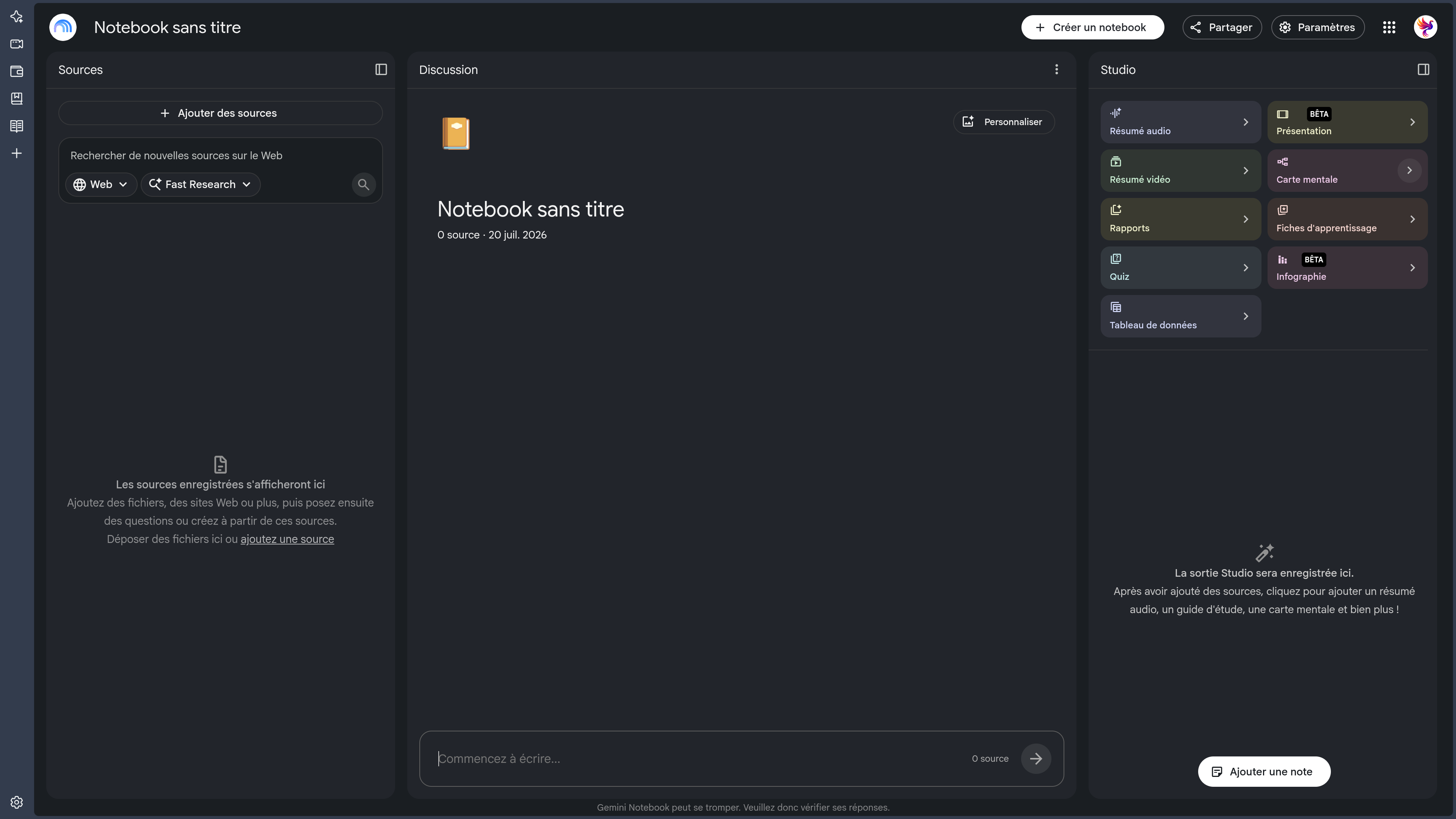
Overview
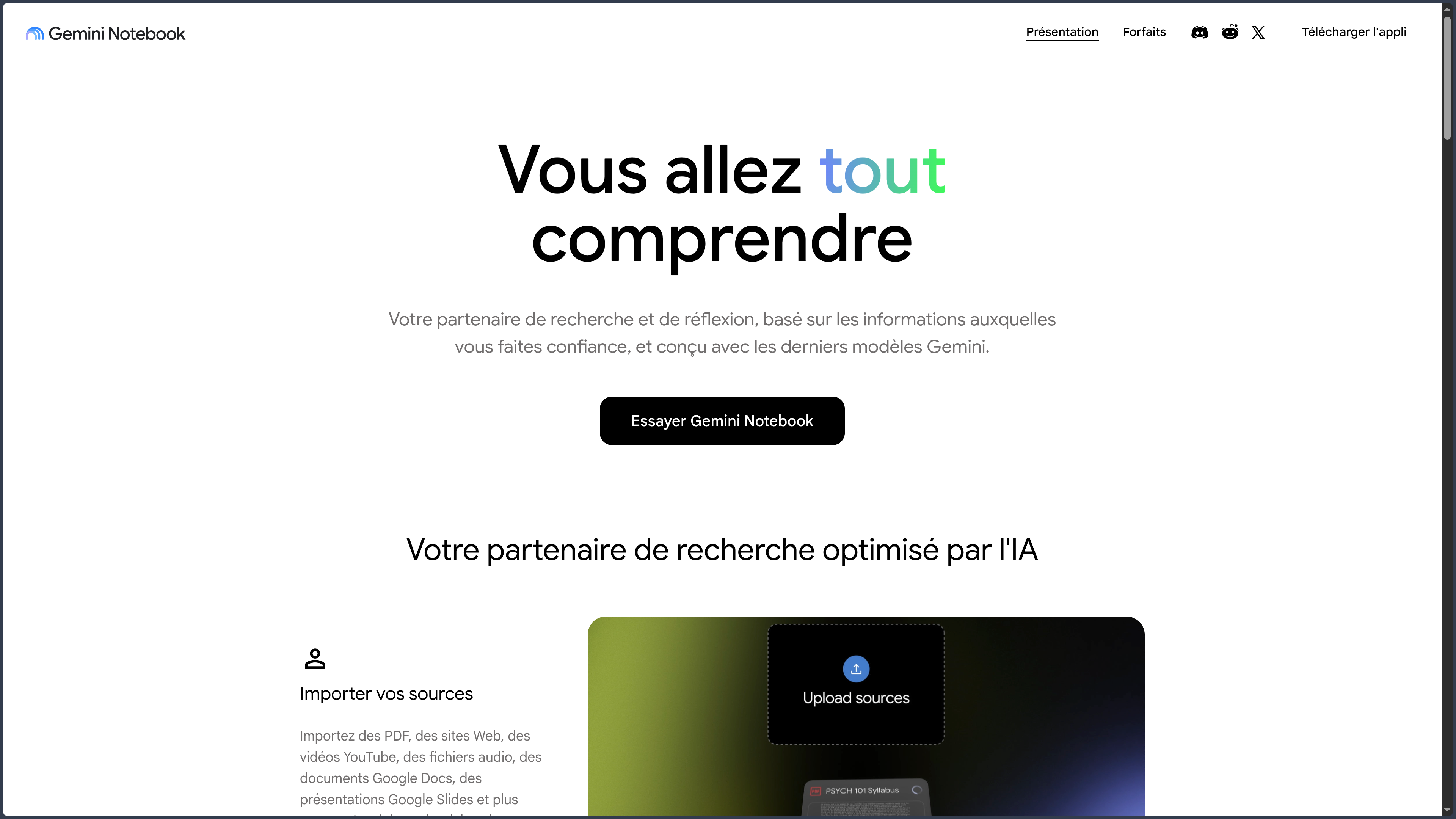
Gemini Notebook is a research and document-analysis assistant developed by Google.
The service was previously known as NotebookLM. It retains the same central principle: gathering sources around a project, then using artificial intelligence to query, compare, and transform them into different types of material.
Unlike a general-purpose chatbot that mainly responds from its own knowledge and the Web, Gemini Notebook works first from documents selected by the user.
A notebook can notably contain:
- PDFs;
- office documents;
- Web pages;
- YouTube videos;
- audio files;
- images;
- ebooks;
- notes;
- copied text;
- documents from Google Drive;
- conversations from Gemini applications.
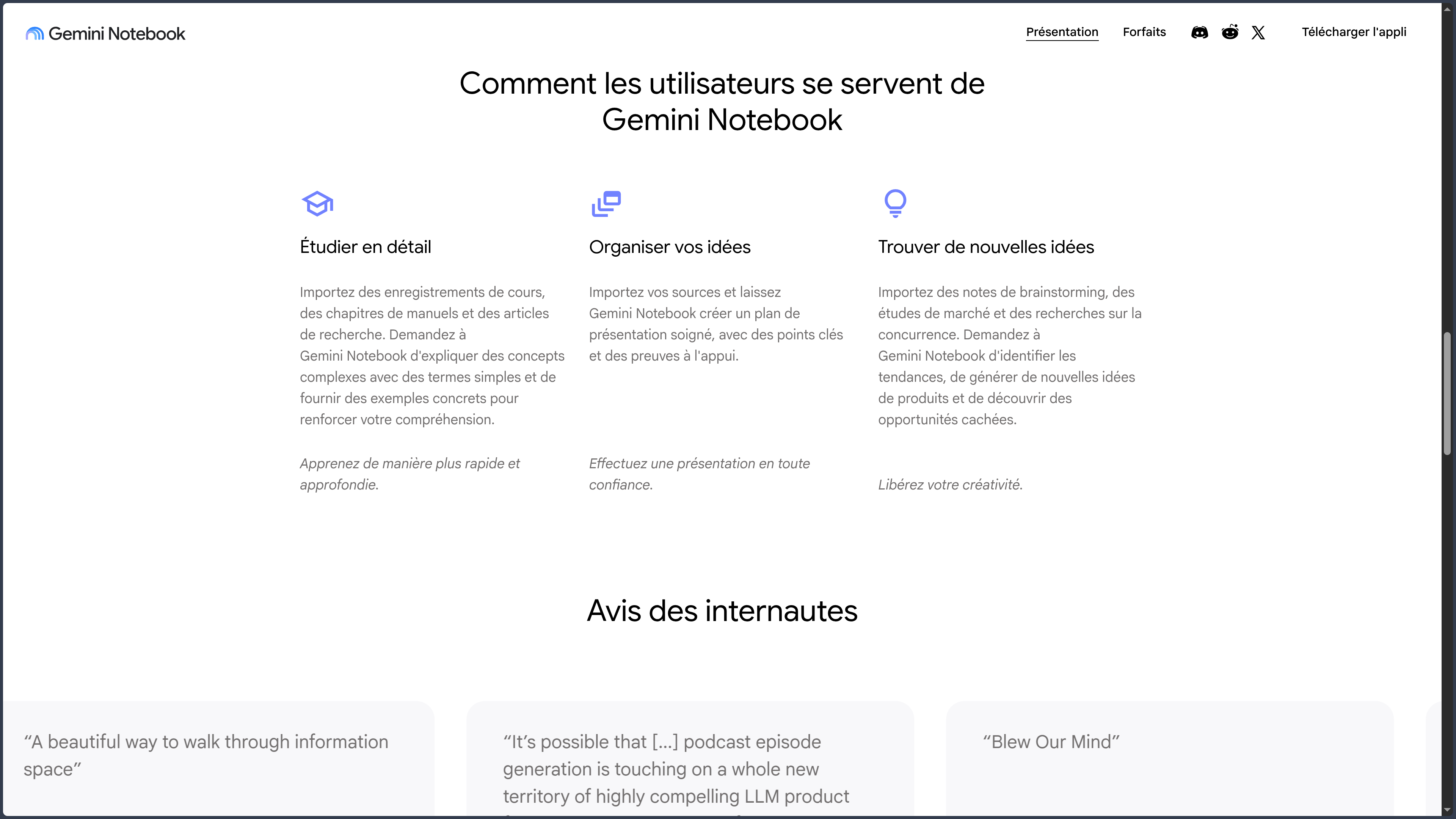
The user can then:
- ask questions about the sources;
- obtain answers with citations;
- compare several documents;
- search for specific information;
- identify contradictions;
- create a synthesis;
- produce an audio overview;
- generate an explanatory video;
- create a mind map;
- prepare a study guide;
- generate flashcards or a quiz;
- create an infographic;
- produce a presentation.
Each notebook is an independent workspace.
Gemini Notebook does not automatically combine the content of several separate notebooks into one answer. Sources that need to be analyzed together must therefore be added to the same notebook.
The service mainly operates in the cloud and requires a Google account.
It is accessible on the Web and through applications for Android, iPhone, and iPad.
There is currently no independent official desktop application for Windows, macOS, or Linux.
Features
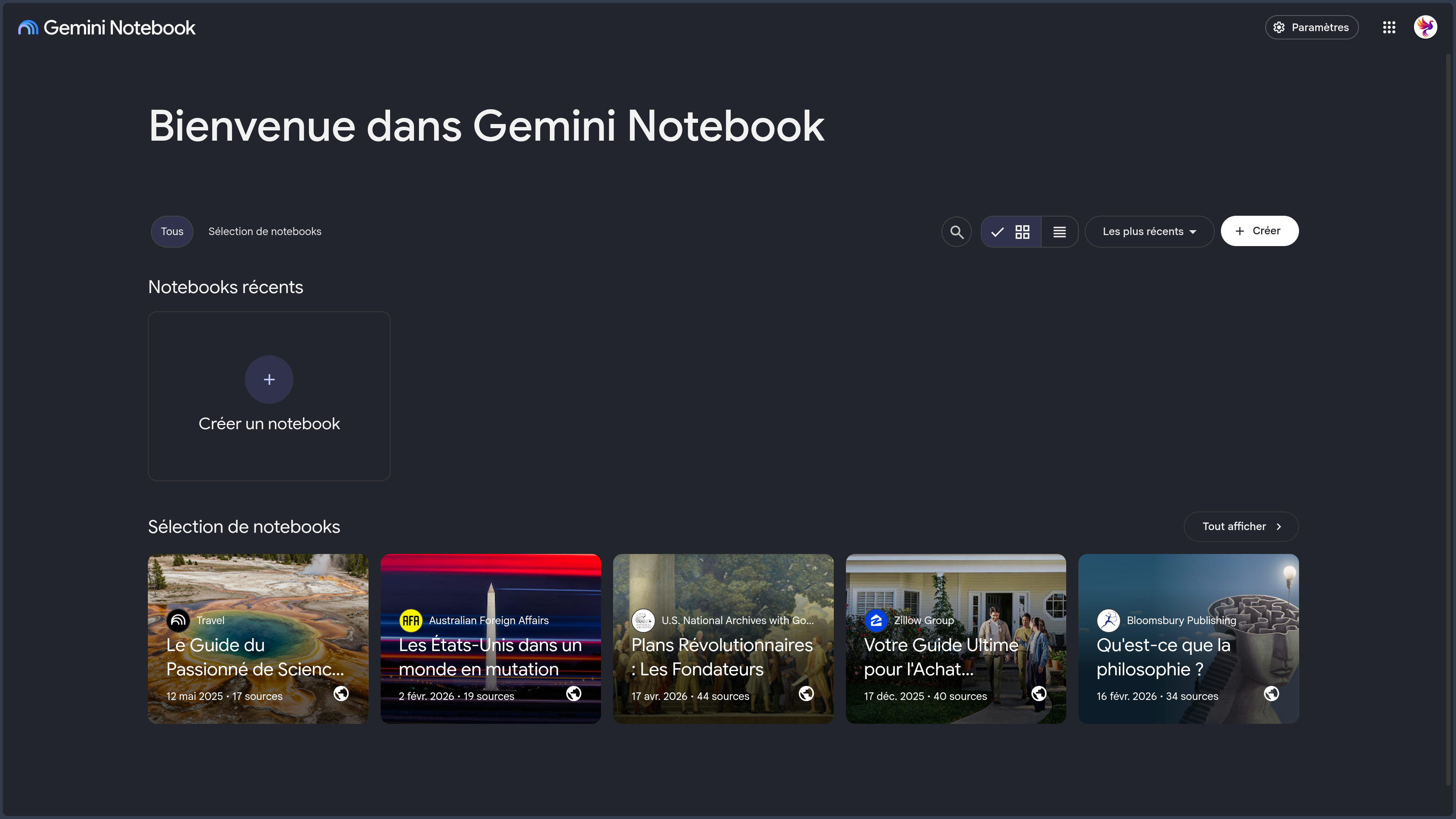
Notebooks and document corpora
A notebook is a workspace dedicated to a topic, project, or collection of documents.
It can be used to organize:
- research;
- a professional file;
- a study;
- a course;
- a writing project;
- ongoing monitoring;
- a collection of articles;
- a set of notes;
- technical documentation;
- meeting minutes;
- archives;
- creative references.
Each notebook has its own sources, conversations, notes, and generated content.
This separation helps preserve precise context and prevents unrelated projects from being mixed together.
It can nevertheless become restrictive when information is spread across several notebooks that need to be compared.
Supported sources
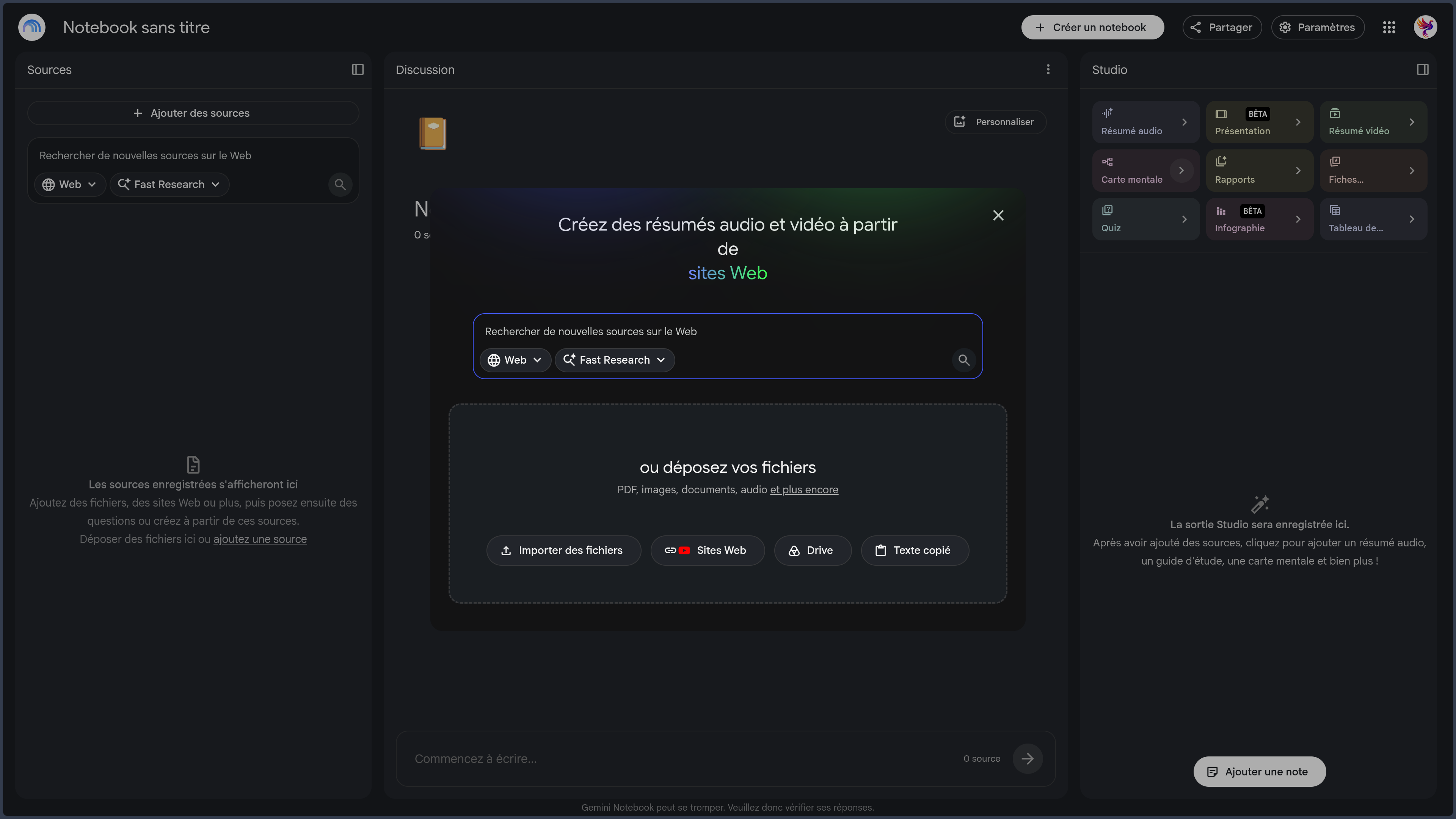
Gemini Notebook accepts many source formats.
The Web version can notably import:
- PDF files;
- Microsoft Word documents;
- text files;
- Markdown files;
- CSV files;
- Microsoft PowerPoint presentations;
- Google Docs documents;
- Google Slides presentations;
- Google Sheets spreadsheets;
- ePub files;
- images;
- audio files;
- copied and pasted text;
- Web page URLs;
- public YouTube videos;
- conversations from Gemini applications.
Available formats and features may differ between the Web version and mobile applications.
Some Web pages may be imported incorrectly when they use:
- a paywall;
- authentication;
- dynamic loading;
- complex scripts;
- extraction protection;
- a poorly accessible structure.
For YouTube videos, Gemini Notebook mainly works from the available transcript.
A video without a usable transcript may therefore be misunderstood or fail to import correctly.
Source limits
At the time of the latest verification, a source can contain up to approximately five hundred thousand words or reach two hundred megabytes for certain imported files.
The free version allows up to fifty sources per notebook.
These limits may change depending on:
- the subscription;
- the account type;
- the format;
- the platform;
- changes introduced by Google.
A high capacity does not guarantee that every part of a document will be perfectly understood or used.
Very long, repetitive, or poorly structured documents may produce answers that are overly general or incomplete.
Importing from Google Drive
Gemini Notebook can import different types of content from Google Drive.
This may notably include:
- Google Docs;
- Google Slides;
- Google Sheets;
- certain files stored in Drive.
Depending on the format, the imported source may be:
- a copy of its content;
- a synchronizable version;
- a static representation created at the time of import.
Changes made to the original document are not always automatically applied to the source already present in the notebook.
It may be necessary to trigger synchronization or replace the source.
Conversely, editing content exported from Gemini Notebook does not automatically modify the original source document.
Source-grounded chat
Chat is the central feature of Gemini Notebook.
The user can notably ask it to:
- summarize a source;
- explain a passage;
- find information;
- compare several documents;
- identify the main ideas;
- extract quotations;
- create a timeline;
- identify contradictions;
- build an outline;
- prepare a synthesis;
- classify arguments;
- transform a corpus into a checklist;
- produce questions;
- prepare reading notes;
- analyze only certain selected sources.
Responses are mainly grounded in the notebook’s sources.
This approach reduces some hallucination risks compared with a chatbot responding without a specific corpus.
It does not eliminate them completely.
Gemini Notebook may still:
- misinterpret a passage;
- associate an idea with the wrong source;
- overlook an exception;
- confuse two documents;
- produce an overly assertive synthesis;
- create a logical connection that does not exist in the corpus.
Integrated citations
Chat responses may include citations linking to the passages used.
The user can select a citation to retrieve its context in the original source.
This feature makes it easier to:
- verify information;
- compare material;
- conduct documentary research;
- prepare an article;
- perform academic analysis;
- extract information;
- work with long documents.
A citation does not guarantee that the interpretation is correct.
The quoted passage may be real while still being:
- taken out of context;
- summarized imprecisely;
- used to support an overly broad conclusion;
- associated with other information that is absent from the document.
Important claims should therefore still be checked in the original sources.
Source selection
The user can choose which sources should be used for an answer or generated piece of content.
This feature can, for example, be used to:
- compare two specific documents;
- exclude an unreliable source;
- produce a synthesis from part of the corpus;
- separate several points of view;
- generate material focused on a single chapter;
- analyze only the most recent documents.
Careful source selection often improves answer quality.
A corpus containing too many redundant, contradictory, or irrelevant documents can reduce the quality of the synthesis.
Fast Research
Fast Research allows users to quickly search for new sources.
Searches can notably be performed across:
- the Web;
- Google Drive;
- certain content accessible through the account.
The user enters a query, and Gemini Notebook proposes a selection of results.
The user can then:
- examine the titles;
- read the summaries;
- open the original pages;
- select relevant sources;
- import the results into the notebook.
Fast Research is suitable for:
- expanding a corpus;
- finding documentation;
- searching for articles;
- adding references;
- preparing ongoing monitoring;
- discovering several points of view.
Results should not be imported without verification.
An automatic search may suggest content that is:
- outdated;
- redundant;
- promotional;
- unreliable;
- automatically generated;
- off-topic;
- based on secondary sources.
Deep Research
Deep Research allows users to conduct longer and more autonomous research.
The feature can:
- explore a large number of pages;
- follow several lines of inquiry;
- compare information;
- organize the results;
- produce a report;
- suggest discovered sources;
- import the report and references into the notebook.
It is notably suitable for:
- preparing a market overview;
- conducting ongoing monitoring;
- building a documentary file;
- comparing technologies;
- exploring a complex question;
- researching trends;
- preparing an in-depth article;
- establishing an initial bibliography.
Deep Research remains a generative feature.
The report may contain:
- insufficient sources;
- repetition;
- incorrect interpretations;
- outdated data;
- overly general conclusions;
- references of uneven quality.
Sources and conclusions should be checked manually.
Some in-depth research features may be restricted to adult users or limited depending on the subscription.
Studio
The Studio panel can transform notebook sources into different formats.
It can notably produce:
- notes;
- summaries;
- reports;
- study guides;
- FAQs;
- synthesis documents;
- audio overviews;
- video overviews;
- mind maps;
- data tables;
- flashcards;
- quizzes;
- infographics;
- presentations.
Studio makes it easier to reuse the same corpus across several formats.
A set of sources can therefore become:
- a written synthesis;
- training material;
- a podcast;
- an explanatory video;
- a presentation;
- a quiz;
- an infographic.
Generated content should be reviewed before publication.
Audio Overviews
Audio Overviews transform sources into audio content generated by artificial intelligence.
The best-known format takes the form of a conversation between several virtual presenters.
Audio overviews can be used to:
- listen to a synthesis;
- discover a documentary file;
- revise a course;
- prepare for a journey;
- transform an article into audio;
- compare several documents;
- produce an accessible introduction;
- explore a topic without reading every source.
Depending on the available options, the user can customize:
- the language;
- the duration;
- the selected sources;
- the format;
- the level of detail;
- the angle;
- the instructions given to the presenters.
Certain modes can produce:
- an in-depth discussion;
- a short summary;
- a critique;
- a debate;
- a structured presentation.
Interactive Audio Overview mode
In certain languages and versions, the user can intervene during an Audio Overview.
They can ask a question or request clarification from the virtual presenters.
The system then temporarily adapts the conversation.
This feature remains experimental and may produce:
- an off-topic answer;
- repetition;
- an awkward interruption;
- incorrect information;
- an overly simplified reformulation.
Interactive mode is not available in every language or on every platform.
Downloads and offline listening
Mobile applications may allow users to download certain Audio Overviews.
They can then listen to them without an active connection.
This possibility does not make the whole of Gemini Notebook available offline.
Chat, research, generation, and full notebook management still depend on the cloud service.
Audio Overview limitations
Audio Overviews may strongly simplify source content.
They may notably:
- omit a nuance;
- transform a hypothesis into a statement;
- invent a transition;
- give too much importance to a secondary idea;
- ignore a disagreement;
- use an overly enthusiastic tone;
- produce an incorrect pronunciation.
They do not replace reading the sources for important subjects.
Video Overviews
Video Overviews transform sources into explanatory videos.
The most common format combines:
- slides;
- illustrations;
- text;
- generated narration;
- structured progression.
The user can notably choose:
- the sources;
- the language;
- the format;
- the style;
- the main topic;
- the audience;
- a custom instruction.
Videos can be used to:
- present a study;
- explain a concept;
- produce educational material;
- summarize a report;
- prepare an introduction;
- transform documentation into audiovisual content.
The resulting video should be checked before publication.
Text, charts, images, and narration may contain errors.
Cinematic Video Overviews
Certain advanced plans may provide more elaborate Video Overviews.
These versions use more extensive visual and video generation to produce a result closer to a mini-documentary or animated presentation.
This feature may be limited depending on:
- the subscription;
- the language;
- the country;
- quotas;
- rollout status.
The result remains generative and may produce images that do not correspond exactly to the sources.
Mind maps
Gemini Notebook can generate a mind map from the sources.
The map represents:
- the main topics;
- subtopics;
- relationships;
- concepts;
- the different branches of the subject.
The user can select a node to:
- expand a branch;
- ask a question;
- obtain an explanation;
- explore a specific concept;
- return to the source.
Mind maps can be useful for:
- understanding a corpus;
- preparing an outline;
- organizing a course;
- exploring documentation;
- structuring research;
- visualizing a project.
They may nevertheless create relationships between ideas that are overly simplified or artificial.
Flashcards
Gemini Notebook can transform sources into revision cards.
Flashcards may contain:
- a question;
- an answer;
- a definition;
- a concept;
- a quotation;
- an explanation;
- an example.
The user can notably customize:
- the sources;
- the language;
- the difficulty level;
- the number of cards;
- the topic;
- the instructions.
Flashcards are particularly suited to:
- learning;
- memorization;
- exam preparation;
- training;
- vocabulary learning;
- reviewing documentation.
Quizzes
Gemini Notebook can generate quizzes from the corpus.
Questions may take different forms depending on the available options:
- multiple choice;
- short answers;
- true or false;
- explanatory questions;
- comprehension questions.
Quizzes can help measure understanding of a topic.
Generated answers and corrections should nevertheless be checked, particularly for scientific, legal, or historical subjects.
Study guides
Study guides organize sources into an educational format.
They may notably include:
- the main concepts;
- a summary;
- questions;
- definitions;
- a revision plan;
- topics to explore further;
- exercises;
- a timeline.
This feature can be useful for students, teachers, trainers, and self-directed learners.
Reports and synthesis documents
Studio can generate different reports from the sources.
It can notably produce:
- a briefing;
- a synthesis;
- an FAQ;
- a timeline;
- a guide;
- a thematic report;
- a preparatory document;
- a structured analysis.
Certain content can be exported to Google Docs.
Exporting allows users to continue writing, formatting, and collaborating in a conventional document.
Exported content is not necessarily synchronized automatically with the notebook.
Data tables
Gemini Notebook can organize certain information into a table.
This feature can be used to:
- compare several products;
- extract dates;
- classify companies;
- structure data;
- gather citations;
- prepare an analysis;
- produce a reference list.
Tables can be exported to Google Sheets.
Citations may be added to a separate sheet depending on the export type.
Data should be verified before use because the model may:
- place a value in the wrong column;
- invent a missing data point;
- mix several units;
- associate a source incorrectly;
- normalize information incorrectly.
Infographics
Gemini Notebook can transform a collection of sources into an infographic.
Generation can notably be customized according to:
- the language;
- the style;
- the audience;
- the objective;
- the level of detail;
- the selected sources.
This feature can be used to:
- summarize a documentary file;
- present figures;
- explain a process;
- compare several elements;
- produce educational material;
- create an initial basis for social media.
Generated infographics may contain:
- textual errors;
- imprecise data;
- a confusing hierarchy;
- misleading charts;
- misinterpreted visual elements.
They should be reviewed and often reworked in graphics software before publication.
Presentations
Gemini Notebook can generate a presentation from the sources.
Depending on the options, the presentation may prioritize:
- a detailed document that can be read independently;
- a more visual format intended to be presented orally;
- an educational synthesis;
- a professional briefing;
- an illustrated report.
The service can prepare:
- the structure;
- the titles;
- the text;
- the main arguments;
- the citations;
- certain visual elements;
- transitions between sections.
The presentation may be viewed or exported in different formats depending on the available features.
Human review remains necessary to:
- verify the facts;
- correct the text;
- improve the pacing;
- harmonize the layout;
- replace certain visuals;
- respect a visual identity.
Personal notes
The user can create personal notes inside a notebook.
A note can be used to:
- write down an idea;
- keep a quotation;
- record a conclusion;
- prepare a question;
- build an outline;
- save a chat response;
- add a personal reflection.
Notes can be edited independently from the sources.
A chat response can also be saved as a note so it is not lost in the conversation history.
Turning a note into a source
A personal note can be transformed into a source.
Its content can then be used by chat and Studio like other documents.
This feature can notably be used to:
- add personal conclusions;
- create a working framework;
- integrate a method;
- provide reusable instructions;
- enrich the corpus with personal observations.
Once transformed into a source, the note may no longer remain automatically synchronized with its previous version.
Automatic source organization
When a notebook contains enough sources, Gemini Notebook may suggest automatic organization.
It can notably:
- group documents by topic;
- create categories;
- assign labels;
- identify sets of similar sources.
The user can edit this organization.
Automatic classification may be wrong, particularly when:
- titles are vague;
- several topics overlap;
- documents are very short;
- languages differ;
- the content is ambiguous.
Gemini integration
Notebooks may be accessible from certain Gemini experiences.
This integration can notably be used to:
- retrieve a notebook;
- use its sources as context;
- synchronize certain settings;
- add a Gemini conversation as a source;
- continue working from the Gemini ecosystem.
An important difference remains between the two interfaces.
In Gemini Notebook, chat mainly focuses on the selected sources.
In Gemini applications, the response may also use:
- Web search;
- the model’s general knowledge;
- other tools;
- certain Google integrations.
Studio content, such as audio overviews, videos, mind maps, infographics, and presentations, is still mainly created from Gemini Notebook.
Importing Gemini conversations
A conversation carried out in Gemini can be added as a source to a notebook.
This feature can notably be used to:
- preserve brainstorming;
- integrate initial research;
- reuse an analysis;
- transform a conversation into a corpus;
- create material from an exchange.
The imported conversation should be checked before being used as a source.
An error present in the initial exchange may then be repeated in syntheses and generated content.
Web search from Gemini
When a notebook is used from Gemini, certain responses may benefit from Gemini’s Web tools.
This possibility expands the corpus, but also changes the verification process.
It is important to distinguish between:
- information taken directly from notebook sources;
- information researched on the Web;
- the model’s general knowledge;
- inferences produced by the AI.
Code execution
Certain advanced plans may provide access to a cloud environment capable of executing code.
This feature can be used to:
- analyze data;
- perform calculations;
- generate charts;
- convert formats;
- produce a file;
- process a table;
- create a script;
- verify certain hypotheses.
Code execution remains experimental.
The system may:
- use the wrong method;
- produce an incorrect calculation;
- choose an unsuitable library;
- create an incomplete file;
- misinterpret the data;
- perform an unwanted transformation.
Results should be checked.
File creation
The cloud environment may allow users to produce downloadable files.
Depending on the plan and available features, this may include:
- PDFs;
- Word documents;
- Markdown files;
- CSV files;
- JSON files;
- Excel spreadsheets;
- PowerPoint presentations;
- images;
- charts.
Generated files should not be considered final without verification.
Their structure, formulas, tables, and layouts may contain errors.
Image generation and editing
Certain experimental features may allow users to generate or edit images from the Gemini Notebook environment.
This capability is not the historical core of the product.
Gemini Notebook remains primarily a tool for working with sources.
For an advanced visual workflow, specialized software or Gemini’s image tools may remain more suitable.
Private sharing
A notebook can be shared with other users.
Roles may notably allow:
- reading;
- querying the notebook;
- viewing generated content;
- editing according to permissions;
- collaborating on sources and notes.
Exact options vary depending on the account type and subscription.
Shared documents must respect access rights to the original sources.
Public notebooks
A notebook can be made accessible through a public link.
Visitors may notably:
- view the notebook;
- query the sources;
- listen to audio content;
- watch videos;
- view generated material.
A public notebook should not contain:
- private documents;
- customer data;
- personal information;
- confidential files;
- protected content without authorization;
- trade secrets;
- internal documents.
Hiding a source in the interface does not guarantee that its content will never be accessible through chat or generated content.
Usage statistics
Certain shared notebooks may display statistics.
Depending on the conditions and level of activity, the owner may notably obtain:
- the number of users;
- the number of queries;
- daily activity;
- notebook usage.
These statistics remain limited and do not replace a complete audience-analysis solution.
Mobile applications
Gemini Notebook is available on Android, iPhone, and iPad.
Mobile applications may notably allow users to:
- view notebooks;
- ask questions;
- import certain sources;
- add a Web page;
- import a PDF;
- add a YouTube video;
- attach an audio file;
- paste text;
- use Fast Research;
- listen to an Audio Overview;
- view a Video Overview;
- generate or review flashcards;
- answer a quiz;
- view an infographic;
- open a presentation;
- share content to Gemini Notebook.
Mobile application limitations
Mobile applications remain less complete than the Web version.
Depending on the platform and rollout status, certain features may be absent or limited:
- notes;
- mind maps;
- reports;
- data tables;
- advanced chat settings;
- statistics;
- full source management;
- customization options;
- advanced sharing.
The Web version generally remains preferable for creating and organizing a complex notebook.
Free version
Gemini Notebook provides a free version.
At the time of the latest verification, it notably includes:
- up to one hundred notebooks;
- up to fifty sources per notebook;
- daily chat limits;
- several daily Audio Overviews;
- access to the main research and Studio features.
Limits may change rapidly.
They may also vary depending on the country, account age, and feature availability.
Google AI Plus, Pro, and Ultra
Google AI plans may increase Gemini Notebook limits.
Depending on the plan, they may notably add:
- more notebooks;
- more sources;
- more chat requests;
- more in-depth research;
- more audio overviews;
- more video overviews;
- more mind maps;
- more quizzes;
- more infographics;
- more presentations;
- more advanced models;
- the cloud environment;
- code execution;
- experimental agentic features.
Plans, names, and limits may change as Google reorganizes its subscriptions.
Google Workspace and Google Cloud
Certain Google Workspace and Google Cloud editions may include Gemini Notebook or higher limits.
Conditions may differ for:
- schools;
- companies;
- public administrations;
- organizations;
- Google Cloud customers.
Professional accounts may benefit from data-processing rules that differ from those for personal accounts.
The organization administrator may also:
- enable or disable the service;
- restrict sharing;
- control access;
- apply internal policies.
Source privacy
Google states that sources, files, and conversations added to Gemini Notebook are not directly used to train its foundational generative AI models under normal conditions of use.
This protection does not mean that Google processes no data.
The service must analyze files and conversations in order to provide its features.
Rules may also differ depending on:
- the account type;
- the plan;
- the settings;
- Gemini integration;
- feedback submission;
- legal obligations.
Feedback sent to Google
When a user voluntarily sends positive feedback, negative feedback, or a report, the information transmitted to Google may include:
- prompts;
- sources;
- files;
- conversations;
- responses;
- customizations;
- search results;
- reports;
- audio overviews;
- video overviews;
- mind maps;
- other generated content.
This information may be reviewed to analyze the issue and improve the product.
Users should avoid sending feedback from a notebook containing sensitive information without understanding what data will be transmitted.
Privacy in Gemini
When a notebook is used from Gemini applications, certain interactions may follow Gemini’s own retention settings and rules.
These rules are not always identical to those of Gemini Notebook’s internal chat.
Users should notably check:
- Gemini activity;
- history retention;
- account settings;
- deletion options;
- professional or educational account rules.
Use cases
Documentary research
Gemini Notebook is particularly suitable for working with a controlled collection of sources.
It can be used to:
- gather documents;
- query a corpus;
- find information;
- compare several references;
- identify contradictions;
- produce a synthesis;
- extract citations;
- prepare a timeline.
Article preparation
The service can support an editorial workflow.
It can notably help to:
- gather sources;
- summarize documents;
- identify the main ideas;
- compare several points of view;
- prepare an outline;
- find a quotation;
- build an FAQ;
- create a timeline;
- generate a briefing.
The final text should be written and verified from the original sources.
Monitoring
Fast Research and Deep Research can be used to prepare ongoing monitoring.
Gemini Notebook can notably:
- search for sources;
- build an initial report;
- classify information;
- compare several documents;
- transform monitoring into an audio overview;
- generate a presentation;
- produce an infographic;
- prepare a list of topics.
Automatically discovered sources should be filtered manually.
Document analysis
Gemini Notebook can work with:
- reports;
- contracts;
- studies;
- scientific articles;
- technical documents;
- courses;
- books;
- transcripts;
- meeting minutes.
For legal, medical, or financial documents, it does not replace professional analysis.
Study and revision
Study guide, flashcard, quiz, mind map, and Audio Overview features are suitable for learning.
They can be used to:
- revise for an exam;
- understand a chapter;
- learn vocabulary;
- prepare an oral presentation;
- transform a course into questions;
- listen to a synthesis;
- test knowledge.
Corrections should be checked when accuracy is important.
Teaching and training
A teacher or trainer can use Gemini Notebook to:
- gather materials;
- prepare a guide;
- produce a quiz;
- create flashcards;
- generate an FAQ;
- prepare an Audio Overview;
- create an infographic;
- produce a presentation;
- share a notebook with a group.
Content should be adapted to the learners’ level and reviewed before distribution.
Writing and long projects
Gemini Notebook can gather:
- notes;
- research;
- references;
- chapters;
- character sheets;
- documentation;
- interviews;
- archives.
It can help compare elements or retrieve information.
It does not necessarily provide narrative memory as refined as a tool specialized in long-form writing.
Academic research
Gemini Notebook can support:
- a literature review;
- an initial bibliography;
- analysis of several articles;
- comparison of methodologies;
- preparation of a state-of-the-art review;
- extraction of quotations.
It does not replace academic databases, critical reading, or verification of original publications.
Technical documentation
The service can gather:
- manuals;
- specifications;
- Web pages;
- Markdown files;
- notes;
- presentations;
- error reports.
It can then help to:
- retrieve a procedure;
- compare several versions;
- explain a concept;
- produce an FAQ;
- create a guide;
- prepare a synthesis.
Video and podcast analysis
YouTube videos and audio files can be added as sources when a usable transcript is available.
Gemini Notebook can notably:
- summarize an interview;
- extract themes;
- build a timeline;
- find a quotation;
- compare several episodes;
- transform the content into notes.
Quality depends heavily on the transcript.
Podcast creation
Audio Overviews can transform documents into conversational content.
This feature can be used to:
- produce an initial mock-up;
- prepare an educational format;
- test an angle;
- make a documentary file more accessible;
- offer supplementary listening.
The content remains automatically generated and requires verification before publication.
Explanatory video creation
Video Overviews can provide an initial video from a corpus.
They can be used to:
- summarize a study;
- present a topic;
- prepare training material;
- support a publication;
- transform a report into audiovisual content.
The result should be reviewed for text, narration, illustrations, and rights.
Infographic creation
Gemini Notebook can produce an initial visual synthesis.
This feature can be used to:
- explain a process;
- present data;
- summarize a documentary file;
- create educational material;
- prepare a social-media visual.
Further editing in Canva or another graphics application is often necessary.
Presentation preparation
The service can transform a corpus into a presentation structure.
It can prepare:
- an outline;
- slides;
- titles;
- arguments;
- notes;
- citations;
- visuals.
This feature speeds up the first version but does not replace layout and storytelling work.
Professional work
Gemini Notebook can be used to:
- analyze reports;
- prepare a briefing;
- gather documentation;
- build an internal FAQ;
- compare offers;
- prepare a meeting;
- transform meeting minutes;
- produce training material.
The organization’s privacy rules should be respected.
Public notebook
A public notebook can be used to create:
- an educational resource;
- interactive documentation;
- a collection of sources;
- a guide;
- an FAQ;
- a discovery space;
- a complement to an article.
No confidential or protected document should be added without authorization.
PANACHES review
Gemini Notebook stands out from general-purpose assistants through a simple and particularly useful idea: starting from a corpus chosen by the user rather than from an empty conversation.
This approach makes verification easier. Citations allow users to quickly return to the passages used, making the tool relevant for research, learning, monitoring, and editorial preparation.
The diversity of supported sources is another strength. The same notebook can contain PDFs, office documents, Web pages, YouTube videos, audio files, images, notes, and Gemini conversations.
Studio then transforms this corpus into several formats. Audio overviews gave NotebookLM a distinctive identity, but videos, mind maps, quizzes, infographics, and presentations now considerably broaden the product.
This logic works well in a workflow where the same research must produce several pieces of content. A study can become an article, podcast, quiz, presentation, and infographic without starting again from scratch.
The change of name to Gemini Notebook nevertheless strengthens dependence on the Gemini ecosystem. This integration brings more powerful models and tools, but also makes the boundary less clear between analysis strictly grounded in sources and answers enriched by the Web or the model’s general knowledge.
Gemini Notebook remains better suited to a precise documentary corpus than to general personal memory, complete software development, or autonomous agent execution.
Because each notebook is independent, organization can also become fragmented when many projects need to be compared.
For Panaches, Gemini Notebook is particularly relevant for analyzing documents, preparing editorial files, and transforming monitoring into several formats. It naturally complements the Notes, PDF, EPUB, Knowledge, and Ambre AI modules without replacing the value of a local workspace that can preserve and organize the original files over time.
The main balance therefore concerns verification and privacy. Gemini Notebook makes it easier to work with sources but remains a proprietary cloud service. Sensitive, private, or sovereignty-regulated documents should be selected carefully.
Points to consider
- NotebookLM is now officially called Gemini Notebook.
- The former NotebookLM name is still used in certain URLs, applications, and documentation.
- Responses may contain errors despite using sources.
- A citation does not guarantee that the passage was interpreted correctly.
- Important information should be checked in the original documents.
- Each notebook operates independently from the others.
- Gemini Notebook cannot always directly compare several separate notebooks.
- Very long sources may be summarized incompletely.
- Poorly structured documents may produce imprecise answers.
- Protected or dynamic Web pages may be imported incorrectly.
- YouTube videos depend on the quality of their transcript.
- Audio files also depend on speech-recognition quality.
- Fast Research may suggest outdated, redundant, or unreliable sources.
- Deep Research may produce a report containing errors.
- Automatically added sources should be verified.
- Audio Overviews may simplify or distort documents.
- Virtual presenters may invent transitions or conclusions.
- Interactive audio mode remains experimental.
- Video Overviews may contain visual or textual errors.
- Cinematic Video Overviews may generate images that are absent from the sources.
- Mind maps may create overly simplified relationships.
- Flashcards and quizzes may contain incorrect answers.
- Study guides should be checked before educational use.
- Data tables may mix values or units.
- Infographics may contain errors or incorrect data.
- Presentations generally require visual and editorial review.
- Notes transformed into sources may no longer remain automatically synchronized.
- Changes to Drive documents are not always applied automatically.
- Exports to Docs or Sheets do not necessarily remain synchronized with the notebook.
- Available features vary depending on the platform.
- Mobile applications remain less complete than the Web version.
- Certain features are restricted to adult users.
- Limits vary depending on the subscription and may change.
- Google plan names may change.
- Advanced features may be restricted to Google AI Plus, Pro, or Ultra.
- Certain features depend on a Google Workspace or Google Cloud edition.
- Code execution and the cloud environment remain experimental.
- Generated code should be verified.
- Calculations and charts should be checked.
- Generated files may be incomplete or incorrect.
- Public notebooks may expose information from their sources.
- Hiding a source does not guarantee that its content will never be revealed through chat.
- Copyright-protected documents should not be shared without authorization.
- Professional or confidential files should be selected carefully.
- Sources and conversations are not directly used to train foundational models under the normal conditions announced by Google.
- Voluntarily sending feedback may transmit sources, prompts, and generated content to Google.
- Interactions performed from Gemini may follow the retention rules of Gemini applications.
- Policies may differ between personal, professional, and educational accounts.
- The service remains proprietary.
- The service depends on Google’s cloud infrastructure.
- There is no independent official desktop application.
- The service does not operate entirely offline.
- Gemini Notebook is not a substitute for a qualified professional when making important medical, legal, or financial decisions.