Overview

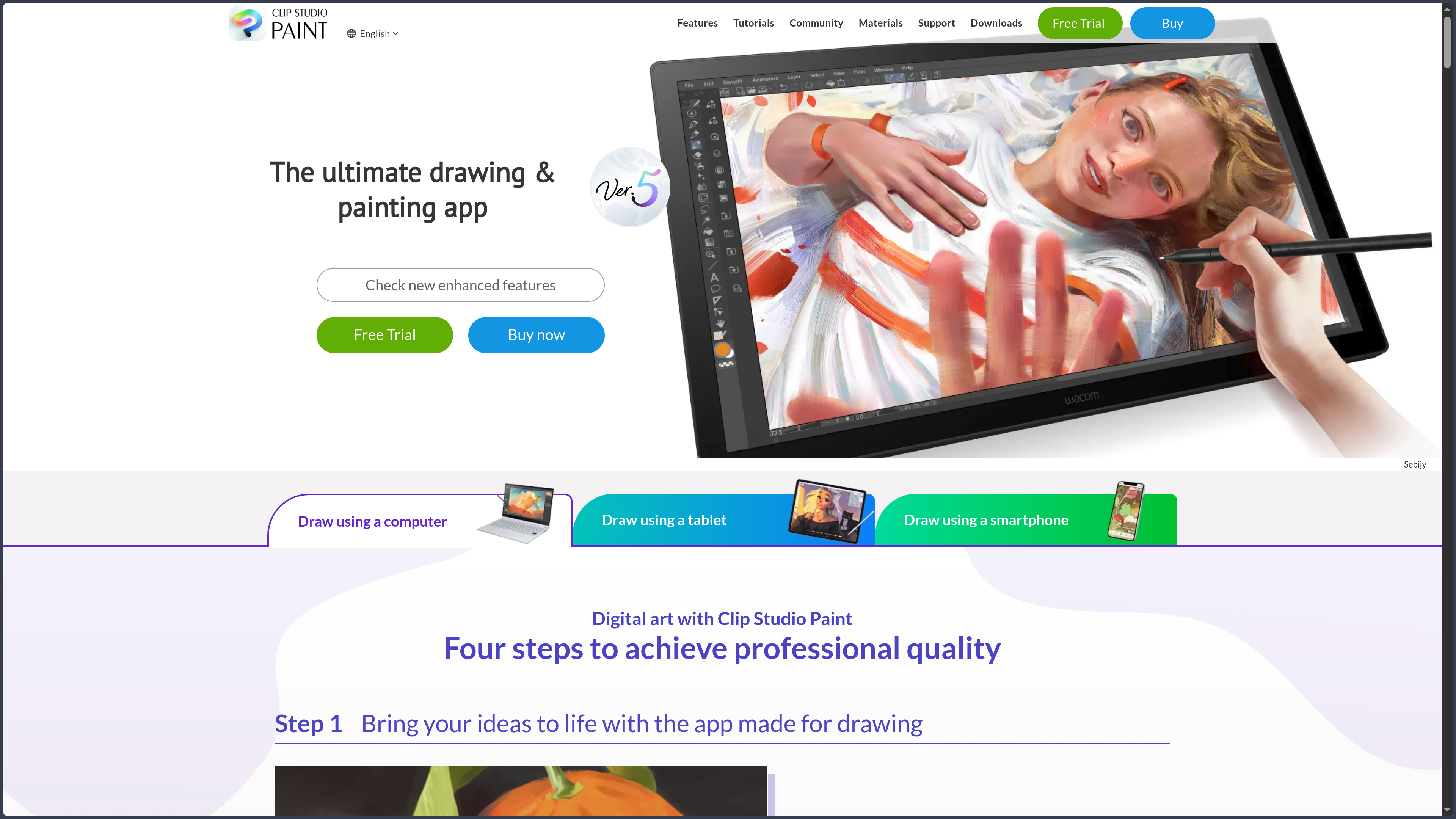
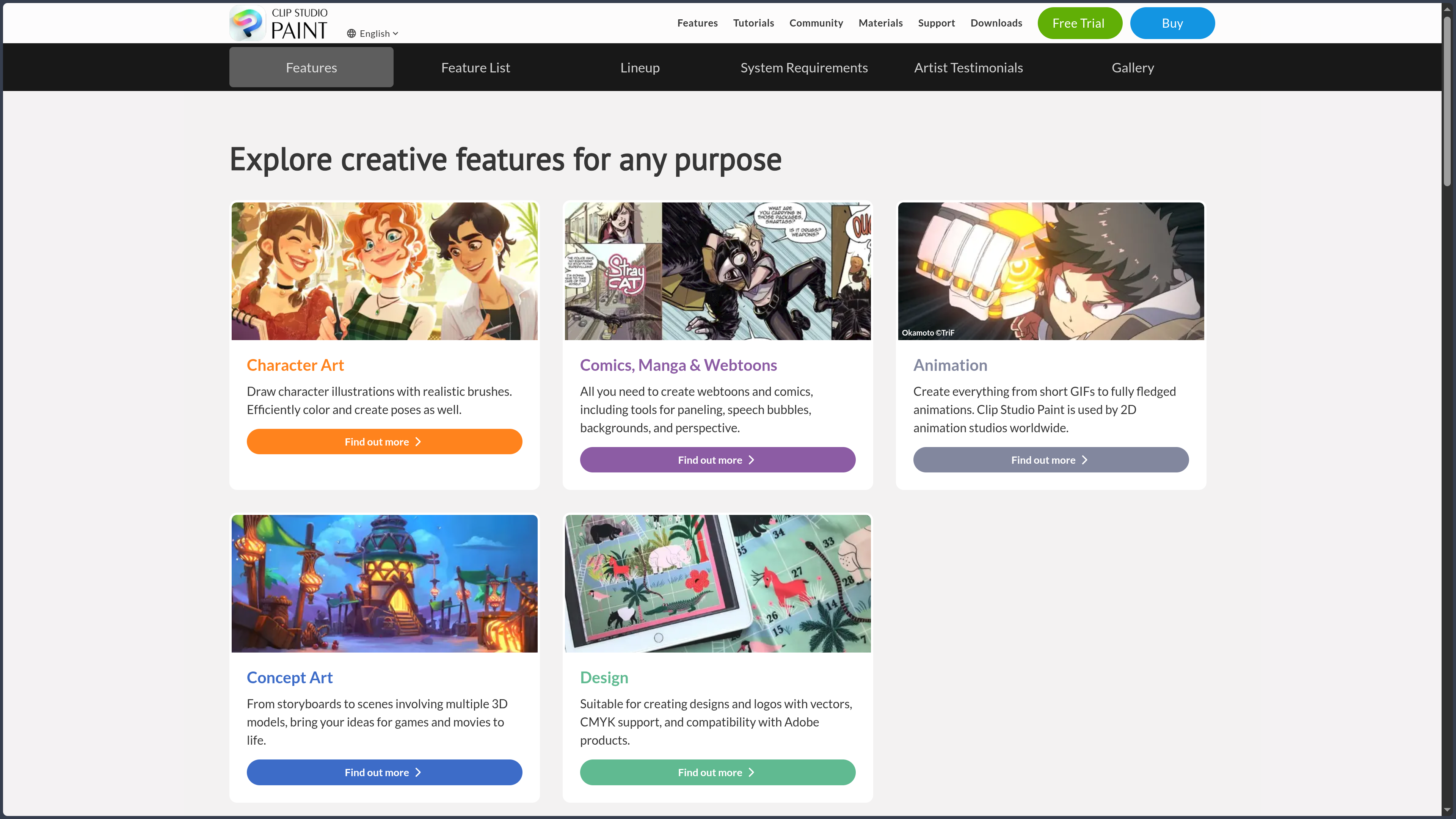
Clip Studio Paint is graphic creation software developed by the Japanese company CELSYS, Inc. It is primarily intended for drawing, digital painting, illustration, character design, comics, manga, webtoons, and 2D animation.

The software is particularly well known for the quality of its brush engine and line stabilisation. It aims to reproduce the feeling of a pencil, pen nib, marker, watercolour, or traditional paint while retaining the advantages of digital creation.

Clip Studio Paint is not limited to a canvas and a few brushes. It brings together specialised tools for inking, vector layers, comic panels, speech balloons, screentones, effect lines, perspective, 3D models, layout, printing, and animation.

The software was previously marketed under different names, including Manga Studio outside Japan and ComicStudio for certain historical product ranges. Clip Studio Paint is now the central product within this ecosystem.

The main version available at the time of the latest review is Clip Studio Paint Ver. 5.0, released in March 2026. It notably adds Smart Shape, several improvements to the drawing engine, new 3D hand models, material-management features, and interface optimisations.

Clip Studio Paint is available in three editions: DEBUT, PRO, and EX.

Clip Studio Paint DEBUT includes the fundamental drawing and graphic-creation features. This edition is not sold separately: it is distributed through certain promotional offers, with pixiv Premium, compatible hardware, or educational programmes.

Clip Studio Paint PRO is the main edition intended for illustrators, concept artists, designers, and creators producing single-page comics. It includes drawing, painting, vector, manga, 3D, and short-animation tools.

Clip Studio Paint EX includes all PRO features and adds multipage projects, advanced comic and webtoon management, digital-book export, collaborative work, and long-form animation tools used in professional productions.

In PRO and DEBUT, animation is limited to twenty-four frames. EX removes this restriction and provides features suited to longer timelines, storyboards, and 2D animation production.

The software uses two main licensing models.

The perpetual licence is available only on Windows and macOS. Users pay once and may continue using the features included in the purchased major version indefinitely.

However, this perpetual licence does not automatically provide access to features released after that version. To obtain them, users can subscribe to an annual Update Pass or purchase an upgrade to the next major version.

The monthly and annual plans operate as subscriptions. They are available on Windows, macOS, iPad, iPhone, Android, Galaxy devices, and Chromebook. While the subscription remains active, users receive the latest features compatible with their edition.

Several plans are available depending on the number of devices: smartphone, one device, two devices, or multiple devices. Prices also vary according to the PRO or EX edition and monthly or annual billing.

The same perpetual licence can be installed on a primary and secondary computer belonging to the same user, but the software must not be used on both devices simultaneously.

Clip Studio Paint requires an Internet connection to create or connect an account, verify certain licences, access the cloud, download materials, and use several complementary services.

The application is native software: it cannot be used directly in a browser. No official Linux version is available.

On tablets and smartphones, Clip Studio Paint provides two main interfaces. Simple Mode reduces interface complexity and makes the experience closer to a mobile drawing application. Studio Mode provides an organisation similar to the desktop version and access to more palettes and settings.

The mobile application supports compatible styluses, including Apple Pencil and Samsung S Pen. Pressure, tilt, and available gestures nevertheless depend on the hardware and operating system being used.

On smartphones, limited free use for thirty hours per month allows users to draw without immediately purchasing a full subscription. The exact features and restrictions may vary according to the platform and application store.

The Clip Studio ecosystem also includes several community services.

Clip Studio Assets is a library of brushes, patterns, screentones, poses, 3D models, backgrounds, palettes, and other resources. Some materials are free, while others use the internal GOLD or Clippy currencies.

Clip Studio Tips brings together official and community tutorials. Clip Studio Ask allows users to ask questions of other users. Clip Studio Share facilitates the publication and viewing of certain projects.

The cloud service provides ten gigabytes by default for saving artwork, materials, and certain settings. This capacity can be increased through selected paid plans.

Clip Studio Paint also has a free complementary application named Clip Studio Modeler. It allows users to prepare 3D objects and characters so they can be used as materials in Clip Studio Paint.

Features

  • Raster drawing: create pixel-based lines and paintings with a wide variety of brushes.

  • Vector layers: record strokes as editable lines rather than relying only on pixels.

  • Edit lines after drawing: move, thicken, thin, smooth, or correct a vector line.

  • Vector eraser: erase a line up to its intersection with another line.

  • Stabilised strokes: reduce shaking and irregularities while drawing by hand.

  • Post-correction of strokes: adjust the stability, speed, and shape of lines after they have been drawn.

  • Stylus pressure: vary size, opacity, colour, or other properties according to applied pressure.

  • Stylus tilt: use the pencil angle when the tablet and stylus are compatible.

  • Customisable pressure curve: adapt the software response to the user’s drawing style and hardware.

  • Configurable brush engine: control brush shape, texture, density, projection, blending, edges, and dynamics.

  • Dual Brush: combine two brush shapes or behaviours to create more complex effects.

  • ABR brush import: use many brushes designed for Adobe Photoshop.

  • GRD file import: retrieve gradients created in Photoshop.

  • Sub Tool creation: duplicate and customise pencils, pens, brushes, erasers, and tools.

  • Sub Tool export: save and share custom brushes or settings.

  • Digital pencils: sketching tools reproducing different leads, textures, and behaviours.

  • Inking pens: G-pen, Mapping Pen, Turnip Pen, and other tools suited to manga and comics.

  • Simulated traditional painting: watercolour, gouache, oil, pastel, chalk, and mixed media.

  • Colour mixing: blend colours directly on the canvas using several painting behaviours.

  • Colour Mixing palette: separate space for mixing colours like a physical palette.

  • Colour history: quickly retrieve recently used colours.

  • Colour sets: create and import palettes suited to a character or project.

  • Intermediate colours: generate shades between several selected colours.

  • Approximate colours: search for variations around a colour according to several parameters.

  • Eyedropper: sample colours from the canvas or references.

  • Secondary reference: display an image in the Sub View palette to sample colours without importing it onto the canvas.

  • Raster layers: conventional organisation of painted or drawn elements.

  • Vector layers: separate line art in a form that remains correctable after creation.

  • Layer folders: group elements belonging to an illustration or page.

  • Correction layers: non-destructively apply certain adjustments to several elements.

  • Layer masks: limit visibility without permanently deleting pixels.

  • Clipping masks: apply colour or texture only to the content of a lower layer.

  • Lock transparency: modify existing pixels without painting into empty areas.

  • Blending modes: Multiply, Overlay, Light, Screen, and other layer combinations.

  • Layer search: filter layers according to their name or certain properties.

  • Layer Comps palette: preserve several visibility states within the same file.

  • File Objects: embed or link reusable external elements.

  • Alignment and distribution: evenly position several layers, objects, or text elements.

  • Auto Actions: record a series of operations for automatic reuse.

  • Quick Access: create shortcut palettes adapted to the user’s workflow.

  • Customisable shortcuts: modify keyboard commands and several gestures.

  • Workspaces: save the arrangement of palettes and tools.

  • Workspace import and sharing: use a configuration across several devices or users.

  • Simple Mode: streamlined interface designed for touchscreens and beginners.

  • Studio Mode: complete interface with palettes, menus, and advanced features.

  • Smart Shape: recognise and improve certain hand-drawn lines, curves, and geometric shapes.

  • Selection tools: rectangle, ellipse, lasso, polyline, selection pen, and automatic selection.

  • Colour-range selection: create a selection from similar colours.

  • Expand and shrink selections: enlarge or contract a selected area.

  • Free Transform: move, rotate, resize, and distort content.

  • Mesh Transformation: locally modify an image using a grid.

  • Liquify: push, expand, contract, or distort pixels with a brush.

  • Puppet Warp: deform a character or object using control points and an articulated structure.

  • Transform multiple layers: modify groups of elements simultaneously.

  • Blur filters: Gaussian, directional, radial, and other blur effects.

  • Spin Blur: simulate circular movement or a spinning wheel.

  • Level Correction: adjust brightness and contrast using the histogram.

  • Tone Curve: precisely modify values and colour channels.

  • Colour Balance: correct colour casts.

  • Hue, Saturation, and Luminosity: globally or selectively adjust colours.

  • Gradient Maps: replace image values with a colour range.

  • Posterisation: reduce the number of colour or brightness levels.

  • Unsharp Mask: enhance the sharpness of selected details.

  • Chromatic Aberration: create coloured offsets inspired by optical flaws.

  • Artistic filters: transform photographs or images with different graphic effects.

  • Smart Fill: fill areas even when the line art contains small gaps.

  • Refer Other Layers: use several layers as references for filling.

  • Close and Fill: quickly fill small areas surrounded by lines.

  • Enclose and Fill: colour several spaces by surrounding them with a selection.

  • Assisted colourisation: propose colours from line art and, optionally, guidance supplied by the user.

  • Shading Assist: generate a shadow base according to a light source and the image colours.

  • Adjustment preview: visually compare changes before permanently applying selected filters.

  • Straight ruler: create lines following a defined axis.

  • Parallel ruler: produce several lines sharing the same direction.

  • Perspective ruler: draw lines converging towards one, two, or three vanishing points.

  • Fisheye perspective ruler: construct scenes with wide-angle distortion.

  • Symmetrical ruler: automatically reproduce strokes across several axes.

  • Concentric-circle ruler: create circles and ellipses sharing a centre.

  • Curve ruler: draw along a defined path.

  • Special rulers: speed lines, saturated lines, spirals, and other guides.

  • Snap to rulers: make the brush follow active guides.

  • Grids and guides: build regular compositions and alignments.

  • 3D human models: use mannequins as references for poses and proportions.

  • Body-shape customisation: modify height, musculature, limbs, and several proportions.

  • 3D head models: adjust facial shape, angle, and lighting.

  • 3D hand models: prepare complex finger and hand poses.

  • Hand Scanner: reproduce the pose of a hand captured by a camera on a 3D model.

  • Pose Scanner: estimate a human pose from a photograph and apply it to a 3D mannequin.

  • Pose import: use poses downloaded or saved by the user.

  • POSEMANIACS: integrate compatible pose resources to support anatomical studies.

  • 3D objects: position furniture, accessories, vehicles, buildings, and other references.

  • 3D backgrounds: use complete environments to prepare framing.

  • 3D camera: adjust angle, perspective, and focal length.

  • 3D lighting: orient a light source on compatible materials.

  • Manga Perspective: dynamically exaggerate selected proportions of a 3D character.

  • Painting on 3D models: apply drawings or textures to selected compatible materials.

  • Convert to lines and screentones: transform photographs or 3D objects into line art and toned areas in EX.

  • Line extraction: create a drawing base from a photograph or object.

  • Clip Studio Modeler: prepare 3D materials for reuse in Clip Studio Paint.

  • Comic panels: create and divide frames using specialised folders.

  • Automatic panel division: divide a page evenly or with custom spacing.

  • Border management: control panel-border thickness, shape, and spacing.

  • Speech balloons: create elliptical, rectangular, hand-drawn, or customised balloons.

  • Balloon tails: add and modify the direction indicating the speaking character.

  • Thought balloons: create shapes suited to monologues or thoughts.

  • Vertical and horizontal text: support several typographic orientations.

  • Text-balloon association: move and manage text together with its container.

  • Font mixing: combine several fonts within the same text style.

  • Font lists: create groups to quickly find families suited to a project.

  • Effect lines: generate speed lines, rays, and impact effects.

  • Manga screentones: apply dots, lines, patterns, and densities intended for black-and-white printing.

  • Convert greys to screentones: turn a layer value into printable dots.

  • Screentone offset: adjust frequency, angle, and position.

  • Background materials: quickly insert patterns, objects, textures, and backgrounds.

  • Multipage projects: manage a book or chapter within the same structure in EX.

  • Page Manager view: display and reorganise every page in an EX project.

  • Double-page spreads: create and manage spreads intended for printing.

  • Page numbering: automatically add folios to multipage projects.

  • Cover pages: manage covers, spines, and margins according to the project.

  • Print settings: configure bleed, trim size, inner margins, and resolution.

  • Webtoon tools: create long vertical canvases suited to mobile reading.

  • Smartphone preview: preview webtoon pacing and panel division on a vertical screen.

  • Webtoon splitting: export a long canvas as several platform-compatible images.

  • Multipage export: create several image files or document pages at once in EX.

  • PDF export: create PDF documents from compatible projects in EX.

  • EPUB export: produce selected digital books with EX.

  • Historical Kindle export: support MOBI workflows in certain versions and configurations.

  • Frame-by-frame animation: create successive drawings on a timeline.

  • Timeline: organise frames, animation folders, clips, and tracks.

  • Animation cels: associate drawings with temporal positions.

  • Onion skinning: display previous and following frames to control movement.

  • Light table: use other drawings as temporary references.

  • Animation up to twenty-four frames in PRO: create GIFs and short sequences.

  • Long-form animation in EX: use timelines extending beyond the twenty-four-frame limit.

  • Animation folders: organise cels and shot variations.

  • Keyframes: animate transformations, opacity, and the position of selected elements.

  • 2D camera: virtually frame and move the camera across a scene.

  • Interpolation: calculate transitions between selected keyframes.

  • Audio import: use WAV or Ogg files as sound references.

  • Audio playback on the timeline: synchronise images with sound.

  • MP4 export: create a video from the timeline.

  • Animated GIF export: produce loops for the Web or social media.

  • Image-sequence export: generate individual files for each frame.

  • OpenToonz export: prepare selected projects for an OpenToonz workflow in EX.

  • XDTS and CSV files: exchange exposure sheets and production information in EX.

  • Timelapse recording: capture the drawing process without continuously recording the interface.

  • Timelapse export: create a shareable video of the creative process.

  • Native CLIP format: preserve layers, vectors, text, animation, and other project information.

  • PSD import and export: exchange files with Adobe Photoshop.

  • PSB import and export: work with large Photoshop documents.

  • Preservation of many PSD layers: retain part of the structure during exchanges.

  • Export text layers to PSD: transfer certain text in an editable form depending on the settings.

  • SVG import and export: exchange compatible vector data.

  • WebP import: open WebP files in compatible versions.

  • ibisPaint file import: retrieve selected IPV projects.

  • Common image formats: BMP, JPEG, PNG, TIFF, TGA, and compatible formats depending on the platform.

  • RGB management: produce content intended for screens.

  • CMYK preview and export: prepare colours for selected printing workflows.

  • Colour profiles: preview according to printing or display conditions.

  • Print export: control resolution, margins, and final format.

  • Clip Studio Assets: library of brushes, materials, poses, 3D objects, screentones, and backgrounds.

  • Free materials: download many resources without payment.

  • GOLD materials: purchase selected resources using the ecosystem’s paid currency.

  • Clippy materials: obtain resources using points earned or received through selected plans.

  • Register personal materials: turn a brush, pattern, or object into a reusable resource.

  • Publish materials: share resources with the community according to Clip Studio Assets terms.

  • Search and favourites: organise downloaded resources.

  • Material history: improved viewing and classification in version 5.0.

  • Automatic registration by type: assisted classification of selected materials in version 5.0.

  • Clip Studio cloud: save compatible projects, materials, and settings.

  • Ten gigabytes of cloud storage: capacity included with compatible licences and plans.

  • Storage expansion: increase maximum capacity through selected plans.

  • Cross-device synchronisation: continue a project on a computer, tablet, or smartphone.

  • Settings backup: recover many tools and preferences on another installation.

  • Teamwork in EX: collaborate on different pages of a multipage project stored in the cloud.

  • Work groups: invite several collaborators to a project.

  • Work history: preserve selected changes within collaborative projects.

  • Companion Mode: turn a smartphone into a remote control for the main application.

  • Remote touch shortcuts: launch tools from a phone connected through Wi-Fi.

  • Remote colour palette: select and mix colours from the smartphone.

  • Touch control of the canvas: zoom, rotate, and navigate from the companion device.

  • Real-time preview: view an illustration on the smartphone while working.

  • Sidecar compatibility: use an iPad as a display or peripheral with selected Macs.

  • Universal Control compatibility: move files and coordinate compatible Apple devices.

  • Clip Studio Tabmate: support physical shortcut controllers designed for drawing.

  • Clip Studio Tips: access official and community tutorials.

  • Clip Studio Ask: community support and question-and-answer service.

  • Clip Studio Share: publish and present selected projects online.

  • Multilingual interface: available in French, English, Spanish, German, Japanese, Korean, Chinese, Portuguese, and other languages.

Use cases

Drawing and painting digitally

Clip Studio Paint can serve as the main canvas for sketching, line art, colouring, and finishing an illustration.

The brush engine reproduces very different sensations, from dry pencil and watercolour to gouache, thick paint, or manga inking.

Pressure and stabilisation settings can be adapted to the stylus, tablet, and natural movement of the artist.

Creating character designs

Vector layers make it easier to create clean and editable line art.

3D mannequins, heads, and hands can serve as references for checking poses, proportions, perspective, and lighting.

Layer Comps allow several expressions, costumes, accessories, or colour variations to be preserved within the same document.

Creating a manga page

Panel, balloon, screentone, text, and effect-line tools cover much of the manga-page workflow.

Perspective rulers help construct backgrounds, while 3D models can provide a foundation for characters, furniture, and environments.

PRO is sufficient for producing individual pages. EX becomes more relevant when managing a complete chapter or volume.

Producing a multipage comic

Clip Studio Paint EX brings several pages together within a single project.

The creator can reorganise pages, prepare double-page spreads, apply numbering, and export several files in one operation.

This organisation reduces the need to manually maintain a large number of separate files.

Creating a webtoon

Long vertical canvases, smartphone preview, and splitting tools are suited to the webtoon format.

Creators can check reading rhythm, spacing between scenes, and the apparent size of text on mobile.

Export can automatically divide the canvas according to the limits of the publishing platform.

Producing an illustration for print

Clip Studio Paint allows users to work at high resolution, use colour profiles, and prepare margins or bleeds.

CMYK preview helps anticipate some of the changes associated with printing.

A final check within the printer’s production chain remains necessary because appearance also depends on paper, inks, and the profiles being used.

Creating concept art

Brushes, transformations, 3D objects, and perspective tools support rapid exploration of an environment, vehicle, character, or accessory.

The artist can begin with an approximate 3D scene, extract a line base, and then repaint it.

Layer variations make it possible to present several lighting options, compositions, or artistic directions.

Designing environments in perspective

One-, two-, or three-point perspective rulers allow coherent lines to be drawn directly.

3D models can be placed in the scene to define framing and proportions.

This method suits rooms, streets, buildings, interiors, manga backgrounds, and video-game environments.

Preparing a storyboard sheet

Panel and rapid-drawing tools can organise a sequence of shots.

Layers and compositions make it possible to test several framings or variations of a scene.

In EX, a multipage project can represent an entire sequence before it moves into animation or filming.

Creating a short animation

PRO allows animations of up to twenty-four frames.

This limit suits GIFs, blinking, hair movement, small loops, and animated illustrations intended for social media.

Onion skinning and the light table make it easier to compare successive drawings.

Producing a long animation

EX removes the twenty-four-frame restriction and adds features suited to more complete production.

The timeline, animation folders, camera, audio, and exchange formats allow shots to be prepared for a series, music video, or short film.

Complementary software may still be required for advanced compositing, effects, editing, and final audio mixing.

Inking an illustration or comic

Vector layers provide considerable flexibility for correcting line width and position.

The vector eraser quickly cleans intersections.

Stabilisation helps produce regular curves without completely removing the character of hand-drawn lines.

Colouring line art

Fill tools can detect outlines across several layers and tolerate small gaps.

Enclose and Fill and Close and Fill accelerate the colouring of many small areas.

Clipping masks and Lock Transparency can then add shadows and details without overflowing.

Studying a pose

3D mannequins can be modified according to the desired body shape and placed at the required angle.

Pose Scanner applies a pose estimated from a photograph, while Hand Scanner reproduces the position of a filmed hand.

These tools should serve as references rather than substitutes for anatomical observation because poses may require correction.

Creating patterns and materials

A drawing can be registered as a texture, repeating pattern, brush shape, or decorative material.

Users can build a library adapted to their visual world.

These resources can be kept locally, synchronised under selected conditions, or published on Clip Studio Assets.

Working across several devices

A project can begin on a computer, be saved to the cloud, and then continued on a tablet.

Compatible materials and settings can also be restored.

Exact availability depends on the licence type and number of devices covered by the plan.

Using a smartphone as a remote control

Companion Mode turns a phone into a controller connected to the primary device through Wi-Fi.

Users can place shortcuts on it, control the canvas, choose colours, or preview their work.

This organisation frees part of the main screen and reduces the need to repeatedly reach for the keyboard.

Collaborating on a comic

The Teamwork feature in EX allows several people to work on different pages of a multipage project.

A writer, artist, background assistant, letterer, or colourist can therefore contribute within a shared structure.

This collaboration uses Clip Studio cloud and does not correspond to simultaneous editing of the same page like a real-time office document.

Exchanging files with Photoshop

PSD and PSB files facilitate movement between Clip Studio Paint and Adobe Photoshop.

Line art and painting can be created in Clip Studio Paint, while photographic adjustments, effects, or deliverables are finalised in Photoshop.

Not every software-specific property is necessarily converted perfectly.

Producing assets for a video game

Clip Studio Paint can create characters, portraits, interfaces, concepts, hand-painted textures, sprites, and promotional illustrations.

PNG, PSD, and PSB formats facilitate integration into an engine or production pipeline.

The software does not replace skeletal-animation, PBR-texturing, or 3D-creation tools.

Learning digital drawing

Simple Mode reduces the number of visible palettes on tablets and smartphones.

Clip Studio Tips and Clip Studio Ask provide learning resources and community answers.

The richness of the software can nevertheless become intimidating when users switch to Studio Mode and discover the full range of settings.

PANACHES review

Clip Studio Paint is one of the most complete software packages for artists whose work primarily relies on drawing and line work.

Its identity is more specialised than Photoshop’s. While Photoshop historically comes from image retouching and composition, Clip Studio Paint is built around the stylus, inking, brushes, comic pages, and drawn animation.

The brush engine is one of its principal strengths. Tools respond accurately to pressure and can be configured in depth without requiring users to create a new engine or plugin.

This flexibility allows the software to adapt to many styles: black-and-white manga, realistic illustration, stylised painting, concept art, Franco-Belgian comics, American comics, animation, or preparatory drawing.

Vector layers offer a major advantage for line art. They preserve the flexibility of editable lines while remaining compatible with brushes and the feel of hand drawing.

The vector eraser, width correction, and point editing considerably reduce the time required to clean up inking.

Clip Studio Paint is also one of the few applications to bring together so many comic-specific tools within the same environment.

Panels, balloons, screentones, effect lines, perspective rulers, multipage projects, and webtoon exports form a much more coherent workflow than a simple accumulation of brushes.

The EX edition becomes particularly useful for creators working on an album, manga, or series. Managing every page within the same project avoids a great deal of manual file handling.

The price difference between PRO and EX nevertheless remains substantial. For an illustrator producing neither multipage projects nor long animations, PRO often represents the best compromise.

Animation is another major strength. Clip Studio Paint allows the same brushes, layers, and drawing tools to be retained across static illustration and animated frames.

PRO is sufficient for short loops, but its twenty-four-frame limit quickly becomes restrictive. EX is necessary for more ambitious production work.

Even with EX, Clip Studio Paint is not always sufficient to complete an entire film alone. Compositing, effects, editing, sound, and delivery may require OpenToonz, After Effects, DaVinci Resolve, or other software.

The 3D tools are particularly useful for artists. They are less intended to directly produce a final image than to solve a pose, camera angle, perspective problem, or background.

Mannequins can nevertheless produce a rigid result when copied without interpretation. Their value depends on the artist’s ability to simplify, exaggerate, and restore movement to the pose.

Pose Scanner and Hand Scanner demonstrate a relatively targeted use of artificial intelligence. The software does not attempt to replace creation with a complete generator, but instead automates certain reference or preparation stages.

Assisted colourisation follows the same logic. It can suggest a base or direction but does not replace controlled colour work.

The Clip Studio Assets library is a major advantage. It provides access to thousands of brushes, poses, backgrounds, screentones, and models created by CELSYS or the community.

This abundance can also become a problem. Quality varies, duplicates are common, and users can accumulate more resources than they can realistically organise.

The GOLD and Clippy currencies make the system less straightforward. Some resources are free, others are purchased with GOLD, while Clippy points come from rewards, subscriptions, or community activity.

Usage rights remain fairly favourable. Materials may be incorporated into personal or commercial work without mandatory attribution.

Redistribution of the material itself remains prohibited. A texture, brush, or model therefore cannot be extracted and resold as an independent resource, even after superficial modification.

Clip Studio Paint’s business model is one of its most complex aspects.

The perpetual licence retains an important advantage: users can continue using the purchased version without a subscription. This guarantee is valuable for a professional creative tool.

However, “perpetual” does not mean that every future feature is included. A Ver. 5.0 licence remains limited to the features of that major version unless the user purchases an upgrade or subscribes to the Update Pass.

Returning to an earlier version after the Update Pass expires may surprise users. Files created with recent features may also lose part of their editability when opened in an older version.

Monthly and annual plans are simpler for users who always want the latest version. They are also required to use the software on iPad, iPhone, and Android beyond free or promotional access.

This reliance on subscriptions for mobile devices can be frustrating for users who would prefer to purchase the tablet application permanently.

The licensing policy nevertheless remains less radical than software available exclusively by subscription because Windows and macOS still retain a genuine one-time purchase option.

The absence of a Linux version is an important limitation. Krita provides a more open, cross-platform, and free approach while already covering much of drawing and animation.

Krita is probably the primary alternative for users seeking free and open-source software. It provides excellent brush engines, layers, animation tools, and an active community.

MediBang Paint is a lighter and more accessible alternative for manga and comics, although its tools and ecosystem are less extensive.

Photoshop remains more powerful for retouching, photography, compositing, and selected professional workflows, but is generally less natural for manga-specific and inking tasks.

PaintTool SAI retains a simpler interface and an appreciated drawing engine, but covers far fewer areas than Clip Studio Paint.

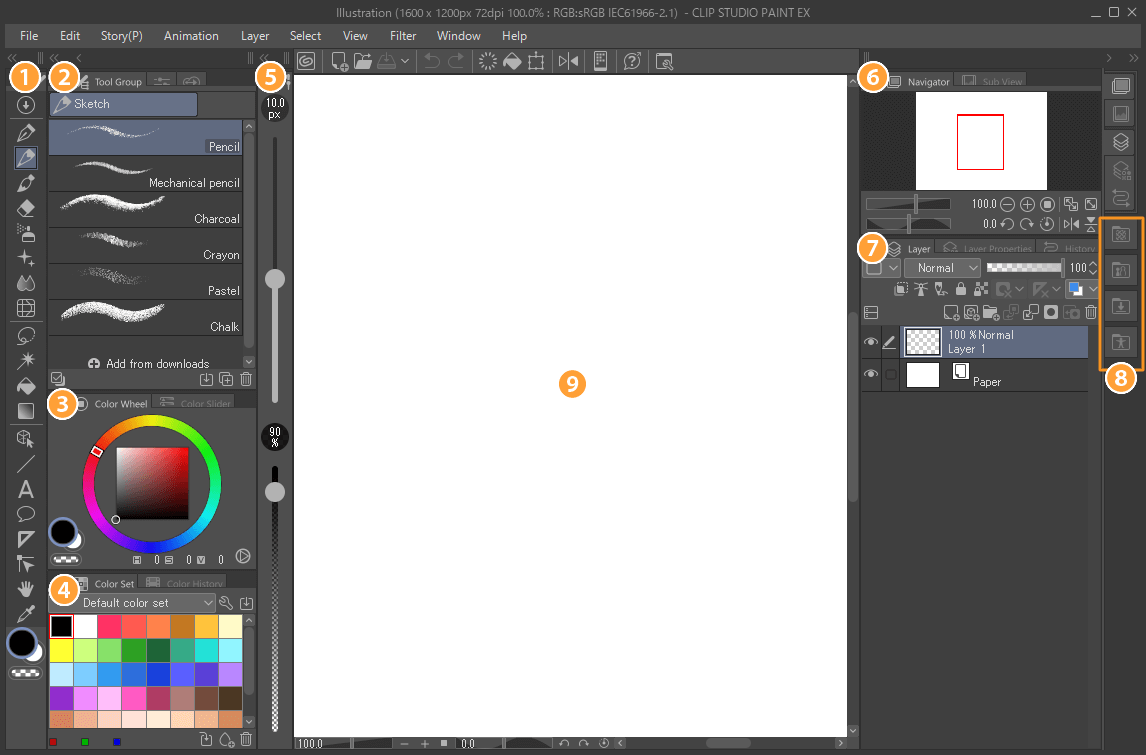
Clip Studio Paint’s interface can appear dense. Studio Mode accumulates numerous palettes, properties, sub tools, and menus.

This complexity is understandable given the functional richness, but it increases the learning time. Beginners can easily download too many brushes or alter settings without understanding their effects.

Simple Mode provides an interesting response on tablets and smartphones. It makes the software more accessible without removing the option of returning to the full environment.

The cloud facilitates movement between devices, but should not be considered a universal and perfect backup. Some materials, fonts, external references, and linked files are not fully synchronised.

For professional projects, .clip files, exports, and resources should also be backed up outside CELSYS cloud.

For PANACHES, Clip Studio Paint represents a direct reference for the Image and Moodboard modules and future drawing workflows.

Its system of customisable sub tools, materials, shortcuts, 3D references, and vector layers provides many ideas for improving the creative experience.

The separation between Simple Mode and Studio Mode is also relevant. PANACHES can provide an accessible interface initially while allowing advanced users to progressively open more complex panels.

Companion Mode illustrates another interesting idea: using a second device not merely as a display, but as a physical palette, remote control, and control surface.

The organisation of Assets is also worth studying for Character Creator libraries of styles, poses, outfits, environments, and prompts.

The main lesson nevertheless remains the need to avoid unstructured accumulation. A huge library only becomes genuinely useful when search, categories, favourites, previews, and metadata remain clear.

Clip Studio Paint therefore deserves a major place in the PANACHES directory. It is one of the best current solutions for combining drawing, manga, illustration, and 2D animation within one environment.

Points to consider

  • Three different editions: DEBUT, PRO, and EX do not provide the same set of features.

  • DEBUT is not sold separately: this edition is mainly distributed through selected offers, promotions, or programmes.

  • PRO is sufficient for illustration: EX is unnecessary when the user does not work on multipage projects or long animations.

  • EX is considerably more expensive: the price difference must be justified by comic, collaboration, or animation features.

  • Animation is limited in PRO: the timeline cannot exceed twenty-four frames.

  • EX is required for long animations: productions exceeding that limit need the higher edition.

  • Multipage projects are reserved for EX: PRO remains mainly suited to independent documents.

  • Teamwork is reserved for EX: collaboration on the pages of a shared project is not available in the same way in PRO.

  • The perpetual licence is limited to Windows and macOS: mobile versions require a compatible plan.

  • No official perpetual licence on iPad: full use depends on a subscription or time-limited code.

  • No official perpetual licence on Android: the same restrictions apply to tablets and smartphones.

  • Chromebook uses the compatible mobile version: it is not a Web application running in the browser.

  • No Linux version: Wine and unofficial solutions do not receive CELSYS support.

  • No genuine Web version: community services are available online, but the editor must be installed.

  • Understand the perpetual licence: it provides indefinite access to one specific major version, not every future release.

  • New features are not automatically included: they may require an Update Pass or upgrade.

  • The Update Pass is a subscription: it renews annually until cancelled.

  • Update Pass expiry: the software returns to the features covered by the underlying perpetual licence.

  • Check compatibility of recent files: some version 5 features may no longer be editable in an older release.

  • Keep a copy before downgrading: opening and saving a project with a different version may affect selected elements.

  • Monthly and annual plans renew automatically: the subscription must be cancelled according to the rules of the store being used.

  • Prices vary by region: taxes, currency, and the application store can change the final amount.

  • Frequent promotions: prices displayed during a campaign do not always represent the standard price.

  • Free trial subject to conditions: duration depends on the platform, plan, and new-user status.

  • Thirty free hours are limited to smartphones: this access does not provide a free licence for computers or tablets.

  • The smartphone plan is limited to smartphones: it does not automatically activate the software on Windows or macOS.

  • Choose the right number of devices: Solo, Duo, and Premium plans do not cover the same number of installations.

  • Installation and simultaneous use are different: a licence may permit several installations without allowing concurrent use.

  • Perpetual licence on two computers under conditions: both computers must belong to the same user and must not be used simultaneously.

  • Internet authentication is required: the application verifies the licence and may request authentication again after hardware changes.

  • A Clip Studio account is required for several features: licences, cloud, materials, and subscriptions are linked to it.

  • Protect the account: compromise can affect licences, purchases, materials, and synchronised data.

  • Do not share activation codes: distributing them may lead to unauthorised use or licence deactivation.

  • Check the subscription store: a plan purchased through Apple, Google, or Galaxy may need to be managed through that store.

  • Refunds may be limited: conditions vary between CELSYS and application stores.

  • Back up .clip files locally: the cloud must not be the only copy of a project.

  • Cloud backups do not cover everything: some embedded or converted materials are not synchronised.

  • Fonts are not synchronised: they must be installed separately on each device.

  • File Object references may be missing: the linked external file is not always uploaded with the project.

  • Teamwork projects follow specific rules: they do not synchronise like ordinary cloud projects.

  • Check available space: multipage files, high-resolution illustrations, and animations can occupy significant storage.

  • Ten gigabytes may become insufficient: intensive users should plan another backup or paid extension.

  • Download important resources: the availability of a material on Assets may change.

  • Organise materials from the beginning: a library containing thousands of brushes quickly becomes difficult to browse.

  • GOLD and Clippy are different: they are not purchased, earned, or used in the same way.

  • Clippy points may expire: their duration depends on account status and possible subscriptions.

  • Free materials are not free to redistribute: free does not mean public domain or open source.

  • Commercial use is allowed within an artwork: the material must be integrated into a creation and not resold separately.

  • Do not redistribute a downloaded brush: even a modified version remains subject to Assets rules.

  • Do not extract a texture for resale: the final work must add genuine creation and not simply act as a container for the material.

  • Do not use a material alone as a trademark: selected uses such as logos, symbols, or main characters may be prohibited by the licence.

  • Check external resources: models, fonts, or files from another website may follow their own licences.

  • Commercial works remain the creator’s responsibility: CELSYS does not guarantee the absence of third-party rights.

  • Review photographic references: an imported photograph may contain people, trademarks, or protected works.

  • Respect image rights: Pose Scanner and human references do not remove obligations relating to consent.

  • Server-assisted features require Internet access: Colorize, Pose Scanner, and selected online operations temporarily send data to servers.

  • Avoid confidential images in server features: use only references that can safely be processed online.

  • Clip Studio Paint does not include a complete text-to-image generator: AI features remain mainly oriented towards pose and colourisation.

  • Automatic colourisation remains approximate: it should be treated as a base or suggestion.

  • Pose Scanner may misinterpret a posture: hidden limbs, extreme angles, and loose clothing can cause errors.

  • Hand Scanner requires verification: finger positions and joints may need manual correction.

  • Do not mechanically copy 3D: mannequins can produce rigid or overly uniform characters.

  • Adapt perspective and anatomy: a 3D reference is a guide, not an artistic truth.

  • Check downloaded models: quality, proportions, and topology may vary.

  • 3D scenes can slow the software: complex environments use more CPU, memory, and GPU resources.

  • Large files consume significant memory: a large canvas with many layers may exceed a tablet’s capabilities.

  • Eight gigabytes of memory or more are recommended on computers: needs increase with resolution and layer count.

  • Test the stylus before adoption: pressure, tilt, and buttons do not behave identically across every device.

  • Configure the pressure curve: poor settings may make brushes feel imprecise.

  • Check tablet drivers: conflicts between Windows Ink and selected drivers can affect strokes.

  • Too much stabilisation can distort the drawing style: lines become slower or artificially smoothed.

  • Vector layers do not replace complete vector software: Clip Studio Paint does not provide the same workflow as Illustrator or Affinity Designer.

  • SVG does not preserve every property: some brushes and effects are rasterised or transformed.

  • PSD and PSB do not preserve everything: Clip Studio Paint-specific features may be flattened or converted.

  • Keep the original .clip file: it remains the best archive of software-specific features.

  • Check text after PSD export: fonts, orientation, and typographic properties may change.

  • CMYK is not equivalent to a complete prepress workflow: review the result with the printer and requested profiles.

  • Test a proof before a large print run: screen colours never perfectly match paper.

  • Check screentone frequency: poor configuration may cause moiré in print.

  • Respect print resolution: black-and-white manga and colour illustrations may require different settings.

  • Check bleed areas: important elements must not be placed too close to the trim.

  • Preview webtoons on mobile: a composition that is readable on a computer may appear too small on a smartphone.

  • Respect webtoon-platform limits: width, height, weight, and format vary according to the service.

  • Keep an unsplit version of the webtoon: exported files must not replace the original project.

  • PRO animation is very short: twenty-four frames represent only three seconds at eight frames per second.

  • Actual duration depends on frame rate: reducing frames per second extends duration but changes fluidity.

  • EX does not replace compositing software: effects and finishing may require another application.

  • Check audio after export: formats, synchronisation, and quality must be reviewed in the final video.

  • Test OpenToonz exports: layer structures and settings do not always transfer perfectly.

  • Use consistent layer names: animation and multipage projects quickly become difficult to manage.

  • Teamwork is not simultaneous co-editing of the same page: work is mainly distributed across different files or pages.

  • Establish team rules: naming, fonts, materials, colour profiles, and versions must be harmonised.

  • Monitor version conflicts: every collaborator must use a compatible version.

  • Companion Mode requires the same network: the connection may be affected by firewalls or Wi-Fi isolation.

  • The companion smartphone does not replace a graphics tablet: it mainly serves as a controller and remote palette.

  • Simple Mode hides selected features: switching to Studio Mode may be necessary for advanced workflows.

  • Studio Mode may feel crowded on a small display: the layout must be adapted to tablet size.

  • Save the workspace: a reset or migration may change palette positions.

  • Limit unknown Auto Actions: a downloaded action can modify many layers or settings.

  • Review community content: tutorials, brushes, and Ask answers are not all produced or verified by CELSYS.

  • Keep the application updated: updates fix compatibility, security, and stability issues.

  • Check the supported operating system: CELSYS regularly ends support for older versions of Windows, macOS, iOS, and Android.

  • An old licence does not guarantee indefinite support for an old system: the software may continue working without official support.

  • Test before updating a production workstation: a new version may modify selected tools or behaviours.

  • Archive the installer corresponding to the licence: a Ver. 5.0 perpetual licence cannot activate every future version.

  • Compare with Krita for a free and open workflow: Krita provides Linux support, open code, and no paid licence.

  • Compare with MediBang Paint for lighter use: it may be sufficient for basic manga and drawing needs.

  • Compare with Photoshop for advanced retouching: Clip Studio Paint remains less focused on photography and compositing.

  • Choose according to the core workflow: Clip Studio Paint excels when drawing, manga, or frame-by-frame animation plays a central role.