

Overview
CapCut is a cross-platform video editor designed to make editing accessible without limiting itself to the basic functions of a mobile application. Available on the Web, Windows, macOS, Android, iPhone and iPad, it can be used for both short social media videos and more structured edits involving several tracks, text, effects and audio work.
Its identity remains strongly associated with fast content creation for TikTok, YouTube Shorts, Instagram Reels and other social formats, but CapCut has gradually expanded its environment. The Desktop and Web versions now provide a genuine timeline, cutting tools, keyframes, chroma key, speed controls, background removal features and export capabilities that bring the application closer to a general-purpose video editor.
Another major direction for CapCut is automation. Voice-generated captions, transcription, translation, text-to-speech, background removal and AI-assisted generation tools reduce some repetitive operations. The goal is not only to edit a sequence manually, but also to speed up steps that would otherwise require several different applications.
This range of features does not mean that every function is identical on each platform. The Web editor, mobile application and Desktop version evolve separately, and some options remain tied to a device, region, application version or subscription. CapCut Desktop is generally the most complete environment for more demanding editing, while mobile prioritizes speed and the Web version makes it easier to work without installing software.
The business model is freemium. A significant portion of the features can still be used for free, but certain resources, AI capabilities, advanced options and cloud functions are reserved for paid plans. CapCut notably distinguishes between Standard and Pro tiers in regions where they are available, with pricing that can vary depending on the country, platform and billing channel.
Features
Video editing that goes beyond simply assembling clips
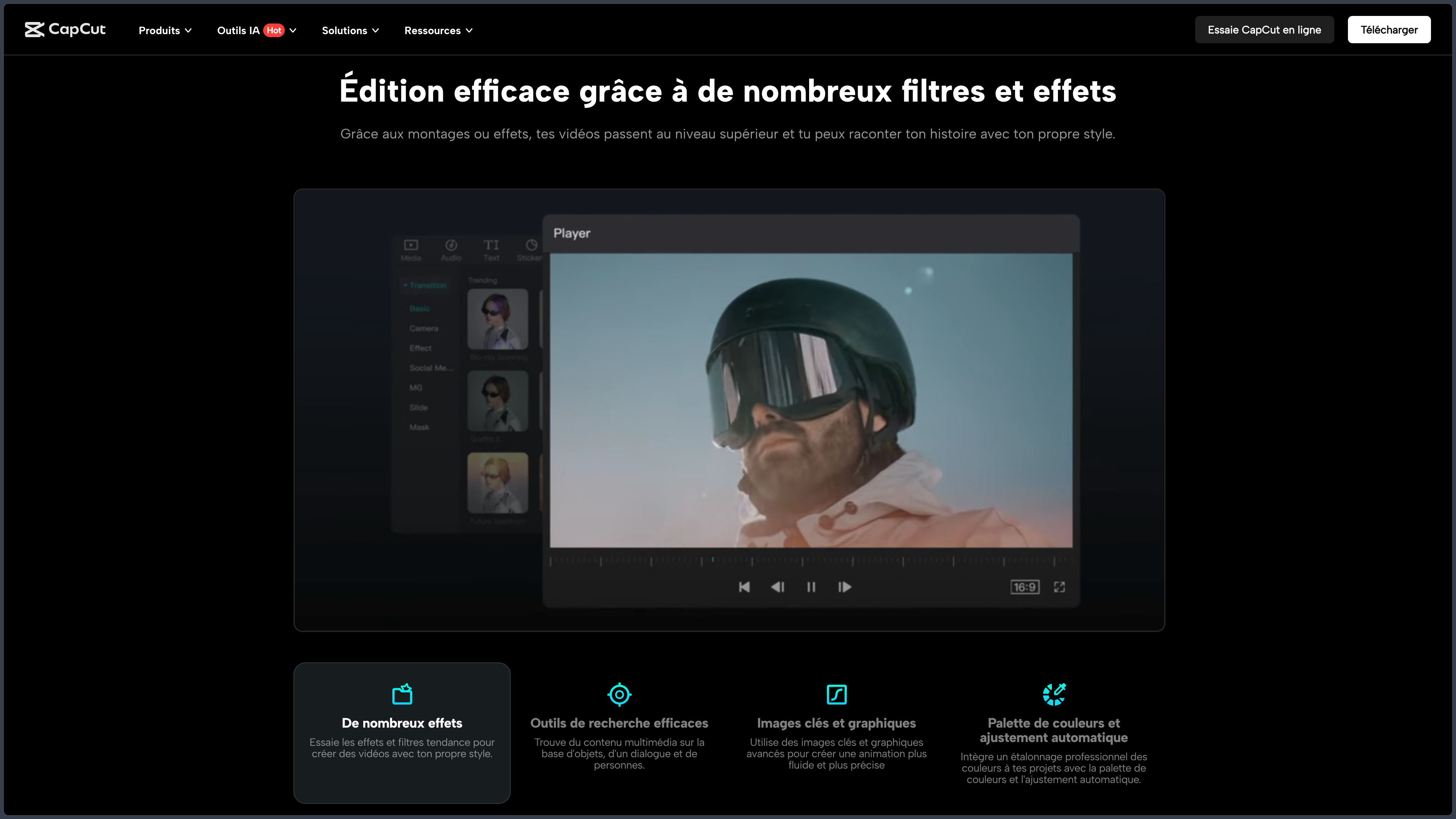
At the heart of CapCut is a video-editing timeline that allows users to import videos, images and audio files, cut them and progressively build a sequence. On Desktop in particular, the interface supports multitrack editing with overlays, transitions, text and various visual elements.
Speed controls make it possible to slow down or accelerate a sequence and create more progressive variations. Keyframes can be used to change the position, scale or other properties of an element over time, making it possible to create movement without using a separate animation application.
For background removal, CapCut provides both a traditional chroma key for footage shot against green or blue screens and automatic background removal using machine learning. The cutout can be refined when a subject has more complex edges such as hair or moving elements.
This combination places CapCut in an interesting middle ground: it remains much more immediate than software such as DaVinci Resolve or Adobe Premiere Pro, while going considerably further than an editor designed only to cut two clips and add music.
Text, subtitles and transcription at the center of the workflow
CapCut places considerable emphasis on text, directly reflecting the way social platforms are used, where videos are often watched without sound.
Automatic captions use speech recognition to analyze the audio track and generate a transcript synchronized with the timeline. The resulting text can then be corrected, divided differently and styled before export. The feature is available on Web, Desktop and mobile, although its interface varies depending on the platform.
CapCut can also convert video into text and translate subtitles into other languages. This transcription is useful both for accessibility and for quickly producing several language versions of the same content.
Automatic recognition is not perfect, however. Accents, loud music, overlapping speakers or poor audio quality can generate errors. For professional content or material intended to remain online over time, reviewing the text before export remains necessary.
Audio, voice and synchronization
Audio work is not limited to adding background music. CapCut can handle several tracks, sound effects and voice-overs, with tools designed to speed up the adjustment of social media edits.
Text-to-speech can transform written text into voice, while several AI features operate on speech and translation. CapCut notably offers video translation tools that can combine transcription, translation and generated dubbing to create a new audio track in another language.
Features such as Auto Cut can also analyze musical rhythm, speech pauses or certain cues to automatically create an initial editing structure. However, this feature is not uniformly available: CapCut indicates that in 2026 Auto Cut is available on mobile and Desktop but not in the Web editor.
Automation can therefore accelerate video preparation, but the result remains a starting point. Editing rhythm, shot selection and the relationship between image and sound remain editorial decisions that the tool cannot genuinely replace.
AI tools integrated directly into editing
Artificial intelligence has become an important part of CapCut, but it does not correspond to a single feature. It is used across several stages: transcription, voice generation or translation, background removal, automated processing and the creation of certain content.
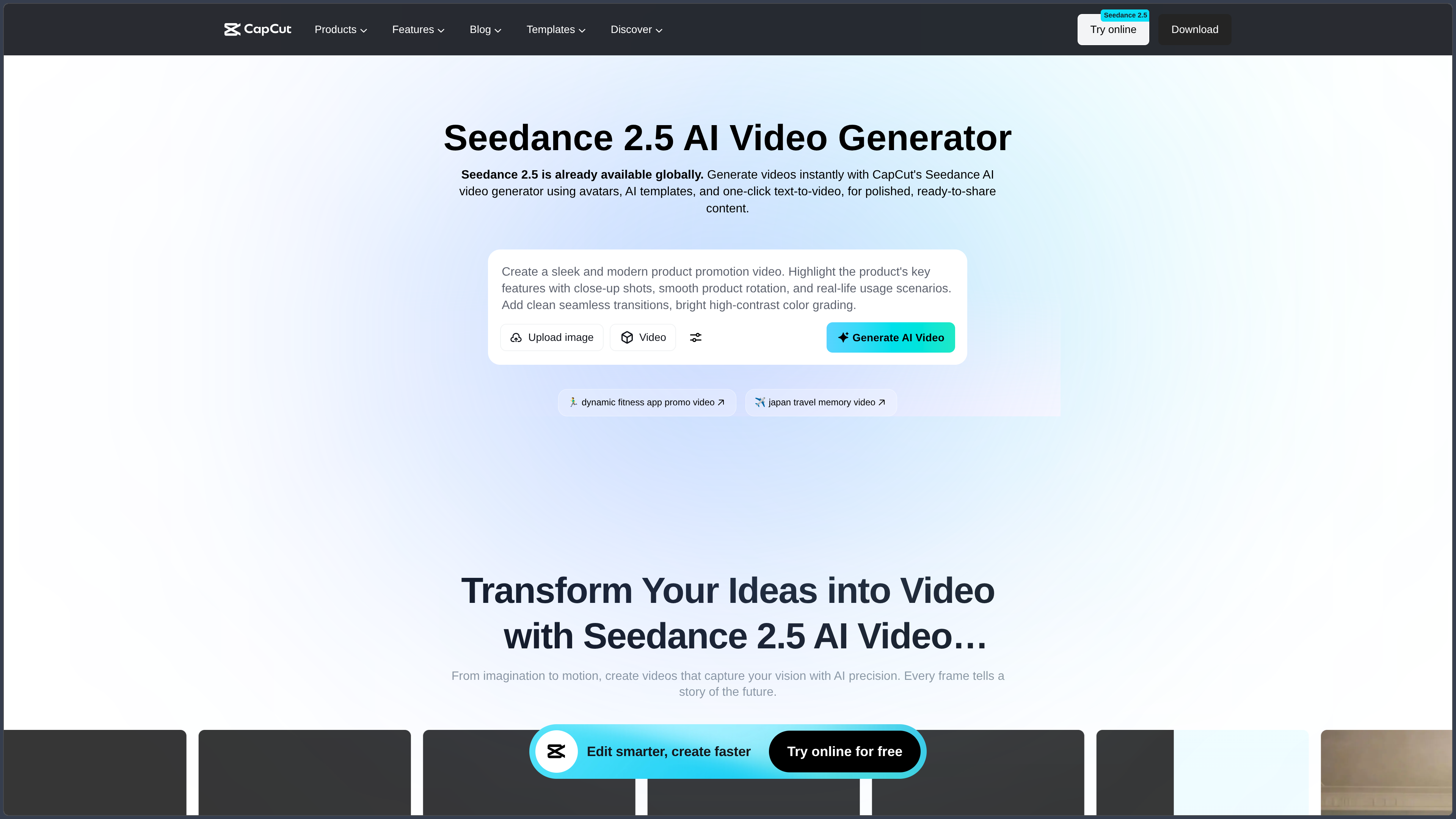
CapCut also highlights tools capable of generating images or sequences from text instructions. These features are integrated into an environment where the result can then be brought back into the timeline, combined with a voice-over, subtitles or music and developed further through traditional editing.
This integration is one of CapCut’s advantages compared with an isolated AI generator. The user does not have to treat the generated result as a finished file: it can simply become another piece of material within a conventional edit.
AI credit limits and subscription restrictions nevertheless need to be monitored. Not every AI function is necessarily free or available in exactly the same way depending on the account, region or platform.
Templates and creative resources
CapCut provides a large collection of templates, effects, transitions, fonts, stickers, music, sounds and other ready-to-use resources. This library explains part of the speed with which social media videos can be produced without building every graphic element from scratch.
Templates can be particularly useful for reusing an editing structure, rhythm, text animation or layout that has already been designed. The original media can then be replaced with the user’s own images or videos.
There is nevertheless an essential distinction between having access to a resource in CapCut and automatically having the right to use it commercially. Conditions vary depending on the material, and elements intended for commercial use need to be identified as such. Music and sound recordings may also be subject to specific conditions.
For a personal publication, this issue may appear secondary. For advertising, brand communication or production work carried out for a client, it becomes essential.
Web, Desktop and mobile: one ecosystem, not three identical copies
CapCut is available on several platforms, but they should not be considered three perfectly equivalent interfaces.
CapCut Desktop on Windows and macOS provides the workflow closest to a traditional video-editing application. It is particularly suited to heavier projects, large-screen work and high-resolution exports.
CapCut mobile prioritizes fast creation, shooting, vertical formats and touch-based editing. It is also the environment in which many trends, templates and social features historically found their audience.
CapCut Web allows users to begin an edit directly in a browser without installing software. It retains essential cutting, text, audio, effects, captioning and intelligent tools, but some Desktop or mobile capabilities may be unavailable or work differently.
These differences between platforms matter when following a tutorial: the location, name or even availability of a feature may not match the version being used.
Export up to 4K, but not in every situation
CapCut can export in 2K and 4K, but this capability depends on the platform, hardware, project and source media.
The Desktop version provides the most complete support and can reach 4K at 60 frames per second when the hardware and source files allow it. The Web version can also offer 4K under certain conditions related to the browser, hardware acceleration and project. On mobile, the available options depend heavily on the capabilities of the smartphone or tablet.
A video recorded only in 1080p does not gain genuine detail simply because it is exported inside a 4K container. Export resolution should therefore remain consistent with the sources and destination platform.
Use cases
Quickly creating Shorts, Reels and TikTok videos
This is probably CapCut’s most natural environment. A vertical video can be edited, cut, subtitled and enhanced with text or effects inside the same workspace, then exported in a format suited to social platforms.
Templates and automated tools reduce the time required to obtain an initial version, while the timeline still allows the result to be adjusted manually. CapCut can therefore work equally well for a video produced in a few minutes or for more polished social content.
Editing a longer YouTube video
CapCut is not limited to short-form content. The Desktop version can be used to assemble a YouTube video containing several sequences, a voice-over, music, inserts, titles and subtitles.
For a channel that does not require the highly advanced workflows of professional software, it can provide an interesting compromise: enough tools to build a complete edit without immediately imposing the complexity of a much heavier post-production environment.
Producing multilingual content
The combination of transcription + translation + subtitles + AI dubbing can accelerate the adaptation of content into several languages.
A tutorial, product presentation or educational video can be edited once and then adapted for another audience without rebuilding the project entirely.
The time saving can be significant, but human review remains strongly recommended: automatic translation and dubbing can alter a nuance, misinterpret a technical term or generate incorrect pronunciation.
Creating marketing or branded videos
CapCut provides enough templates, animations, text tools, visual treatments and AI features to produce promotional videos quickly.
For a company or independent professional, it can be used for social ads, product presentations, testimonials, short videos or campaign content.
The main point of attention then shifts toward the usage rights of integrated resources. Templates, music, images and other materials must be checked to ensure that they are genuinely authorized for the intended commercial use.
Preparing an edit across several devices
A creator can begin a project on mobile, continue it on a larger screen and use cloud features provided by their subscription when the workflow supports it.
This continuity is useful for footage recorded on a smartphone: reviewing clips or making an initial selection can begin quickly, before the edit is refined on Desktop.
It nevertheless depends on the account, synchronization, available storage and subscription tier being used.
Conclusion
CapCut has moved well beyond the image of a simple mobile editor designed to quickly make a TikTok video. It now forms a cross-platform editing environment capable of covering a substantial part of everyday video workflows.
Its main strength remains accessibility. Traditional editing functions are sufficiently present to build a real video, while the interface avoids some of the complexity associated with professional post-production software.
This simplicity is reinforced by functions that accelerate repetitive tasks: subtitling, transcription, background removal, translation and AI-assisted generation. In a social media workflow where several formats need to be produced regularly, this time saving can be considerable.
CapCut does not, however, systematically replace software such as DaVinci Resolve, Premiere Pro or Final Cut Pro. Projects requiring highly advanced color management, mixing, media management, effects or professional workflows will find greater control in those specialized environments.
The fragmentation between Web, Desktop and mobile is also something to understand. A feature shown in a tutorial may not be present on every device, and certain capabilities depend on the region or subscription.
The freemium model can also become difficult to read when some features or resources move between free, Standard or Pro levels. Prices and offers can vary depending on the region and platform.
Finally, creative resources deserve particular attention for commercial projects. The fact that an item is available in the library does not mean that every use is automatically permitted. CapCut notably distinguishes materials explicitly intended for commercial use.
For quickly creating social videos, editing YouTube content, automating subtitles, adapting a video into several languages or using a relatively complete editor without immediately moving into a professional suite, CapCut remains a particularly versatile solution.
Points to consider
-
CapCut is proprietary and uses a freemium model: certain features, resources and AI capabilities are reserved for paid plans.
-
Prices and subscriptions are not uniform worldwide. They can vary depending on the region, platform, taxes and billing channel.
-
The Web, Desktop and mobile versions do not provide exactly the same features. An option may be available on one platform and absent from another.
-
4K export depends on hardware, platform and source media. Desktop provides the most complete support, while Web and mobile depend more heavily on the surrounding environment.
-
Automatic captions, translations and dubbing should be reviewed when text or language accuracy matters.
-
Users retain the rights to the content they create, but sharing or collaboration functions require certain technical permissions defined by the service terms.
-
Not every resource provided by CapCut is automatically cleared for commercial use. Labels and the CapCut Materials License Agreement should be checked before professional use.
-
CapCut does not systematically replace professional post-production software: its priority remains speed, accessibility and content creation rather than maximum technical control.